Shoppable Videos
Short Videos Shoppers Can Buy From
Your shoppers already buy from reels on Instagram. Mercayo puts the same kind of short, upright video on your own store, with the products in each one a tap away from the bag.
- In every plan
- Free for 14 days


Kosha is a demo store on Mercayo. Its products, orders and customers are sample data.
In short
What It Does
Reels is a library of short, upright videos in your admin. Each reel has a title, an optional caption, a cover and up to 10 products tagged in it, in the order you choose.
Where reels show:
- A reels row, a section you add to the home page or any shopping page in the page editor: from your library in its order, or reels you pick one by one. Two sizes (regular and large), with or without the first product's picture, name and price under each card. Up to three rows on a page.
- Shop the Video on product pages: every live reel that tags a product shows on that product's page, without any work in the editor.
In the row, the card most in view plays on its own, muted, its first seconds on a loop, one card at a time on the whole page. It stops when it leaves the screen. Shoppers whose phones ask for less motion, who save data, or who are on a slow connection see the covers only.
The player opens full screen on a tap. Shoppers swipe up for the next reel (or use the arrows and keys on a computer), turn the sound on, and tap to pause. The products sit at the bottom: one as a wide card with ADD TO BAG, several as a row with ADD. A product with one option goes straight into the bag ("Added to your bag", with VIEW BAG), so the video keeps playing; a product with options opens your options sheet over the player, which never chooses for them.
Your copies for phones are made from your upload: an upright video in two sizes and two formats, so each phone gets the smallest copy it can play well, and a cover picture. Plays and adds to the bag are counted for you, and never shown to shoppers.
For your store
Why It Matters
Indian shoppers spend hours a week on short videos, and many brands already make reels for Instagram. On Instagram, though, the path from a reel to your checkout is long: a profile link, a page, a search for the product. Each step loses people.
On your own store, the same reel sits next to the product it shows, with its price and an ADD button under it. A shopper who likes how a case looks in someone's hand, or how a kurta moves, buys it from the video.
Video also answers questions a photo cannot: the size in a real hand, the shine of a finish, how a product opens. That can mean fewer "is it really like the picture?" messages and fewer returns.
And it does this without making your store slow: no video loads until a card is close to the screen, only one plays at a time, and the copies are made small for phones.
Step by step
How It Works
Upload Your Videos
Open Online Store → Reels and press UPLOAD VIDEO. Choose one or several MP4 or MOV files, up to 60 seconds and 100 MB each to start with. Upright (9:16) videos fill a phone's screen. A new reel shows Uploading with its progress, then Preparing while copies for phones are made (about a minute), then Draft. The top of the screen shows how many reels your plan allows.
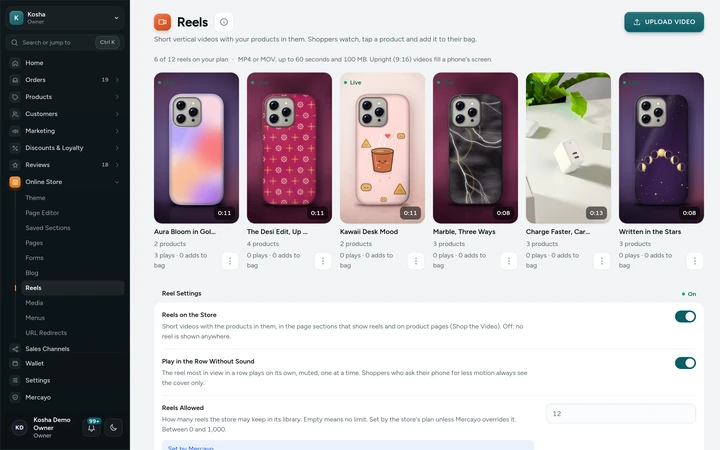
Online Store → Reels, the library with each reel's state, length and products, on Kosha, a demo store on Mercayo. Tag the Products
Open a reel. Give it a Title (up to 120 characters) and an optional Caption, both shown over the video in the player. Under Products in This Video, press ADD PRODUCTS and choose up to 10, then put them in order. A product that is not on sale is marked, and shoppers do not see it. CHANGE COVER replaces the cover taken from the video with a picture of your own.
Publish It
Switch on Show on the Store once the reel is ready and its products are tagged, and save. A live reel appears in your reels rows and in Shop the Video on the pages of the products it tags. Back in the library, each reel's menu has Move Earlier and Move Later (the order rows show) and Delete.
Add a Reels Row to a Page
In the Editor, add a Reels section to the home page or another shopping page. Give it an eyebrow, a heading and a line under it; choose your library (and how many reels, up to 20) or pick reels one by one; choose the size and whether the first product shows under each card. Preview and publish. On product pages, Shop the Video is already in the standard layout, and shows nothing on a product no live reel tags.
Shoppers Watch and Buy
In the row, the card most in view plays muted. A tap opens the player at that reel; a "Swipe up for the next one" hint shows once on touch screens. The shopper taps ADD on a product to put it in the bag, or its name to open its page. Reels play muted to start; the sound button, when the video has sound, is remembered for the visit.
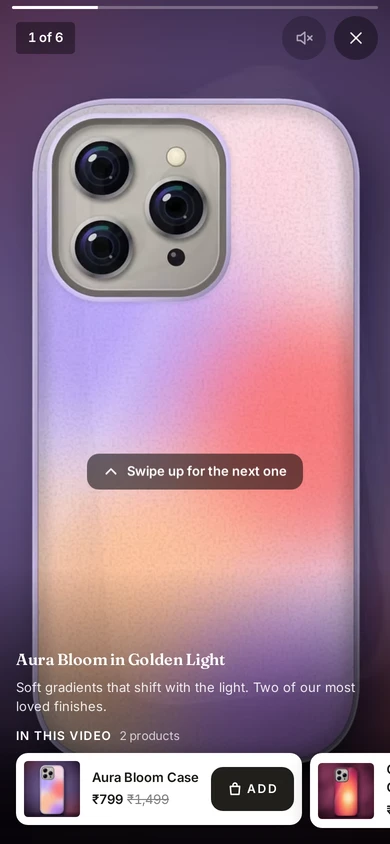
The full-screen reel player on a phone, with the tagged product and ADD TO BAG, on Kosha, a demo store on Mercayo. See What Works
Each reel in the library shows its real plays (watched for at least 2 seconds in the player) and adds to bag from it. Use them to choose which reels go first in your rows. The numbers are only for you; shoppers never see counts. A reel that is rarely played to the end, or whose products are rarely added, may need a stronger first few seconds or different products tagged.


Your shoppers
What Your Shoppers See
Shoppers see a row of upright video cards with a title, the length and, if you choose, the product under each. One plays quietly as they scroll. A tap opens a full-screen player they swipe through like the reels they know, with the products at the bottom, their prices and an ADD button. Adding a simple product takes one tap and the video keeps playing; a product with options asks for them first. On a product page, Shop the Video shows the reels that feature it. Shoppers on slow connections or who prefer less motion see still covers until they tap.
Settings
Settings You Control
All are under Online Store → Reels → settings card.
Mercayo
Mercayo's Controls
Both settings follow Mercayo's rule: Mercayo's override for your store if there is one, then your choice, then the default; a locked setting shows its reason and every change is in Mercayo's audit log. Three limits are Mercayo's: how many reels your library may hold (set by your plan; see pricing), the longest video (60 seconds to start with, up to 180) and the largest upload (100 MB, up to 200). Mercayo's team can also switch the reels sections off for a store. Your reels are shown only on your store, and shoppers never see made-up likes or view counts.
Limits today
Good to Know Before You Start
- Copies for shoppers are made at 720p at most; there is no 1080p copy for big screens.
- Reels have no likes, comments or share counts.
- A reel can tag at most 10 products, and a page can hold at most three reels rows.
- The upload itself is not kept: shoppers see the copies made for phones, so keep your original.
- Demo reels on Kosha are silent slideshows made from its product photos; your own reels keep their sound.
Questions
About Shoppable Videos
What videos work best?
Upright (9:16) videos of up to 60 seconds, showing the product in use. MP4 or MOV files straight from a phone work. Keep the first few seconds strong: in the row, a card plays only its first seconds, muted, until a shopper taps.
Will videos slow my store down?
No video address is in the page at all until a card comes near the screen, and then only the video's first details load. Only one card plays on the whole page. Phones get a smaller copy, slow connections and data savers get covers, and the page itself stays the same for every shopper, ready in the page cache.
Can I use the reels I made for Instagram?
Yes, if you have the video file. Upload the file you exported or saved from your phone; Mercayo makes its own copies for your store. Reels are not pulled from Instagram. Videos up to 60 seconds and 100 MB are accepted to start with, so most phone exports work as they are.
How many reels can I have?
The number your library may hold depends on your plan, and the Reels screen shows under its title how many of them you have used. See pricing. Uploading more than your plan allows is refused with a plain message; delete a reel you no longer use, or choose a bigger plan.
Does a reel show on the product page by itself?
Yes. Every live reel that tags a product shows in Shop the Video on that product's page. A product no reel tags shows nothing there. It appears in the Shop the Video section, which is part of the standard product page layout, and you can move or hide it in the Editor.
Are the play numbers real?
Yes. A play is counted when a reel has been watched for 2 seconds in the player, and an add when a shopper adds a product from a reel. Nothing is estimated, and shoppers never see the numbers. They help you decide which reels to put first in your rows.
Related
Related Features
- Home Page SectionsHero sliders, product rows, category tiles, stories, real reviews, reels and sign-up boxes, all drawn from your theme so the page always fits together.
- Page EditorArrange the sections of every page in a visual editor with a live preview, private drafts, share links and 30 published versions to go back to.
- Product PagesPhotos that zoom, options that never guess, delivery dates by PIN code, a buy bar that follows and rows of related products, on every product.
- Page SpeedPages are kept ready and refreshed the moment you change something, photos are sized for each screen at full quality, and nothing on the page jumps.
- Bag and Bag DrawerA bag drawer and bag page with a free-delivery bar, the order note, discount codes, bundle progress, add-ons, a free gift picker and recently viewed products.
More in Online Store: Product Pages · Product Stories and Details · Collections and Filters · Store Search · Shop by Fit · Wishlist · Customer Accounts · After the Order · Content Pages and Blog · Personalisation · Languages and Currencies · Installable Store · Page Speed · Search Engines · URL Redirects · Opening-Soon Page · Custom Domains
Try It on Your Own Store
Every feature is in every plan, free for 14 days.