Contact Inbox
A Contact Form That Lands in Your Admin, Not in a Lost Inbox
A shopper with a question should reach you in one step, and their question should never sit in somebody's personal mailbox. Mercayo's contact form puts every message in your admin's Inbox, where your team reads it, answers it and marks it done.
- In every plan
- Free for 14 days


Kosha is a demo store on Mercayo. Its products, orders and customers are sample data.
In short
What It Does
Every Mercayo store has a contact form shoppers can use without signing in, and an Inbox in the admin where the messages arrive.
The form is a section of the page editor, so it sits on your Contact page and can go on any other page too. It asks for a name, an email address, a phone number and an order number (both optional, and you can hide either), an optional "What is it about?" choice with up to 8 topics you write, and the message itself, up to 4,000 characters. Beside it, the form can show the ways to reach you that are already in your store details: your email, phone, hours and city. You never type them twice.
The Inbox (Customers → Inbox) lists messages newest first, with tabs:
| Tab | What It Holds |
|---|---|
| To Handle | New and read messages nobody has finished with |
| New | Messages nobody has opened yet |
| Done | Messages your team has handled |
| Spam | Messages someone moved to spam |
| All | Everything except spam |
Each row shows who wrote, the topic and order number if given, the start of the message, its status and when it arrived. Open one and you see the whole message, the email and phone (tap to write or call), the order number, the topic, the page it was sent from, and three buttons: REPLY BY EMAIL, MARK DONE and SPAM. Opening a new message marks it read.
With Email me each message on, every message is also emailed to the store owner and to the extra addresses you chose for order alerts, with an OPEN INBOX button. The form never sends anything to the address a visitor types: it cannot be used to send email to strangers in your store's name.
For your store
Why It Matters
Many small stores in India put a phone number or a WhatsApp link on the site and hope for the best. Questions then arrive on someone's personal phone, mixed with family chats, and nobody else on the team can see them. When that person is busy, travelling or away for a festival, the shopper waits.
A form that lands in the admin changes that:
- One place for the whole team. Anyone who can see customers can see the Inbox, and the tabs show what is still open.
- Questions arrive with context. A topic and an order number turn "where is my parcel?" into something you can answer in a minute.
- Nothing is lost. A message stays in the Inbox until someone marks it done, even if the email went to spam.
- A real address for shoppers who would rather write than call, and for questions before they buy: which size, which variant, whether you deliver to their town.
Automated spam is filtered out before it reaches you, so the Inbox stays worth reading.
Step by step
How It Works
Your Contact Page Is Already There
Every new store gets a Contact page, published, with the contact form on it, next to an FAQ and an About page. Open it from Online Store → Pages to change its heading, the text above the form, or to add more sections. To put the form on another page (a size guide, a wholesale page), add the Contact Form section to that page in the page editor.
Choose What the Form Asks
In the page editor, the Contact Form section has a heading, a short text, and switches for the phone and order number fields and for your contact details beside the form. Add up to 8 topics for "What is it about?" (for example "An order", "Sizes", "Wholesale", "Something else"), or none to leave the question out. Name, email and message are always asked.
Decide Who Is Emailed
In Settings → More Settings → Contact Form, the form is on to start with, and so is Email me each message. The email goes to the store owner's sign-in address and to the extra addresses in Settings → Notifications → Order Alerts ("Also send to"), so a shared support address can get them too. Turn the email off if your team works from the Inbox alone.
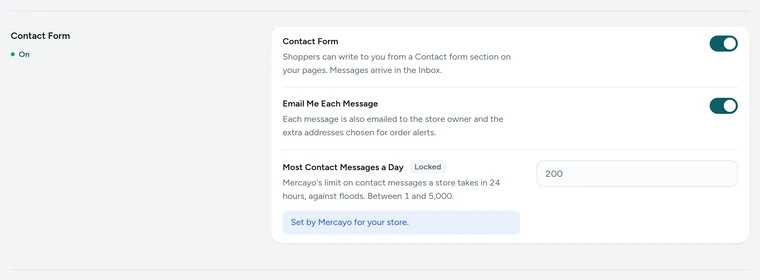
The Contact Form card in Settings → More Settings, on Kosha, a demo store on Mercayo. A Shopper Sends a Message
The shopper fills in the form and presses SEND MESSAGE. They see "Message Sent" and the email address you will reply to. Behind the scenes, messages that are plainly automated (a hidden field filled in, or a form sent faster than a person can type) are quietly dropped, and a burst of messages from one place is refused with a polite "please wait a little".
Read It in the Inbox
Open Customers → Inbox (on a phone, under More). The To Handle tab shows what is open, and the header says how many are new. Search by name, email or any words in the message. Tap a row to read the whole message; it is marked read for everyone, so two people do not pick up the same question without knowing.
Reply, Then Mark It Done
Press REPLY BY EMAIL: your own email app opens with the shopper's address and the subject "Your message to" your store's name. Or tap the phone number to call. When the question is answered, press MARK DONE and the message moves to the Done tab. The row menu also has MARK UNREAD, to leave a message for later, and SPAM for anything that slipped through.

Your shoppers
What Your Shoppers See
Shoppers find your Contact page in your footer or menus, in your store's colours and readable on a phone. The form asks only for what it needs: name, email and the message, with phone, order number and a topic when you ask for them. A line under the form says "We use your details only to answer this message", and beside it are the other ways to reach you from your store details.
After SEND MESSAGE, they see "Message Sent" and "We will reply to" the address they typed, so a typing mistake is easy to spot. If something is missing, the form says what in one sentence. They get no automatic email from the form, so nobody can use your store to send messages to someone else's address.

Settings
Settings You Control
Each one is in your admin. A new store starts with the value shown.
Mercayo
Mercayo's Controls
The two switches follow Mercayo's one rule for settings: Mercayo's override for your store if there is one, then your own choice, then the default. Mercayo's team can switch your contact form or its emails on or off for one store, always with a written reason your admin shows beside the locked setting, and every such change is kept in Mercayo's audit log.
One limit is Mercayo's alone: the most contact messages a store takes in 24 hours, 200 to start with (it can be set from 1 to 5,000), so a flood of messages can never bury your Inbox or your email. Mercayo never answers your shoppers for you and never emails the people who write to you. When Mercayo support opens your admin to help, the visit is recorded (see Support Access).
Limits today
Good to Know Before You Start
- The form has fixed fields (name, email, phone, order number, topic, message); there is no builder for forms of your own, and no file or photo upload.
- Replies are written in your own email app: the Inbox does not send emails or keep a thread of your replies.
- Messages are not linked to a customer's record or to the order automatically; the order number is shown as the shopper typed it.
- The Inbox is for the contact form only: WhatsApp chats, calls and emails sent straight to your address do not appear in it.
- New messages are counted in the Inbox's header; the admin's bell does not list them.
Questions
About Contact Inbox
Where do contact messages go?
Into Customers → Inbox in your admin, every one of them, whether or not you also have them emailed. With Email me each message on, the store owner and the extra addresses from your order alert settings get an email for each one too, with the message in full and an OPEN INBOX button.
Who on my team can see the Inbox?
Anyone whose role lets them see customers can read messages. Marking a message read, done, unread or spam needs the right to edit customers; a person who can only read sees a note saying so. You set these rights in the staff roles (see Staff and Roles).
How does the form keep out spam?
In layers. A field people never see, which automated scripts fill in, and a form sent in under 3 seconds are both quietly dropped. One network address can send 5 messages in 10 minutes, and one sender 5 in an hour. Your store takes at most 200 messages in a day. Anything that still slips through, you move to Spam in one tap.
Does the shopper get a copy of their message?
No. The form never emails the address a visitor types, so it cannot be used to send messages to strangers in your store's name. The shopper sees a thank-you with the address you will reply to, and your reply, from your own email, is the first email they get.
Can I change the questions on the form?
You can hide the phone and order number fields, write up to 8 topics for "What is it about?", change the heading and text, and show or hide your contact details beside it. Name, email and message are always asked, and you cannot add fields of your own.
Do the emails to my team cost anything?
Each email to your team counts as one message email, like an order alert: it comes from your plan's included messages first, then from your notification credits. The message always reaches the Inbox, whatever your balance.
Can I turn the contact form off?
Yes. Switch off Contact Form in Settings → More Settings. The form disappears from every page that has it, and the store takes no messages. Messages already in the Inbox stay there.
Related
Related Features
- Content Pages and BlogWrite your About page, FAQ, contact page, guides and blog posts in the admin, from ready sections that match your store's look.
- CustomersEvery customer with their orders, spending and returned parcels, guests included, ready-made segments like VIP and RTO-Prone, tags, notes, credit and export.
- Order AlertsAn email for each new order to the owner and up to 5 more addresses, an optional SMS, and the admin's bell listing new orders, failed deliveries and exchanges.
- Notification CreditsYour plan's messages first, then a prepaid rupee balance: what each message costs, a full statement, low-balance alerts and a GST invoice per top-up.
- Staff and RolesInvite people by email or phone, give them roles with exactly the rights they need, switch access off at once, and hand over ownership safely.
More in Admin on Your Phone: Orders · Products · Inventory · Import and Export · Collections and Categories · Order Alerts · Customers · Admin on Your Phone · Search and Command Palette · Setup Guide and Launch · Sample Data · Notification Credits · Plans and Billing · Draft Orders · Catalogue Tools · Media Library · Locations, Barcodes and Stock Counts · Installable Admin
Try It on Your Own Store
Every feature is in every plan, free for 14 days.