Personalisation
Names, Photos and Choices on Any Product, Priced With the Item
A name on a mug, initials on a case, a photo on a cushion, a message in a gift box: Mercayo lets any product ask for the details that make it theirs, and prices each one with the item.
- In every plan
- Free for 14 days

Kosha is a demo store on Mercayo. Its products, orders and customers are sample data.
In short
What It Does
Personalisation adds fields to a product page that the shopper fills in before ADD TO BAG. You choose the fields; nothing in them is tied to one kind of product, so the labels you give them say what they are: Initials, Name on the Mug, Your Photo, Card Message.
Six kinds of field:
- Text (one line, up to 200 characters) and Longer Text (up to 500), with the fewest and most characters, the characters allowed (anything, letters only, letters and numbers, numbers only; letters include Hindi's Devanagari) and an option to make it capitals.
- Choice: a list, each choice with its own price ("Gold foil, 149").
- Tick Box: a yes, such as a gift box.
- Date: a day inside a window you set, counted from today.
- Photo Upload: the shopper picks a JPEG, PNG or WebP, crops it to the shape you chose, and it must be big enough for a sharp print.
Any field can be required or optional, can add to the price when used, and can show only when an earlier choice or tick box has a value: a card message appears only after the gift box is ticked.
A text field can also be shown on the product's photo as the shopper types, in the lettering (serif, sans serif, script or typewriter) and colour (gold, silver, black or white) you pick, as a guide to placement.
Fields can be set on a product or on a collection. A product with fields of its own uses those; a product without any uses the fields of the collections it is in, so one set of fields covers a whole range.
Personalisation is included in every plan.
For your store
Why It Matters
Personalised gifts are a large part of what Indian shoppers buy for birthdays, weddings, Rakhi and Diwali, and many small brands sell them today by asking for the name in a WhatsApp chat after the order. That works until the order count grows: names get lost, spellings change between messages, and nobody knows which "Riya" went with which parcel.
With the details taken on the product page, each order carries its own: typed by the shopper, checked before it is accepted, and printed on the packing slip your team works from.
The price is right too. The extra you charge for engraving or a gift box is part of the item's price, so GST is charged on it at the item's rate, and the invoice shows it. An offer like "any 2 for ₹999" applies to the products, never making the engraving free.
And a photo upload keeps the shopper's original at full quality, so what you print is as sharp as the photo they chose.
Step by step
How It Works
Add Fields to a Product or a Collection
Open a product in Products (or a collection in Collections) and find the Personalisation card. Press Add a Field and choose its kind: Text, Longer Text, Choice, Tick Box, Date or Photo Upload. Give it a Label shoppers see, optional Help Text under it and a Placeholder. Fields can be moved up and down; their order is the order on the page. A product can ask for up to 10 fields to start with.
Set the Rules for Each Field
Mark a field Required if the item cannot be made without it. For text: Allowed Characters, Fewest Characters, Most Characters and In capitals. For a choice: the Choices with what each adds, or Paste a List with one choice per line and a price after a comma. For a date: the Earliest Day and Latest Day, in days from today. For a photo: the Crop Shape (any shape, square, 4:5, 3:4, 4:3, 16:9 or 9:16) and the Smallest Photo in pixels on the shorter side (600 to start with).
Price It and Show It
Adds to the Price is charged for each item when the field is used. GST is charged with the item, and offers never discount the extra. For a text field, switch on Show on the product's photo, place it Across and Down, and choose the Lettering and Colour. Show Only When makes a field wait for a choice or a tick box above it. Press Save: the product page shows the new fields within a minute.
The Shopper Personalises
On the product page, a Personalise group sits above ADD TO BAG, with each field's label, whether it is required, its price (+₹149) and a character count. A field that must wait shows when its choice is made. Typed text appears on a preview of the product's photo, where you placed it, with a note that it is a guide to placement. A photo field opens Crop Your Photo: drag to place it, zoom with the slider, then Use This Photo. The total the details add shows before ADD TO BAG.
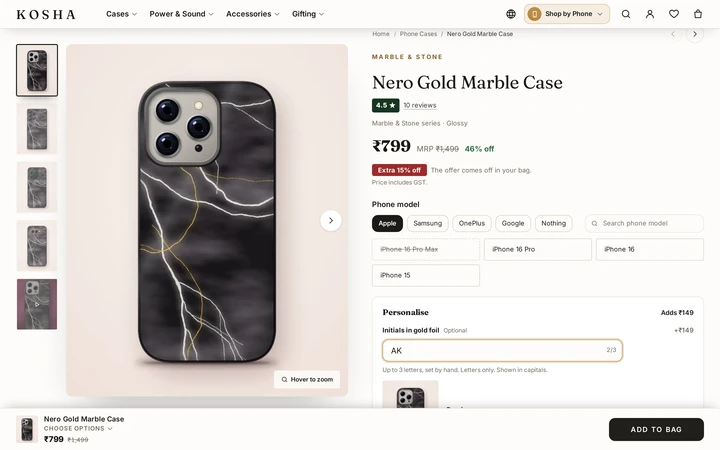
Initials typed by a shopper and drawn in gold on the product's photo as a guide, on Kosha, a demo store on Mercayo. Each Personalised Item Is Its Own Line
"Mom" and "Dad" on the same mug are two lines in the bag, each with its details listed under it; the same details twice simply add up. Every value is checked again on Mercayo's server before it is accepted, so a missing required field or a too-small photo cannot slip through. If you change a product's fields after a shopper added it (a choice removed, a field made required), the bag says the options have changed and asks them to add the item again.
The Details Reach Your Team
The order keeps the details exactly as the shopper gave them. They show in your admin's order, on the packing slip, in the order email and your order alert, on the shopper's order page and under the item's name on the GST invoice. A photo shows as a thumbnail on the order, with Download Original for the file at full quality and the crop the shopper chose.

Your shoppers
What Your Shoppers See
Shoppers see a Personalise group on the product page with clear labels, a count of characters, the price each detail adds and a line saying which are required. What they type appears on a preview of the product's photo as they type it. A photo is cropped right there, with a message if it is too small to print sharply. If they press ADD TO BAG with a required detail missing, the page points to it. In the bag and at checkout, each item lists its details, and the order email and order page show them again, so the shopper can check the spelling before it is made.
Settings
Settings You Control
Each one is in your admin. A new store starts with the value shown.
Mercayo
Mercayo's Controls
The four settings follow Mercayo's rule: Mercayo's override for your store if there is one, then your choice, then the default. Mercayo's team can switch personalisation or photo uploads off or on for a store, or lower the photo size and the number of fields, always with a reason your admin shows beside the locked setting and a record in Mercayo's audit log. Shoppers' photos are kept in private storage, not on any public address: only the bag that uploaded them and your staff who may see orders can open them. Photos that never became part of an order are removed after 30 days.
Limits today
Good to Know Before You Start
- The only preview is the typed text drawn on the product's photo; there is no designer with mockups, layers or print-ready files.
- BUY AGAIN and a product card's ADD do not repeat a personalised item: the shopper adds it from its page with their details.
- An exchange of a personalised item offers other variants but does not carry the details over; your team arranges it with the shopper.
- A bag can hold at most 30 uploaded photos.
Questions
About Personalisation
Does personalisation cost extra on Mercayo?
No. It is included in every plan. What you charge shoppers for each detail is yours to set, field by field or choice by choice. There is no per-order fee for personalised items either: Mercayo charges no fee on any order.
How is GST worked out on the extra price?
The extra becomes part of the item's price, so GST is charged on it at the item's own rate (the same HSN code and slab), and the invoice shows the item at that price with the details listed under its name.
Do discounts apply to the personalisation price?
No. Offers are worked out on the product's own price. A percentage off never takes from the engraving, and a fixed-price bundle never makes it free. The MRP saving the shopper sees stays the item's real saving. The bag and checkout show the details' price as part of the item, so the shopper always sees what they pay for.
Are uploaded photos compressed?
Never. The shopper's original file is uploaded unchanged and kept privately with the order. The crop they chose is saved as a rectangle on that photo, so you can print exactly what they saw, at full quality. A photo too small for a sharp print is refused with a message giving the smallest size you set.
Can one set of fields cover many products?
Yes. Put the fields on a collection, and every product in it that has no fields of its own uses them. A product's own fields replace the collection's entirely, so a special item can ask for something different. The product editor says when a product is using a collection's fields, and which collection they come from.
Can shoppers type in Hindi?
Yes, when a text field allows anything or letters: letters include Devanagari as well as Latin letters with accents. Choose Numbers only for a field that should take digits alone. What they type is kept as they gave it (in capitals, if you chose that), and shows the same way on the order, the slip and the invoice.
Does it slow down the product page?
No. The fields are part of the page that is kept ready for everyone. What a shopper types or uploads stays in their browser until ADD TO BAG, and the photo cropper loads only when they choose a photo. A product without fields carries nothing extra at all.
Related
Related Features
- Product PagesPhotos that zoom, options that never guess, delivery dates by PIN code, a buy bar that follows and rows of related products, on every product.
- ProductsA fast product list with a health strip, saved views and bulk changes you can undo, and an editor for options, variants, photos, descriptions and SEO.
- OrdersStatus tabs, saved views your team shares, search by number, phone or name, a money summary, bulk actions, and an order page with one clear next step.
- Packing SlipsPrint a packing slip for one order or up to 100 at once: the items with SKUs, the order note, gift messages and the cash to collect, never prices.
- GST InvoicesEvery order gets the right GST document, a tax invoice or a bill of supply, numbered without gaps per financial year, as a PDF for you and your shopper.
- Gift OptionsShoppers can mark an order as a gift, add a message for the packing slip, keep the cash amount off it, and ask for gift wrap at your price.
More in Online Store: Product Pages · Product Stories and Details · Collections and Filters · Store Search · Shop by Fit · Wishlist · Customer Accounts · After the Order · Content Pages and Blog · Shoppable Videos · Languages and Currencies · Installable Store · Page Speed · Search Engines · URL Redirects · Opening-Soon Page · Custom Domains
Try It on Your Own Store
Every feature is in every plan, free for 14 days.
