Store Search
Search That Understands How Shoppers Type
Shoppers who search already know what they want, and they type it fast, on a phone, often misspelt. Mercayo's search shows results as they type, forgives the mistakes and learns your customers' words.
- In every plan
- Free for 14 days

Kosha is a demo store on Mercayo. Its products, orders and customers are sample data.
In short
What It Does
Search is part of every Mercayo store. It has two parts.
The search box opens from the header and suggests as the shopper types: products with their picture and price, matching collections, your content pages (a size guide, the FAQ) and popular searches other shoppers made. Before anything is typed it shows the shopper's recent searches (kept in their own browser) and popular searches. Typing "track" or "account" offers to go straight to that store page.
The search page lists every match with the same filters, counts, sorts and cards as your collections, plus a Best match order.
Behind it:
- Typos forgiven: one mistake from 4 letters, two from 8, so "paisly" finds paisley. The last word matches as it is typed.
- It searches what matters: the product's name first, then its tagline, type, brand and tags, categories and collections, option values (a model name or a colour), SKUs, and the description last.
- Did you mean: when a search finds little or nothing, the page suggests the closest word, shows popular products, and never dead-ends.
- Your words: groups of words that mean the same ("cover, case, shell"), and words to ignore ("the", "for").
- Your order: for a search you choose, pin your best products first in your order, or hide some.
- Search redirects: a search such as "returns" opens your returns policy, "sale" a collection, "size guide" a page, instead of a results list.
Search updates by itself whenever you change a product, its price or stock.
For your store
Why It Matters
A shopper who searches is telling you exactly what they want to buy. If "jhumka" or "bak cover" shows nothing, they assume you do not sell it and leave. Shoppers in India mix English, Hindi words in Roman letters and brand names, and type quickly on phone keyboards; a search that needs exact spelling loses them.
Synonyms let you teach the search the words your own customers use. Pins let you put your best-selling product first for your busiest search, before a festive sale. Redirects turn questions into answers: someone who types "refund" or "track my order" lands on the page that helps them, not a grid of products.
And you can see what shoppers will see: the admin has a Try a Search box that shows the results, the pins and the redirect exactly as the store would.
Step by step
How It Works
Check How Search Is Doing
Open Settings → Search. The How Search Is Doing card says whether your store is on the fast search (typo-tolerant, instant) or the basic search, how many products can be found, and how many changes are on their way. Search updates on its own; REBUILD SEARCH is there if something ever looks missing, and search keeps working while it runs.
Try a Search as a Shopper
In Try a Search, type what a shopper would ("leather wallet") and press TRY IT. You see the results in order, which are pinned, which are sold out, the "Did you mean" a shopper would be asked, and whether the search opens a page instead.
Teach It Your Words
In Words That Mean the Same, press ADD GROUP and type words separated by commas, such as "cover, case, shell". A shopper typing one finds products with the others. In Words to Ignore, list common words that should not crowd out the ones that matter.
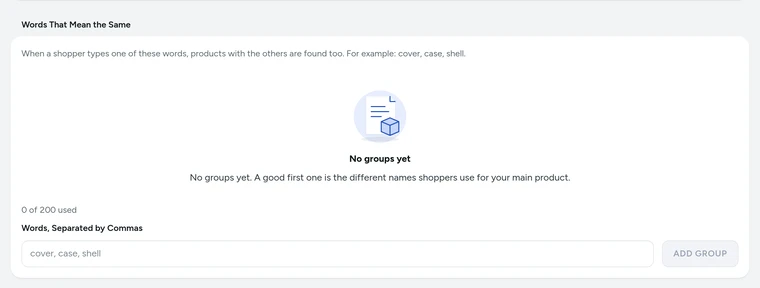
Words That Mean the Same on Settings → Search, on Kosha, a demo store on Mercayo. Pin or Hide Products for a Search
In Pinned and Hidden Products, press ADD RULE. Type the search, choose These exact words or Anything starting with these words, then CHOOSE PRODUCTS to Show first, in this order and any to Never show. Press SAVE RULE.
Send a Search Straight to a Page
In Search Redirects, press ADD REDIRECT. Type the search, choose Only this exact search or Any search that has these words (so "return policy" works too), and choose what it opens: a policy, a store page such as order tracking, a collection, a category, a product, a content page or a web address. If that page is later hidden or removed, the redirect pauses itself and shoppers see results instead of a missing page.
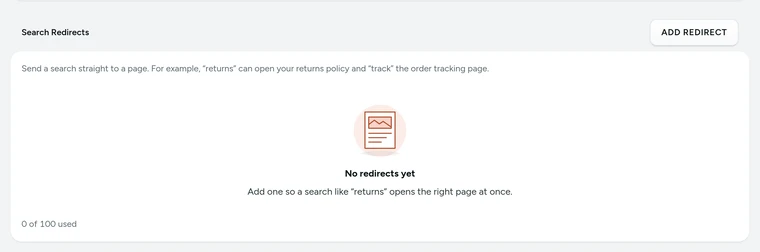
Search Redirects on Settings → Search, on Kosha, a demo store on Mercayo. Choose What the Box Suggests
In Search Box Suggestions, tick and order the kinds of suggestion: products, collections, pages and popular searches. In Settings → Online Store → Search, set how many products the box suggests (8 to start with) and how many results a search page shows (24). The way search opens from the header (a full overlay, a dropdown, a side drawer or its own page) is chosen in Online Store → Look.


Your shoppers
What Your Shoppers See
Shoppers tap the search icon and start typing. Within the first letters they see products with pictures and prices, matching collections and pages, and can tap one or press SEARCH for the full results. A misspelt word still finds the product, and when nothing matches they get "Did you mean" and popular products instead of an empty page. Their recent searches wait for them next time, on their own device. Typing a question like "returns" can take them straight to the page that answers it.

Settings
Settings You Control
Each one is in your admin. A new store starts with the value shown.
Mercayo
Mercayo's Controls
Search settings follow Mercayo's rule: Mercayo's override for your store if there is one, then your choice, then the default; a locked setting shows its reason, and each change is in Mercayo's audit log. Mercayo's team can set a store to the basic search (for example while its fast search is rebuilt), switch search off, or fix the suggestions, and Mercayo sets how many synonym groups, pinned searches and redirects a store may keep with its plan. Each store's search is kept entirely apart from every other store's: a shopper can only ever find your own products.
Limits today
Good to Know Before You Start
- Search finds products by their words in your store's main language and in their translations, so a shopper can search in Hindi on a store that offers it.
- When the fast search is not answering, the basic search takes over: products are still found by their words, but typos are not forgiven and filter counts are not shown.
- Pins and redirects match a search's words exactly or by their start (pins) or as whole words (redirects); there is no matching by meaning.
- What shoppers searched for is in the Top Searches and Searches with No Results reports; there is no live view of searches as they happen.
Questions
About Store Search
Do I need to set anything up for search to work?
No. Search is on for every store and finds products as soon as they are published. Synonyms, pins and redirects are there to make it better for your own customers.
How quickly does a new product show in search?
Within moments. Every change to a product, its price or its stock is sent to search on its own; you never need to rebuild it after an edit.
What is a search redirect for?
For searches that are really questions or names of a page: "returns", "shipping", "track", "sale", "size guide". Instead of a list of products, the shopper lands on the page that answers them. Choose "Any search that has these words" so "return policy" or "returns India" work too.
Can a product be both pinned and hidden?
No. For one search a product is either shown first or never shown. Products you do not choose keep their normal order.
What happens if search has a problem?
Your store falls back to the basic built-in search at once, so shoppers can still find products. The How Search Is Doing card shows which one is answering.
Are recent searches stored by the store?
No. A shopper's recent searches stay in their own browser and are never sent anywhere. Popular searches come from what many shoppers searched in your store that found something.
Related
Related Features
- Collections and FiltersEvery list of products gets filters with exact counts, quick chips, sorts, badges and LOAD MORE, the same on collections, categories, sale and search.
- URL RedirectsSend old addresses to new ones by hand or from a Shopify-style CSV, and get automatic redirects whenever a product or page changes its address.
- Content Pages and BlogWrite your About page, FAQ, contact page, guides and blog posts in the admin, from ready sections that match your store's look.
- Store LooksPick a layout for the header, menus, search, product cards, lists, footer, product page, bag, checkout and order page, and mix them freely.
- ProductsA fast product list with a health strip, saved views and bulk changes you can undo, and an editor for options, variants, photos, descriptions and SEO.
More in Online Store: Product Pages · Product Stories and Details · Collections and Filters · Shop by Fit · Wishlist · Customer Accounts · After the Order · Content Pages and Blog · Personalisation · Shoppable Videos · Languages and Currencies · Installable Store · Page Speed · Search Engines · URL Redirects · Opening-Soon Page · Custom Domains
Try It on Your Own Store
Every feature is in every plan, free for 14 days.
