Product Stories and Details
Tell the Story Behind Every Product
A good product page answers the questions a shopper would ask in a shop. Product stories let you show how it is made, how it feels and why it is worth it, in pictures and short words, under every product.
- In every plan
- Free for 14 days


Kosha is a demo store on Mercayo. Its products, orders and customers are sample data.
In short
What It Does
Beyond its description, each product can carry its own words, written in the product editor's Product Page Details card. Each part shows on the product page only when you fill it in:
- Why You'll Love It: short highlights, up to 8 lines. In the description card they become small badges, two by two, each with an icon picked from its own words (a leaf for "natural", a shield for "protects", a gift for "gift-ready"). Nothing is printed that you did not write.
- Specifications: a name and a value each, like "Material: Polycarbonate", up to 30.
- What's in the Box: one item a line, up to 12.
- Materials and Care: how to look after it, up to 600 characters.
- Product Stories: up to 6 picture-and-text sections under the product. Each has an optional small heading, a heading, text, and a picture you choose from this product's own photos.
- Pull quotes: any story can carry a line shown large after it, up to 280 characters, with who said it if you like (a customer, your designer, a press mention).
The page lays them out for you. Stories with a picture sit picture beside words on tablets and computers, alternating sides as they go down, and stack neatly on phones. Two stories without a picture next to each other share a row. Pull quotes use your theme's display font with a line in your accent colour.
The description itself sits in the description card, folded after 280 characters with READ MORE, so a long description never pushes the rest of the page away.
For your store
Why It Matters
Shoppers buying online cannot touch the fabric, weigh the metal or turn the case in their hands. Specifications tell them the facts; a story tells them why it matters. Both help them buy with confidence and help you avoid the "not as expected" return.
Writing it should not need a designer. You type a heading, a few lines and pick a photo you already have; Mercayo lays it out so it looks considered on a phone and on a computer, in the same style as the rest of your store.
It keeps the page tidy too. Specifications, what's in the box and care fold into panels, so a shopper who wants the details finds them and one who has already decided is not slowed down. And because each part shows only when filled in, a simple product stays simple.
Step by step
How It Works
Open the Product
In Products, open any product. Under its photos and prices you find the Product Page Details card. Everything in it is part of the product's one draft: you write, then press SAVE once for the whole product.
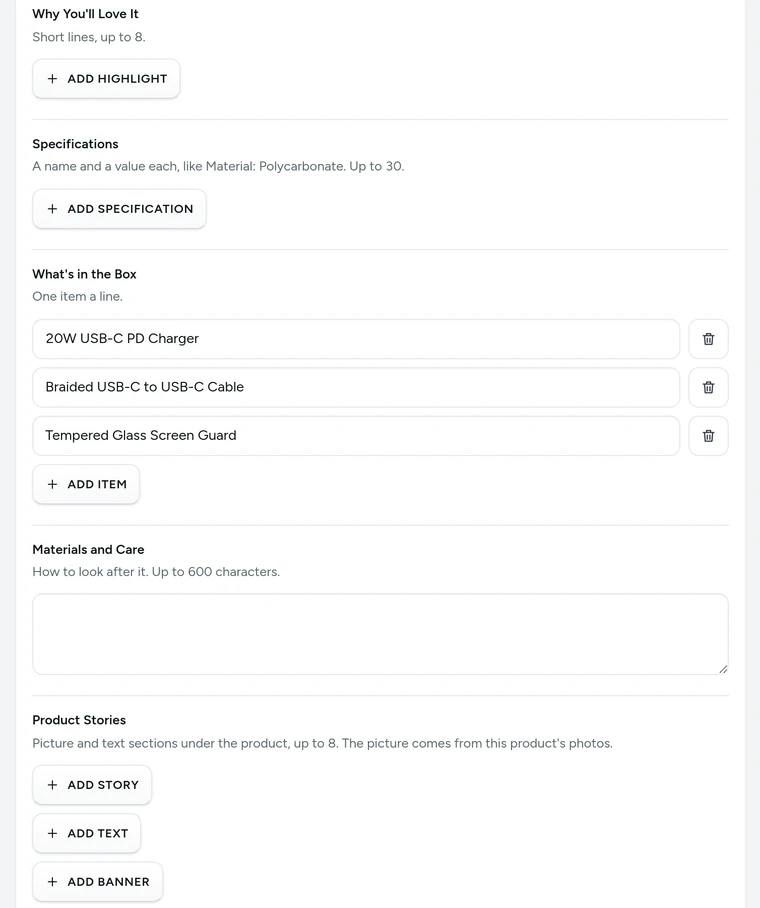
The Product Page Details card in a product's editor, on Kosha, a demo store on Mercayo. Add Highlights and Facts
Use ADD HIGHLIGHT for each line of Why You'll Love It (keep them short: up to 200 characters each). Use ADD SPECIFICATION for each name and value, ADD ITEM for each thing in the box, and write the Materials and Care text. Leave any part empty and it simply does not show.
Write a Story
Press ADD STORY. Give it a Heading (up to 120 characters) and, if you like, a Small heading above it (up to 60) and the Text (up to 1,200 characters; a blank line starts a new paragraph). Under Picture, choose one of the product's photos, or None for a story in words only. Add up to 6 stories, in the order you want them read.
Add a Pull Quote
In any story, fill in Pull quote: a line shown large after the story, such as what a customer said or the idea behind the design. Add Who said it if the line is someone's words. Leave it empty for no quote.
Save and Look at the Page
Press SAVE. The product page shows the stories and details at once; shoppers see them on their next visit. Open the product on your store to read it as a shopper would, on a phone and on a computer.
Place the Sections in the Template
Where the stories, the description card and the details panels sit on the page is set in the product template, in the Editor (the section is called Product Stories). Move them higher or lower, or hide one for every product at once. With Details on Phones set to one group of panels (Theme → Product Page), phones show the specifications and what's in the box as the first panels under the buttons.

Your shoppers
What Your Shoppers See
Shoppers scroll past the buttons into your stories: a photo of the product with a few lines beside it, then the next one on the other side, with a quote in large type between them. Before that, the description card gives them the short version, with your highlights as small badges. If they want facts, the specifications, what's in the box and care are one tap away in the panels, and on a phone the first one is open.

Settings
Settings You Control
All are under Theme → Product Page.
Mercayo
Mercayo's Controls
The two settings above follow Mercayo's rule for settings: Mercayo's override for your store if there is one, then your choice, then the default; a locked setting shows its reason in your admin, and every change is in Mercayo's audit log. Mercayo's team can also switch off a type of page section for a store. Mercayo never writes or changes your product words, stories or quotes, and a story's picture can only be one of your own store's photos.
Limits today
Good to Know Before You Start
- A product has at most 6 stories, 8 highlights, 30 specifications and 12 items in the box.
- A story's picture comes from the product's own photos; upload the photo to the product first.
- Story text is plain paragraphs: no bold, links or lists inside a story.
- Stories are written per product; one story cannot be shared across many products.
Questions
About Product Stories and Details
Do I have to fill in every part?
No. Each part shows only when you fill it in. A product with just a description and two specifications has a short, clean page; a hero product can have six stories.
Where do the highlight icons come from?
From the words of each highlight: words about protection get a shield, about nature a leaf, about gifting a gift, and so on, with a small sparkle when nothing fits. Mercayo never adds claims of its own, such as "certified".
Can I use a picture that is not one of the product's photos?
Not directly. Add the picture to the product's photos first, then choose it in the story. That keeps every picture on the page your own and in your store.
How do the stories look on a phone?
On a phone each story is the picture and then the words, one under the other, full width. From tablet size they sit side by side, alternating sides. Pull quotes show large on every screen.
Can I hide the stories on some products only?
Leave a product's stories empty and nothing shows for it. To change where stories sit, or hide them for every product, edit the product template; a product can also use an alternative template.
What makes a good product story?
One idea per story, with a photo that shows it: how the product is made, a detail up close, how it looks in use, what comes in the box. Keep the heading short and the text to a few lines; shoppers on phones read in glances. Use the pull quote for the one line you want remembered.
Do the stories slow down the page?
No. Story pictures load only as the shopper scrolls to them, in a size that suits their screen, so the top of the page is not held up by pictures further down.
Related
Related Features
- Product PagesPhotos that zoom, options that never guess, delivery dates by PIN code, a buy bar that follows and rows of related products, on every product.
- Product TemplatesMake alternative templates for product, collection and category pages, then choose which products or lists use them; the rest keep the default.
- Page EditorArrange the sections of every page in a visual editor with a live preview, private drafts, share links and 30 published versions to go back to.
- ProductsA fast product list with a health strip, saved views and bulk changes you can undo, and an editor for options, variants, photos, descriptions and SEO.
- Languages and CurrenciesOffer your store in Hindi beside English, translate your products, pages and menus, and show prices in other currencies as a guide.
More in Online Store: Product Pages · Collections and Filters · Store Search · Shop by Fit · Wishlist · Customer Accounts · After the Order · Content Pages and Blog · Personalisation · Shoppable Videos · Languages and Currencies · Installable Store · Page Speed · Search Engines · URL Redirects · Opening-Soon Page · Custom Domains
Try It on Your Own Store
Every feature is in every plan, free for 14 days.