Collections and Filters
Product Lists Shoppers Can Narrow in a Tap
A shopper looking at 300 products wants 12. Filters with honest counts, one-tap chips and sensible sorting get them there, on every list in your store.
- In every plan
- Free for 14 days


Kosha is a demo store on Mercayo. Its products, orders and customers are sample data.
In short
What It Does
Every list of products in your store works the same way: all products, each collection, each category, the sale page, a "fits your model" page and the search results. One set of tools, everywhere:
- Filters with counts. Category, collection, brand, price, availability, rating, each product option (colour, size, material) and your own groups of tags. Beside every choice is the number of products it would show, counted against the other filters already in use, so a count is a promise.
- Quick filter chips above the products: one tap for "Under ₹699", "New", "In stock" or anything you set up.
- Sorts. Featured, Bestselling, Newest, Price low to high and high to low, Top rated (where the list has reviews), A to Z, and Best match on search.
- LOAD MORE. The next products join the page in place, and a reload or the back button returns the shopper to the same products and the same spot.
- Grid or list. Pictures side by side, or one product per row with a smaller picture, with a switch for shoppers.
- Badges. Sold out, New for recent products, and badges you make from tags ("Bestseller", "Limited").
Product cards are the same everywhere: two pictures that swap under the pointer, the price with MRP and saving, colour dots, "Only a few left" when stock is low (never a number), the rating, the wishlist heart and ADD. ADD puts a product with one option straight in the bag and opens the options for one with choices, without choosing for the shopper.
Collections and categories are pages of their own, with a picture or a tinted band behind the title, their short text under it, and their longer "About" text under the products. Categories show their sub-categories as chips.
For your store
Why It Matters
Shoppers on phones do not scroll through hundreds of products. If they cannot narrow a list quickly, they leave. Filters with counts that do not match what they get are worse: they tap "Blue (12)", see 3, and stop trusting the store.
Mercayo counts every filter value against the other filters in use, from your live stock and prices, so the numbers are always right. Filters live in the page's address, so a shopper can share "these earrings, under ₹1,999, in stock" on WhatsApp and the friend sees exactly that list.
It also works for your business behind the scenes. Sold-out products move to the end of every list so your first screen always sells. Search engines see each list once, not every combination of filters. And you never maintain separate filter setups for collections, categories and search: one setup covers all of them.
Step by step
How It Works
Group Your Products
In Products → Collections, make a collection, choose its products and drag them into the order shoppers see, or set an order (newest, price, best selling, A to Z). In Products → Categories, build your catalogue's tree. Each gets its own page with a picture and text. See Collections and Categories.
Choose the Filter Groups
Open Settings → Filters. Mercayo's defaults are ready: category, brand, every product option, price, availability and rating. Reorder them, rename one for shoppers, hide one, or ADD A GROUP OF TAGS (for example "Finish" with Glossy, Matte and Glitter, each with the name shoppers see). A group with fewer than two choices in a list hides itself there.
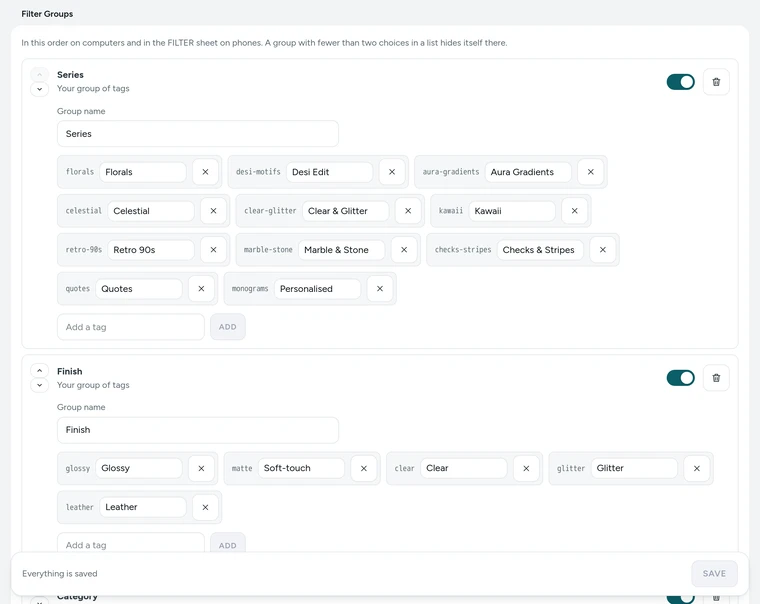
Filter Groups on the Product Filters screen, on Kosha, a demo store on Mercayo. Add Quick Chips and Badges
On the same screen, ADD CHIP makes a one-tap filter: products with a tag, up to or from a price, rated at least some stars, in stock only, an option's value, a category, a collection or a brand. A chip shows only in lists where it would keep something. ADD BADGE gives products with a tag a badge on their picture, in an accent, dark, light or sale look. The first matching rule wins, and Sold out always shows instead. Press SAVE.
Set How Lists Behave
In Settings → Online Store → Product Lists, set Products per page (24 to start with, 12 to 48), the Default order for all products, categories and the sale page (a collection keeps its own order), and which collection's order decides Featured elsewhere. Keep Sold-out products last on, and set New badge for recent products to a number of days if you want one.
Pick the Filter Layout
Filters on computers can be a Sidebar beside the products, a Drawer behind a FILTER button, a Top Bar of filters each opening a small panel, or Chips (quick chips and sorting only, for small catalogues). Phones always use a full-height FILTER sheet with SHOW N RESULTS at the bottom. You can also choose this in Online Store → Look with a live preview.
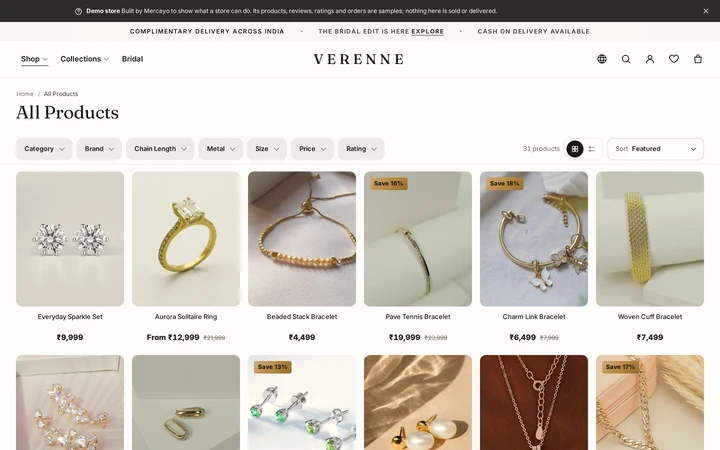
A product list in the Chips layout, on Verenne, a demo store on Mercayo. Shoppers Narrow, Share and Load More
Shoppers tick filters (several in one group mean any of them; different groups must all hold), see chips of what is in use with CLEAR ALL, sort, and press LOAD MORE. The address keeps everything, so the list can be bookmarked or shared and opens the same for anyone.


Your shoppers
What Your Shoppers See
Shoppers see the list's title and a short line about it, quick chips above the products, and filters beside them on a computer or behind FILTER on a phone. Each filter choice says how many products it will show. Ticked filters appear as chips they can remove one by one, with CLEAR ALL. "Showing 24 of 86" and LOAD MORE tell them how far they are. A product's card shows its picture (a second one under the pointer), price, saving, colours and rating, and ADD gets it into the bag without leaving the list.

Settings
Settings You Control
Each one is in your admin. A new store starts with the value shown.
Mercayo
Mercayo's Controls
Each list setting follows Mercayo's rule for settings: Mercayo's override for your store if there is one, then your choice, then the default. Mercayo's team can fix any of them for a store (for example the page size, or filters off), with a reason your admin shows beside the locked setting; each change is in Mercayo's audit log. Your filter groups, chips and badges are your store's own content: Mercayo provides the defaults but does not edit them. Counts come from your live catalogue and are never estimated.
Limits today
Good to Know Before You Start
- A collection is made by choosing its products or by rules (price, tag, brand, stock and more) that keep it right by themselves; see catalogue tools.
- A list shows at most 240 products at one address; filters and sorts narrow larger lists.
- An in-stock filter keeps a product when any of its options is in stock, even if the colour or size the shopper chose is sold out.
- Filter groups are set once for the whole store; a single collection cannot have its own filters.
Questions
About Collections and Filters
Do I have to set up filters before launch?
No. Mercayo's default groups work from day one: category, brand, every product option, price, availability and rating. Add your own groups of tags, chips and badges when you are ready.
Why are the counts always right?
Each count is worked out from your live products, prices and stock, against the other filters the shopper has already chosen. Tick Blue and Under ₹999, and each size shows how many blue products under ₹999 come in it.
Can I set the order of products in a collection?
Yes. Drag products into the order you want, or set the collection to sort itself: newest, price, best selling or A to Z. Shoppers can still choose another sort.
How is Bestselling worked out?
From units sold in the last 30 days, counting orders that were not cancelled, returned or left unpaid. When two products sold the same, the one with more reviews comes first, then the newer one.
Will filtered pages confuse Google?
No. Each list has one address that search engines index. Filtered and sorted versions tell search engines not to index them and point back to the list, so you never get thousands of near-copies.
What happens to sold-out products?
With Sold-out products last on, they move to the end of every list, whatever the sort, and show a Sold out badge. Shoppers can still open them, see the product and leave their details to hear when it is back.
Related
Related Features
- Collections and CategoriesHand-picked collections in the order you choose, a category tree you arrange by dragging, each with a picture and search words, and old links that keep working.
- Store SearchInstant, typo-tolerant search with pictures and prices, your own synonyms, pinned and hidden results, and searches that open a page directly.
- Shop by FitFor products made for a model (a phone, a car, a printer): shoppers pick theirs once and every list, card and product page shows what fits it.
- Store LooksPick a layout for the header, menus, search, product cards, lists, footer, product page, bag, checkout and order page, and mix them freely.
- Offer Labels and Sale PageShow live offers as short labels on product cards, list every product on offer at /sale, and count down only when an offer really ends.
- Search EnginesClean addresses, your own titles and descriptions, product details Google can read, a sitemap and link previews for WhatsApp, on every store.
More in Online Store: Product Pages · Product Stories and Details · Store Search · Shop by Fit · Wishlist · Customer Accounts · After the Order · Content Pages and Blog · Personalisation · Shoppable Videos · Languages and Currencies · Installable Store · Page Speed · Search Engines · URL Redirects · Opening-Soon Page · Custom Domains
Try It on Your Own Store
Every feature is in every plan, free for 14 days.