Product Pages
Product Pages Built for the Phone in a Shopper's Hand
Most of your shoppers will decide on a phone, with one thumb, in a few seconds. Mercayo's product page puts the photo, the price, the choice and one clear ADD TO BAG first, and keeps everything else a tap away.
- In every plan
- Free for 14 days

Kosha is a demo store on Mercayo. Its products, orders and customers are sample data.
In short
What It Does
Every product in your store gets a full product page from the moment you publish it. You fill in the product once in your admin; the page draws itself from it, in the order and layout your store uses.
The page, from the top:
- Photos. One large photo with thumbnails on computers; on phones and tablets a strip the shopper swipes with their thumb, with a row of thumbnails, dots or a counter. Any photo opens a full-screen viewer.
- Name, rating and price. The star rating links to the reviews. The price shows the MRP and the percentage off when you set a compare-at price, and a line says whether the price includes GST.
- Options. Colour, size, model or anything else the product varies by, each value a chip, colours with their swatch. A value that cannot be bought with the other choices is marked sold out.
- Delivery by PIN code. The shopper types a PIN code and sees when it can arrive, the delivery charge and whether cash on delivery is available there.
- ADD TO BAG, the one filled button, with an optional BUY NOW beside it, the wishlist heart and a share button.
- Offers and add-ons. Bundle prices, codes you choose to show, and products that pair well with this one.
- Details. The description, highlights, specifications, what's in the box, care and your shipping, COD and returns lines, as folding panels.
- Rows. Frequently bought together, you may also like, more from the collection and the shopper's recently viewed products.
When the shopper scrolls past the buttons, a buy bar with the price and ADD TO BAG stays in view. On phones, round buttons float over the photo (back, search, share, wishlist, bag) and a slim bar with the product's name slides in once the photo scrolls away.
For your store
Why It Matters
A shopper who arrives from an Instagram ad or a WhatsApp link lands on a product page, not your home page. That page has to do the whole job: show the product well, answer "will it reach me, and can I pay cash?", and make buying one tap.
Mercayo's page is laid out for that shopper:
- One primary action. ADD TO BAG is the only filled button. BUY NOW, the heart and share are lighter, so the eye goes to the right place.
- Nothing chosen for them. By default the page never picks a size or colour on the shopper's behalf, so nobody receives a size they did not choose. ADD TO BAG simply asks for what is missing.
- Delivery and COD answered before the bag. A shopper in a Tier 2 or Tier 3 town can check their own PIN code on the page, instead of finding out at checkout.
- Fast on a mid-range phone. The page is the same for every shopper, so it is kept ready and served at once; the bag count and the pressed heart fill in after it loads, in places that keep their size, so nothing on the page jumps.
You do not design any of this. You add good photos and honest details; the page does the rest.
Step by step
How It Works
Add the Product and Its Photos
In Products, create the product, add its photos (the first one is the main photo everywhere), its price and, if you like, a compare-at price for the MRP line. Add options such as Colour or Size, and the page shows each value as a chip. Fill in the product page details (highlights, specifications, what's in the box, care) and they appear as their own panels; parts you leave empty are simply not shown. See Product Stories and Details.
Choose How Options Are Picked
In Settings → Product Page, Options chosen for the shopper is Single to start with: only options with one value are chosen, and the shopper picks the rest. First available chooses the first variant in stock when the page opens. In the same card, Low stock note shows "Only a few left" when a variant has 5 or fewer in stock (0 turns it off); the exact count is never shown.
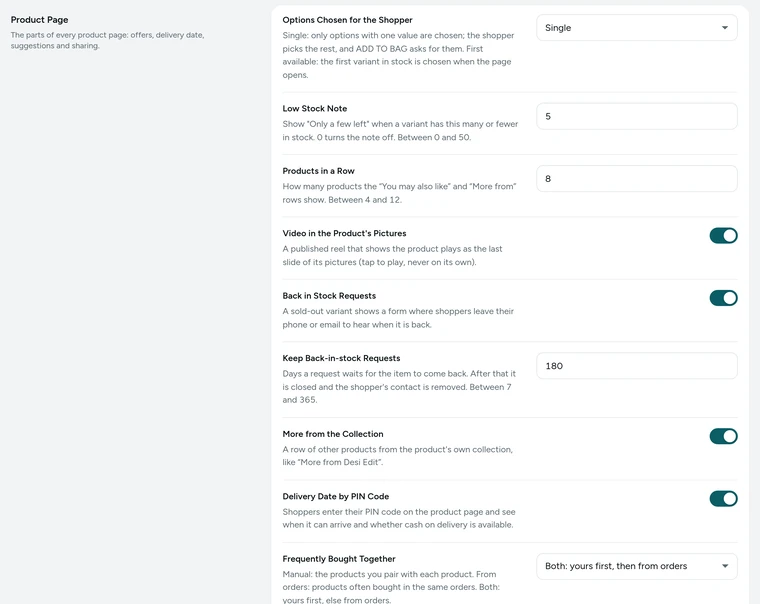
The Product Page card in Settings → Product Page, on Kosha, a demo store on Mercayo. Decide What Sits Beside ADD TO BAG
In Theme → Product Page, switch BUY NOW Beside ADD TO BAG on or off: BUY NOW goes straight to checkout with this one product. Share buttons (in Settings → Product Page) adds the share button: on a phone it opens the phone's own share menu; elsewhere a sheet with WhatsApp, Telegram, Facebook, X, email and COPY LINK. The wishlist heart shows whenever your store has a wishlist.
Turn On Delivery by PIN Code
Delivery date by PIN code is on to start with. It uses the same rules as checkout: Mercayo's PIN code directory, your PIN code rules, your delivery zones and rates, and your COD settings. The shopper sees "Get it by" a date, the delivery charge (or free delivery, and the amount above which it is free), and "Cash on delivery available" or not. Their PIN code is remembered in their own browser for the next product. Set up the rules in Delivery Dates by PIN.
Shape the Page on Phones
In Theme → Product Page: Header on Phones is App (round buttons over the photo) or Standard (your store's usual header). Details on Phones folds the specifications, what's in the box, care and shipping into one group of panels under the buttons, or keeps them where the template places them. First Details Panel starts open or closed. Zoom on Hover zooms the large photo under the pointer on computers. Previous and Next Product adds arrows beside the breadcrumb on tablets and computers, within the list the shopper came from ("2 of 24 in Florals").
Pick the Rows Under the Product
In Settings → Product Page, choose where You may also like comes from (the same category, the same collections, the same tags, or off), switch More from the collection and Recently viewed on or off, and set Products in a row (8 to start with, 4 to 12). Frequently bought together can use the products you pair by hand, products often bought in the same orders, or both (yours first). Recently viewed products are kept in the shopper's browser only.
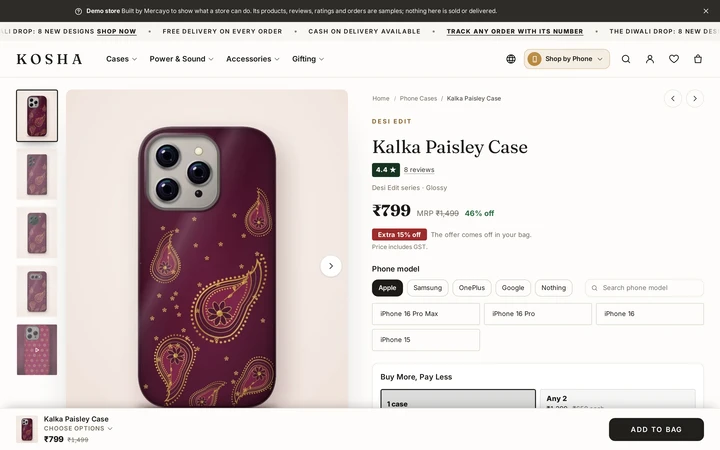
A product page on a computer, with its photos, options and buttons, on Kosha, a demo store on Mercayo. Move Sections in the Page Editor
The order of the page lives in its template. In the Editor, open the product template to move, hide or set up its sections (the gallery's thumbnails, the buy bar on computers, the size guide link), preview the draft and publish. A product can use an alternative template of its own. The layout of the whole page (photos beside the details, stacked, full width or centred) is chosen in Online Store → Look. See Product Templates.


Your shoppers
What Your Shoppers See
Shoppers see a page that reads like an app: a big photo they can swipe and pinch to zoom, the name, rating and price, then the options with the chosen value beside the option's name. They type their PIN code once and see a delivery date and whether they can pay cash. ADD TO BAG is always in reach, either on the page or in the bar that follows them down. If they forgot a size, the button tells them which option to choose. Further down they find the details as tidy panels, your promises (cash on delivery, returns, dispatch time, GST invoice), and rows of products to keep browsing, including the ones they looked at last.

Settings
Settings You Control
Each one is in your admin. A new store starts with the value shown.
Mercayo
Mercayo's Controls
Every product page setting follows Mercayo's one rule for settings: Mercayo's override for your store if there is one, then your own choice, then the default. Mercayo's team can, for one store, fix any of the settings above (for example keep the delivery check on, or the phone header standard) and can switch off a type of page section for a store; a locked setting shows the reason beside it in your admin, and every change is kept in Mercayo's audit log with who made it and when. Mercayo never edits your products, photos, prices or wording.
Limits today
Good to Know Before You Start
- A back-in-stock request is answered once, by email or on WhatsApp, when the variant is back; see back in stock.
- Product photos are pictures only: there is no product video in the gallery (shoppable videos are a separate feature).
- Recently viewed products live in the shopper's browser, so they do not follow a shopper from one device to another.
- Previous and next arrows show on tablets and computers only, not on phones.
- The delivery date is an estimate from your zones and dispatch days; the date is confirmed at checkout.
Questions
About Product Pages
Do I need to design a product page for each product?
No. Every product uses your store's product template, so a new product looks finished as soon as you publish it. If one product needs a different layout, give it an alternative template in the page editor.
Why doesn't the page choose a size for the shopper?
Because a guessed size is a return waiting to happen. With "Single", only options that have one value are chosen. If you sell products where the first available variant is the obvious choice, switch the setting to "First available".
How does the delivery date by PIN code work?
It runs the same rules as checkout for this product: the PIN code directory, your PIN code rules, your zones, rates and dispatch days, and your COD settings. The shopper sees a date or a date range, the delivery charge, and whether cash on delivery is available at their PIN code.
Can I remove BUY NOW?
Yes. Switch off BUY NOW Beside ADD TO BAG in Theme → Product Page. ADD TO BAG stays, and the buy bar that follows the shopper always shows ADD TO BAG only.
Will a sale or a stock change show on the page straight away?
Yes. Pages are kept ready for speed, but any change you make to a product, its price or its stock rebuilds the affected pages, so shoppers see the change on their next visit.
What does share do on a phone?
It opens the phone's own share menu, so the shopper can send the product on WhatsApp or any app they use. On a computer it opens a small sheet with WhatsApp, Telegram, Facebook, X, email and COPY LINK.
Can I show a size guide?
Yes. Write the size guide as a content page, then choose it in the options section of the product template. A Size guide link appears beside that option and opens the page in a sheet, without leaving the product.
Related
Related Features
- Product Stories and DetailsPicture-and-text stories with pull quotes, highlights, specifications, what's in the box and care, written once per product and laid out for you.
- Product TemplatesMake alternative templates for product, collection and category pages, then choose which products or lists use them; the rest keep the default.
- Delivery Dates by PIN CodeShoppers type their PIN code on the product page and see the delivery dates and whether cash on delivery is available, from your own delivery rules.
- Bundles and Add-OnsAny 2 for ₹1,299, 3 or more for 15% off, and add-ons at a special price with the main product, chosen on the product page and applied in the bag.
- WishlistShoppers save products with a heart, signed in or not, find them in a drawer and a page, and share a read-only link with family and friends.
- Product ReviewsShoppers write reviews with photos, every review waits for your approval, verified buyers are proven by real orders, and you can reply in public.
More in Online Store: Product Stories and Details · Collections and Filters · Store Search · Shop by Fit · Wishlist · Customer Accounts · After the Order · Content Pages and Blog · Personalisation · Shoppable Videos · Languages and Currencies · Installable Store · Page Speed · Search Engines · URL Redirects · Opening-Soon Page · Custom Domains
Try It on Your Own Store
Every feature is in every plan, free for 14 days.
