Page Editor
Lay Out Every Page of Your Store, Then Publish When It Is Right
Every page of a Mercayo store, from the home page to the product page, the bag and the header, is a list of sections you can add, move, hide and set. You work on a draft beside a live preview, and shoppers see nothing until you press PUBLISH.
- In every plan
- Free for 14 days


Kosha is a demo store on Mercayo. Its products, orders and customers are sample data.
In short
What It Does
The Editor (Online Store → Editor) is where you decide what each page of your store shows and in what order. A page is made of sections: a hero picture, a row of products, a trust strip, a sign-up box, the product's photos, its title and price, the reviews. You choose them from a list, put them in the order you like and fill in their words and pictures.
It covers every kind of page your store has, not only the home page:
- Pages: the home page, product pages, collection and category pages, all products, search results, the bag, content pages such as About and FAQ, the blog and its articles, the sale page, the page-not-found page, the password page and, for stores that use it, shop by device.
- On every page: the header, the footer and the announcement bar, laid out once and shown everywhere.
You always edit a draft. It is saved by itself a moment after each change, and the preview beside it shows the draft on a phone, a tablet or a computer. Your shoppers keep seeing the published page until you press PUBLISH. Every published version is kept, up to the last 30 for each page, so you can bring an earlier one back.
A page you have never laid out shows Mercayo's standard layout for that kind of page, so a new store is complete from its first day. The first change you make starts your own copy.
For your store
Why It Matters
Most of your shoppers arrive on a phone, often from a link someone sent them on WhatsApp or Instagram. The first screen they see decides whether they stay. You need to change that screen for a festive sale, a new collection or a drop that sold out, the same day, without waiting for a developer.
The Editor gives a small team that control without the risks that usually come with it:
- Nothing goes live by accident. Drafts are private and saved by themselves; publishing is one deliberate step.
- A page cannot be broken. The sections a page needs to work (the title, price, options and ADD TO BAG on a product page, the lines and totals in the bag) cannot be removed.
- Mistakes are cheap. The last 30 published versions of each page are kept, and any of them can come back.
- Speed stays. Sections are drawn on Mercayo's server and served from the page cache, so a page you built loads like one Mercayo built.
Step by step
How It Works
Open the Page You Want to Change
In your admin, open Online Store → Editor. It opens on the home page and uses the whole window. The page picker at the top lists your pages under Pages and the header, footer and announcement bar under On Every Page. For a product, collection, category or content page, Preview with lets you choose which one the preview shows while you work, so you see the layout with real photos and prices.
Add and Arrange Sections
The left side lists the page's sections from top to bottom. Press ADD SECTION to open the sections this kind of page can hold, with a search box; a section that may appear only once says "Already on This Page". Drag a section by its handle to move it, or choose it and press Alt with the up or down arrow. Each row can be duplicated, hidden (kept but not shown) or deleted. A section the page needs is locked and cannot be removed or hidden.
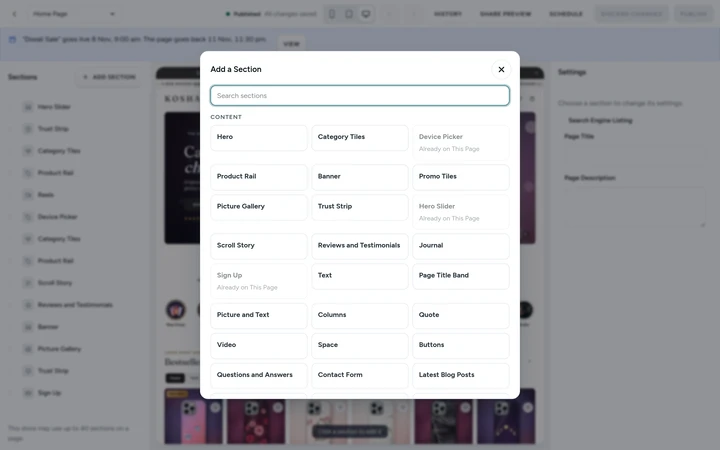
Add a Section, the sections a home page can hold, on Kosha, a demo store on Mercayo. Fill In Words, Pictures and Links
Choose a section and its settings open in three tabs: Content, Style and Advanced. Text fields show how many characters are left. Pictures come from your store's own media: CHOOSE PICTURE picks one you have, UPLOAD adds a new one, and each picture takes a short description for people who cannot see it. A link is a page of your store (like /collections/new) or an https:// address; collections, categories and products are chosen by name, so a renamed address never breaks the link.
Decide Where and How It Shows
In the Style tab you choose how a section sits on the page: the panel behind it (made from your theme's own colours, or one of your pictures behind a dark or light veil), the space around it, its width and its entrance as shoppers scroll. Show on limits a section to phones, tablets or computers, so a long story can stay on wide screens while phones get a shorter page.
Check the Preview, Then Publish
The preview shows your draft at phone, tablet or computer size. The bar above it says "All changes saved" a moment after each change; Ctrl+S saves at once, Ctrl+Z undoes and Ctrl+Shift+Z redoes. When it looks right, press PUBLISH and confirm: "Your changes go live on the store at once." If a section still has a field to fill, the editor says "This Layout Cannot Be Published Yet" and marks the section that needs attention.
Share a Private Preview
Want a partner, a photographer or a client to see the new page first? Press SHARE PREVIEW, then MAKE A LINK and COPY LINK. Anyone with the link sees your unpublished changes for 24 hours, without signing in, and the page is never shown to search engines. END LINK stops one link at once; END ALL LINKS stops them all.
Go Back to an Earlier Version
HISTORY lists the page's published versions with who published each and when, and the recent changes made to that layout. RESTORE TO DRAFT puts an earlier version into your draft; nothing changes on the store until you publish it. DISCARD CHANGES puts the draft back to what is published now.

Your shoppers
What Your Shoppers See
Shoppers only ever see published pages. A page they open is drawn on Mercayo's server and comes from the page cache, so the sections you add do not make them wait for extra loading in their browser, and a page they are reading never changes under them while you edit. A section you limit to other screens is simply not there for them. When you publish, the change shows on the next page they open.

Settings
Settings You Control
All are under Settings → Online Store → Page Builder.
Mercayo
Mercayo's Controls
The editor follows Mercayo's rule for every setting: Mercayo's override for your store if there is one, then your own choice, then the default. For one store, and always with a written reason that is logged, Mercayo's team can switch the page builder off, lower the number of sections a page may hold (40 is the most), lower the number of alternative templates for each kind of page (10 is the most) and switch off single section types, which then stay in your layouts but are not shown. Taking the "Powered by Mercayo" line out of your footer is a plan feature Mercayo switches on. Sections with your own HTML or code are not offered.
Limits today
Good to Know Before You Start
- You choose a section in the list beside the preview; clicking a section inside the preview does not select it.
- Layout choices are fixed options drawn from your theme: there are no fields for your own CSS, HTML or scripts.
- Undo and redo cover your current visit to the editor; after you leave, use the published versions in HISTORY.
- Menus, the store's look (colours, fonts, shape) and product content are edited on their own screens, not in the Editor.
- Checkout, the thank-you page, order tracking and sign-in are not laid out in the Editor, because they handle money and personal details; they follow your theme.
Questions
About Page Editor
Do I need to know any code?
No. You pick sections from a list, type words, choose pictures and pick links by name. Every choice is a fixed option that already works with your theme on every screen size, so a page never needs code to look right on a phone.
Will shoppers see my changes while I work?
No. You always edit a draft, saved by itself a moment after each change. Shoppers see the published page until you press PUBLISH. To show someone the draft first, make a private preview link that works for 24 hours.
Can I break my product page or bag?
No. The sections a page needs to work cannot be removed or hidden: on a product page the title and price, the options and ADD TO BAG; in the bag its items and the order summary; the header bar and the footer's base line. Publishing also checks that every section is complete and that its links lead to live pages of your store.
What happens if two of us edit the same page?
Each save checks that nobody else saved the layout in between. If someone did (or you did, in another tab), the editor says "This Page Was Changed Somewhere Else" and offers LOAD THE LATEST, so nobody's work is quietly overwritten.
Can a team member edit without publishing?
Yes. Editing layouts and publishing them are two separate rights. A person with only the first can build and preview a page, and PUBLISH tells them they need the other right. The Marketer role starts that way; owners and admins hold both. See staff and roles.
Does a page with many sections load slower?
Pages are drawn on Mercayo's server and served from the page cache, which is emptied for your store the moment you publish. Pictures below the first screen load as shoppers scroll, and a video player loads only when the shopper taps it. See page speed.
What if I never open the Editor?
Every page shows Mercayo's standard layout for its kind, complete and working. Your home page shows your products until you lay it out with the sections you choose.
Related
Related Features
- Home Page SectionsHero sliders, product rows, category tiles, stories, real reviews, reels and sign-up boxes, all drawn from your theme so the page always fits together.
- Theme EditorColours, fonts, shapes, header, cards, product page, motion, logo and sharing picture, in one editor with a live preview, readability checks and undo.
- Product TemplatesMake alternative templates for product, collection and category pages, then choose which products or lists use them; the rest keep the default.
- Announcement BarUp to six short messages over your header, each with an optional link and its own start and end time, as a rotating line, a ticker or a closable bar.
- Content Pages and BlogWrite your About page, FAQ, contact page, guides and blog posts in the admin, from ready sections that match your store's look.
- Page SpeedPages are kept ready and refreshed the moment you change something, photos are sized for each screen at full quality, and nothing on the page jumps.
More in Design and Page Editor: Home Page Sections · Theme Editor · Store Looks · Menus and Mega Menu · Announcement Bar · Product Templates · Loading and Motion
Try It on Your Own Store
Every feature is in every plan, free for 14 days.