Store Looks
Choose How Each Part of Your Store Is Built
Colours and fonts make a store yours; structure makes it feel different. Section Styles lets you choose how each part of your store is laid out and how it opens, one choice per part, and every choice works with every theme and every other choice.
- In every plan
- Free for 14 days


Kosha is a demo store on Mercayo. Its products, orders and customers are sample data.
In short
What It Does
Open Online Store → Theme → Section Styles. Each part of the store has a card with a small drawn picture of every layout it can take. You choose one per part, like a radio button, and save.
| Part | Layouts You Can Choose |
|---|---|
| Announcement Bar | Rotating, Ticker, Message and Links, Closable |
| Header | Classic, Centred Logo, Split Menu, Search First, Minimal |
| Menu Panels (computers) | Columns, Picture Tiles, Tabs, Flyout |
| Phone Menu | Full Panel, Accordion, Bottom Sheet, Picture Cards, Tab Bar |
| Search | Overlay, Dropdown, Side Drawer, Search Page |
| Product Cards | Standard, Overlay, Minimal, Detailed, Framed |
| Product Lists | Sidebar, Drawer, Top Bar, Chips |
| Footer | Columns, Centred, Big Brand, App Style |
| Product Page | Side by Side, Stacked Photos, Thumbnail Rail, Full Width, Editorial |
| Bag | Compact Drawer, Gallery Drawer, Bottom Sheet, Mini Bag |
| Checkout | One Page, Steps, Accordion |
| Order Confirmation | Receipt, Celebrate, Compact |
| Account | Tabs |
That is 51 layouts across 13 parts. A layout changes structure and behaviour (where things sit, how a panel opens, how it moves), never your colours, fonts or corners: those stay your theme's. So a Split Menu header with Picture Tiles panels, Framed cards and a Mini Bag works in a dark theme or a light one, with square or pill buttons.
The same choices are also on their own screen, Online Store → Look, which has a live preview of your store with the choices you have not saved yet, at phone or computer size, on the home page, all products or a product.
For your store
Why It Matters
Two stores on the same platform should not look like the same store with a different logo. Shoppers who have seen one template a hundred times stop noticing it, and your brand disappears into it.
Layouts also fit what you sell. A jewellery brand with a dozen pieces wants large photos edge to edge and a calm, centred header. An electronics store with thousands of products wants search in the header and filters beside the grid. A fashion label might want an app-like tab bar on phones, because that is where its shoppers are. Here you pick what fits, part by part, instead of moving to another theme and redoing everything.
None of it costs speed: a layout is part of your store's page as it is built and cached, the same for every shopper.
Step by step
How It Works
Open Section Styles
Open Online Store → Theme and choose Section Styles at the foot of the list. The parts are grouped as Header and Menus, Browsing, Buying and After the Order. Each card names the part, says what it decides in one line ("Where the logo, the menu and the icons sit") and shows one drawn picture per layout, with Chosen on the current one.
Choose a Layout for Each Part
Click a picture to choose it. Each layout has a one-line description under its name, such as "Every photo in view, two by two; the details stay beside them as they scroll" for Stacked Photos. The pictures are drawn in the button shape and card corners you are editing in the Theme editor, so you see them as they will look.
Preview Before You Save
In the Theme editor, your Section Styles choices show on the preview once you save. To try them first, open Online Store → Look: its preview shows your store with the choices you have not saved, at PHONE or DESKTOP width and on the home page, all products or a product. "Only you see this preview until you save."
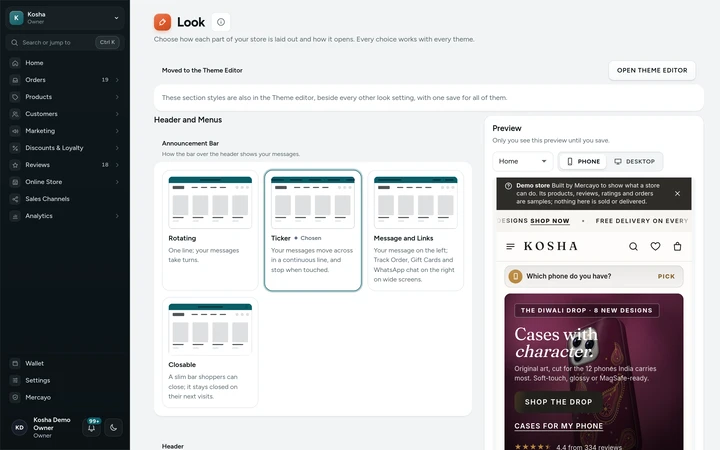
The Look screen with its live preview of unsaved choices, on Kosha, a demo store on Mercayo. Save, and Every Page Follows
Press SAVE. Your store shows the new layout at once: the page cache is rebuilt for your store and every shopper gets the same pages. If someone else changed the layouts after you opened the screen, the save says so and asks you to reload, instead of replacing their choice.
Mix Freely
Every layout of every part works with every other part's layouts, every preset and every button shape. Kosha, a demo store on Mercayo, uses a Ticker announcement, a Classic header and Side by Side product pages; Verenne, another demo store, uses Centred Logo, Picture Tiles panels, Minimal cards, Full Width product pages and an Accordion checkout.
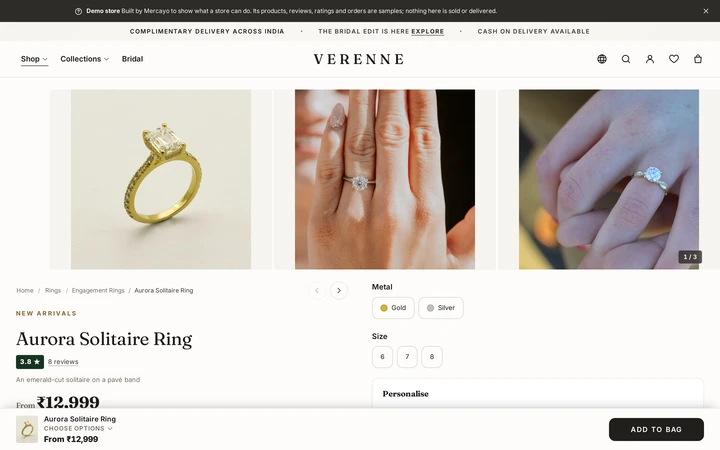
The Full Width product page layout, on Verenne, a demo store on Mercayo.


- A Theme PresetColours, fonts, shapes and spacing to start from, then your own changes in the theme editor.
- Neon Velvet
- Maison
- Classic
- Atelier
- Utsav
- Vermeil
- Stride
- Kinetic
- Monograph
- Terracotta
- Bloom
- Herbarium
- Pantry
- Playroom
- Hearth
- Timber
- Circuit
- A Layout for Every Part15 parts of the store and 150 layouts between them. Pick one for each part; they all work together.
- Announcement Bar
- Header
- Menu Panels
- Phone Menu
- Search
- Footer
- Product Cards
- Product Lists
- Product Page
- Product Page Bar
- Add to Bag Bar
- Bag
- Checkout
- Order Confirmation
- Account
- Your ContentSections, pages, menus and products, edited in the page editor and published when ready.
- Your StoreOn every phone and computer, with the shapes and colours you chose everywhere.
Your shoppers
What Your Shoppers See
Shoppers get the structure you chose, on every page, drawn on the server so nothing jumps into place after the page loads. Each layout has its own phone treatment: a Tab Bar puts Home, Shop, Search, Wishlist and Bag under the thumb; a Closable announcement stays closed on their next visits; a Mini Bag opens under the bag icon on computers and as a sheet on phones. Panels and menus open and close with the keyboard too, and return the focus where it was.

Settings
Settings You Control
All are under Online Store → Theme → Section Styles.
Mercayo
Mercayo's Controls
Each layout is a store setting, so Mercayo's rule applies to it: Mercayo's override for your store if there is one, then your choice, then the default. Mercayo's team can fix the layout of a part for your store or limit the layouts you can choose from; the card then says "Set by Mercayo for your store" or "Mercayo limits the layouts for your store", with the reason. Every such change is logged with who made it and why. Mercayo does not change your choices otherwise.
Limits today
Good to Know Before You Start
- The Account part has two layouts, Tabs and Sidebar.
- On phones, product lists always open their filters in a drawer, whatever you choose for computers.
- Choices made in Section Styles show in the Theme editor's preview only after you save; the Look screen previews them before saving.
- Saving layouts needs the Settings right as well as the right to edit the theme.
Questions
About Store Looks
Will a new layout change my colours or fonts?
No. A layout changes where things sit and how they open. Colours, fonts, corners and spacing stay your theme's, so any layout looks like your store.
Can I use a different layout on one product?
Section Styles apply to the whole store. To give some products a different set of sections, use an alternative template; the product page layout you chose here still decides where the photos and details sit.
Do the layouts work on phones?
Yes. Each one has its own phone treatment, and every layout is checked on Mercayo's demo stores at phone, tablet and computer widths and with each button shape.
Which layout should I start with?
The defaults (Classic header, Standard cards, Side by Side product page, Compact Drawer bag, One Page checkout) suit most stores. Change a part when you have a reason: Search First for a large catalogue, Chips filters for a small one, Full Width product pages for products that sell on their photos.
Does changing a layout affect my store's speed or search ranking?
A layout is part of the page your server builds and caches; it does not add extra loading in the shopper's browser. Your page addresses, titles and product data stay the same whichever layout you pick.
Can I preview a layout without anyone seeing it?
Yes. Online Store → Look shows a private preview of your store with the choices you have not saved. Shoppers keep seeing the saved layout until you press SAVE.
Related
Related Features
- Theme EditorColours, fonts, shapes, header, cards, product page, motion, logo and sharing picture, in one editor with a live preview, readability checks and undo.
- Menus and Mega MenuBuild header, phone and footer menus up to three levels deep, with pictures, tags and icons, and a mega menu panel on computers.
- Bag and Bag DrawerA bag drawer and bag page with a free-delivery bar, the order note, discount codes, bundle progress, add-ons, a free gift picker and recently viewed products.
- Phone-First CheckoutOne page that starts with the mobile number and the PIN code, fills in the city and state, shows clear errors and a price breakdown that adds up.
- Product PagesPhotos that zoom, options that never guess, delivery dates by PIN code, a buy bar that follows and rows of related products, on every product.
More in Design and Page Editor: Page Editor · Home Page Sections · Theme Editor · Menus and Mega Menu · Announcement Bar · Product Templates · Loading and Motion
Try It on Your Own Store
Every feature is in every plan, free for 14 days.