Orders
Every Order in One Fast List, and a Page That Says What Comes Next
Orders are where your day starts. Mercayo's Orders list shows what needs you, finds any order in a moment, and acts on many at once; each order's page shows its whole story and the one thing to do next.
- In every plan
- Free for 14 days


Kosha is a demo store on Mercayo. Its products, orders and customers are sample data.
In short
What It Does
The List
Orders opens on every order placed in your store, newest first, 50 to a page (or 25 or 100).
- Status tabs with their counts: All, To Ship, Unconfirmed (only while you use the confirmation call), Awaiting Payment, Shipped, Delivered, Returned to Origin, Cancelled and Closed.
- Search by an order number (#1042), a phone number typed any way, an email, or part of a name.
- Filters: payment method and payment status, status, placed between two dates (in India time), tags, a product, and the total between two amounts in rupees.
- A money summary for what you are looking at: Collected (online payments plus cash collected, minus refunds), Cash to Collect (cash on delivery still with orders to ship or on the way), To Ship (with how many wait for a call) and On the Way (with how many had a failed delivery). Press one of the last three to filter the list. Each figure explains how it is counted behind its label.
- Columns: order, customer, placed, payment (with a tick once paid), status (with Unconfirmed or FAILED DELIVERY beside it), the RTO risk of every cash order, and the total. Tags, city and PIN code can be added from the column chooser, which your browser remembers.
- Saved views: save a search and filters as a named view (up to 20), shared by your team, each a tab with its own count.
- Bulk actions: select orders (on a phone, touch and hold) for GENERATE LABELS and MARK CONFIRMED, and from the menu ADD TAG, REMOVE TAG, DOWNLOAD INVOICES (one PDF, or a ZIP of up to 100), PRINT PACKING SLIPS and EXPORT CSV.
- EXPORT writes a CSV of everything the filters match (up to 10,000 orders), ready for Excel. Shoppers' names, phones and emails are included only for people allowed to export customers.
The Order Page
- A header with when it was placed, how it was paid, how it is delivered, and the total; a step bar from placed to closed (cancelled and returned in red), each step with its date and the next one marked.
- One main action for what comes next (MARK CONFIRMED when a call is due, otherwise SHIP, MARK DELIVERED or CLOSE), with RETURNED TO ORIGIN, REFUND, OPEN EXCHANGE (when there is one), PACKING SLIP and CANCEL ORDER beside it.
- The items, every amount to the paisa (discounts, delivery, fees, GST and any round-off), the delivery address with its landmark, the shopper's record in your store (orders, spent, parcels returned), payment, the parcel and its courier, the GST invoice, the shopper's note, gift details, tags, and How They Found You (channel, device, where they came from, campaign, first page, pages viewed).
- A timeline of everything that happened, with who did it, and notes: internal, or shown to the shopper on their order page.
- Previous and next buttons (and the j and k keys) move between orders.
| Order Status | What It Means |
|---|---|
| Awaiting payment | An online payment was started but has not arrived |
| To ship | Confirmed: paid online, or a cash order ready to pack |
| Shipped | Handed to the courier |
| Delivered | The parcel reached the shopper; a cash order is then counted as paid |
| Closed | Finished; nothing more happens to it |
| Cancelled | Called off, with the reason kept |
| Returned to origin | The courier brought it back undelivered |
Every move goes through the order's rules in the database, so an order can never jump to a state it should not, and a double tap does nothing twice.
For your store
Why It Matters
A small team cannot afford to hunt for orders. The tabs and the money summary answer the morning's questions at a glance: what to ship, what cash is still out, what failed. Saved views turn the searches you repeat into one tap, for everyone in the team: "COD to call", "Gifts this week", "Bengaluru orders over ₹2,000".
Cash on delivery makes the money side harder than it looks. A COD order is a promise of cash, not cash, until the courier pays it in. Keeping Collected apart from Cash to Collect means you always know what is really in your account and what is still on the road, and the RTO risk beside each cash order tells you which ones deserve a call before you pack.
The order page is built so that the next step is never in doubt. New helpers learn the flow from the screen itself, and the timeline means anyone can pick up an order where someone else left it.
And because every action is checked by the database, an order is never shipped twice, cancelled after shipping, or confirmed by someone without the right.
Step by step
How It Works
Start From the Tabs
Open Orders. To Ship shows what to pack today; Unconfirmed, if you use the call, shows who to phone first, with each order's biggest risk reason. Awaiting Payment holds online orders whose payment has not arrived: their stock is held, and they cancel themselves if the shopper never pays (30 minutes to start with).
Find Any Order
Type an order number, a phone, an email or a name in the search. Add filters (payment, status, dates, tags, a product, the total) and press SAVE VIEW to keep the combination as a tab your team shares.
Confirm Cash Orders
If your store calls shoppers before shipping cash orders, phone them from the Unconfirmed tab and press MARK CONFIRMED, for one order or a selection. You can add a call note ("wants delivery after 6 pm"); an UNDO appears for a moment in case you pressed it by mistake. Orders already cancelled, shipped or prepaid are skipped and the screen says how many.
Act on Many at Once
Select orders and use the bulk bar: GENERATE LABELS books couriers and prints one PDF for up to 100 confirmed orders, then add or remove a tag, DOWNLOAD INVOICES, PRINT PACKING SLIPS or EXPORT CSV. A person who may only view orders sees just the reading actions.
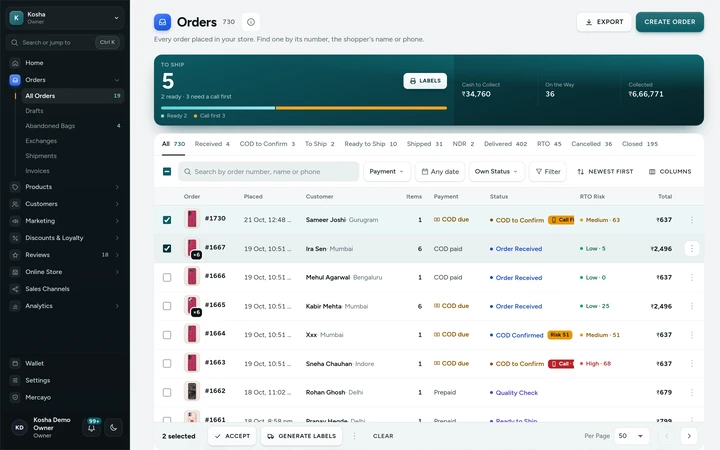
Orders selected, with the bulk bar, on Kosha, a demo store on Mercayo. Open an Order and Do the Next Thing
The main button is the next step. Everything else (refund, packing slip, exchange, cancel) is beside it. Each move asks once in plain words ("Mark order #1042 as delivered? A cash-on-delivery order is then counted as paid."), cancelling asks for a reason that stays with the order, and every change is written to the timeline.
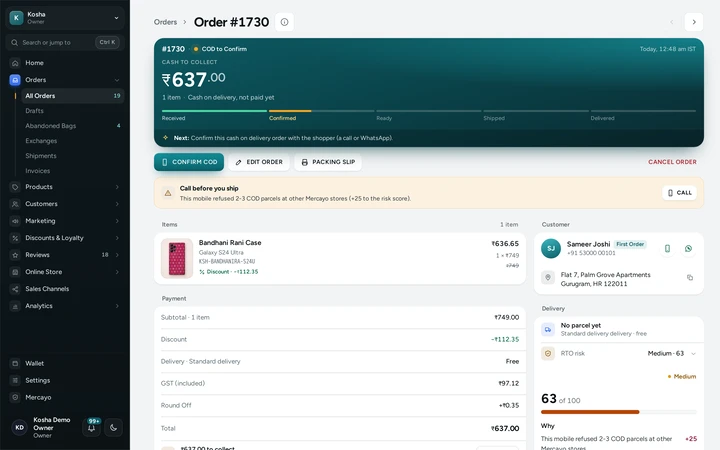
An order's page with its next step, on Kosha, a demo store on Mercayo. Leave Notes and Tags
Write a note for your team ("a call, a request, a promise made"), or tick The shopper can see this note to write to the shopper: it shows on their order page under the tracking. Tag orders (up to 20 per order, 40 characters each) to group them your way; tags save at once and appear in the timeline.
Export for Your Accountant
Press EXPORT for everything the filters match, or EXPORT CSV on a selection: the order, the time placed (India time), payment, items, delivery and fees, cash on delivery, courier and AWB, and, for people with the right, the shopper's contact details.


Your shoppers
What Your Shoppers See
Shoppers see the result of your work on their order page and in their account: the status and its steps, the courier's progress, your notes meant for them under "Messages from the store", their GST documents, and a cancel button while your cancellation window is open and no label has been made.
They also get emails: the receipt always, and messages when it ships, is delivered, or is cancelled or comes back, each switchable in Settings → Notifications.
Settings
Settings You Control
Each one is in your admin. A new store starts with the value shown.
Mercayo
Mercayo's Controls
Who may see orders, change them, and export shoppers' contact details is decided by your staff roles and checked by the database on every request: viewing orders, changing them and exporting customers are separate rights. Mercayo's team can fix any of the order settings for a store, with a reason your admin shows; the effective value is Mercayo's override, then your setting, then the default. When Mercayo support works in your admin, its steps appear in the timeline as "Mercayo support" with the person's name. Orders of one store are invisible to every other store, by the database's own rule.
Limits today
Good to Know Before You Start
- Sorts are newest, oldest, highest and lowest total, most items and customer name; there is no custom sort.
- There is no bulk mark-as-shipped by hand: shipping in bulk goes through courier labels.
- Previous and next on the order page follow all orders, not the list's filters.
Questions
About Orders
Can my packer see orders without seeing customer exports?
Yes. Give them a role that can view and edit orders but not export customers. They still see each order's address to pack and ship it, but an export leaves out names, phones and emails, and the screen says so.
What does Collected include?
Online payments captured plus cash collected on delivery, minus refunds processed, for the orders your search and filters match. Cash on delivery still out with couriers is counted separately under Cash to Collect, so the two never mix. Each figure explains itself behind its label on the screen.
Can my team share saved searches?
Yes. A saved view (up to 20 for a store) keeps the tab and filters under a name, is shared with the whole team, and shows its own count. Saving, renaming and deleting views needs the right to edit orders; deleting a view never touches the orders in it.
How many orders can I export?
Up to 10,000 at a time: everything the filters match with EXPORT, or just a selection with EXPORT CSV. The file opens cleanly in Excel, and cells that could be read as a formula are made safe so a shopper's note can never run as one.
Can the shopper see my notes?
Only notes you mark as shown to the shopper, and only while that setting is on. Internal notes never leave the admin. A note can be removed by the person who wrote it, the owner or an admin, and the removal stays in the order's history.
What happens to stock when I cancel or an order comes back?
Cancelling an order, or marking it returned to origin, puts its items back into stock, and the dialog says so before you confirm. The change appears in the stock history as an automatic movement linked to the order. See inventory.
Does the list work on a phone?
Yes. Orders become cards, touch and hold selects them, and the bulk bar sits at the bottom. The order page becomes one column in the order a packer needs: items, customer, address, payment, parcel, note, then the timeline and the rest.
Related
Related Features
- COD Confirmation CallMark new cash on delivery orders Unconfirmed until your team has phoned the shopper, with a warning when the shopper has refused parcels before.
- Shipping LabelsSelect orders, press GENERATE LABELS, and each gets a courier by your rule and an AWB, with one PDF of labels to print and pickups booked if you want.
- Packing SlipsPrint a packing slip for one order or up to 100 at once: the items with SKUs, the order note, gift messages and the cash to collect, never prices.
- GST InvoicesEvery order gets the right GST document, a tax invoice or a bill of supply, numbered without gaps per financial year, as a PDF for you and your shopper.
- CustomersEvery customer with their orders, spending and returned parcels, guests included, ready-made segments like VIP and RTO-Prone, tags, notes, credit and export.
- RTO ShieldEvery cash on delivery order gets a 0-100 risk score with plain reasons, and your store chooses what happens to risky ones: a call, a code or part payment.
More in Admin on Your Phone: Products · Inventory · Import and Export · Collections and Categories · Order Alerts · Customers · Admin on Your Phone · Search and Command Palette · Setup Guide and Launch · Sample Data · Contact Inbox · Notification Credits · Plans and Billing · Draft Orders · Catalogue Tools · Media Library · Locations, Barcodes and Stock Counts · Installable Admin
Try It on Your Own Store
Every feature is in every plan, free for 14 days.