Plans and Billing
Your Mercayo Plan, Payments and GST Invoices in One Screen
Settings → Billing is where your store's relationship with Mercayo lives: the plan you are on and until when it is paid, what your store uses against what the plan allows, and every payment with its GST invoice.
- In every plan
- Free for 14 days


Kosha is a demo store on Mercayo. Its products, orders and customers are sample data.
In short
What It Does
Mercayo has three plans, Starter, Growth and Scale, each paid monthly or yearly (yearly costs about 20% less). Every plan has every feature and Mercayo takes no fee on your orders. Plans differ in the messages included each month and in a few limits. Prices, shown without 18% GST, are on the pricing page.
| Limit | Starter | Growth | Scale |
|---|---|---|---|
| Products (archived ones included) | 300 | 5,000 | 50,000 |
| Team members, you included | 2 | 5 | 15 |
| Stock locations | 1 | 3 | 10 |
| Own domains | 1 | 1 | 5 |
Settings → Billing shows:
- Your Plan: the plan and its state (Free trial, Active, Payment due, Suspended), when the trial ends or until when the plan is paid, and, once you pay online, the next payment and the payment method.
- Plan Limits: products, team members, stock locations and own domains, each as used of allowed. Nothing is ever deleted: at a limit you simply cannot add more.
- How to Pay: how to pay by bank transfer or UPI, where online payment is not switched on (see below).
- Plans: the three plans side by side, with MONTHLY and YEARLY, each plan's limits and included messages.
- Mercayo Credit: any credit you have with Mercayo, which comes off your next payment.
- Payments and Invoices: every payment, its period, how it was paid and its GST invoice (DOWNLOAD INVOICE).
How you pay. Where online payment is switched on for your store, each plan has CHOOSE, UPGRADE or SWITCH: you authorise it on Razorpay's own page, by UPI AutoPay or card, and Razorpay charges each month or year. Otherwise How to Pay shows instead: you write to Mercayo's billing address (the button is on the screen), pay by bank transfer or UPI, Mercayo records your payment, and the GST invoice appears in Payments and Invoices at once. Either way, every payment has its GST invoice.
For your store
Why It Matters
A merchant should never have to guess where they stand with their platform. Is the plan paid? Until when? What happens if a payment is late? Can I claim the GST? One screen answers all of it.
What matters most for a small Indian business:
- A GST tax invoice for every payment, with CGST and SGST or IGST worked out for your state and your GSTIN on it, so you can claim the input tax credit.
- No fee on your orders, at any plan: your sales are yours, and a big festive month costs you nothing extra.
- A late payment never costs you your store. There are reminders and a grace period first, and even then nothing is deleted: your products, orders and customers wait for you.
- Room to grow. You see how close you are to a limit long before you reach it, and moving up a plan is one step.
- Try before you pay: build your whole store in the free trial and pay only when you are ready to launch.
Step by step
How It Works
Build Your Store in the Free Trial
A new store starts with a 14-day free trial with every feature. The store stays private while you set it up: it cannot open to shoppers until a plan is paid. Your Plan shows the day the trial ends, and Mercayo emails the owner 3 days before. During the trial, products and stock locations are not capped by a plan.
Choose a Plan
Compare the three plans in the Plans card, monthly or yearly, with each one's limits and the messages it includes. Press CHOOSE to pay on Razorpay's page by UPI AutoPay or card. Where the screen shows How to Pay instead, write to Mercayo's billing address with your plan and whether you pay monthly or yearly, and Mercayo sends the payment details for a bank transfer or UPI. Pay during the trial and the trial days left are added to your plan.
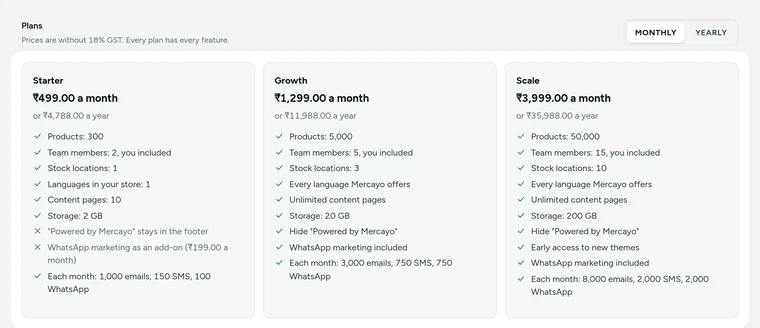
The Plans card in Settings → Billing, with its MONTHLY and YEARLY choice, on Kosha, a demo store on Mercayo. Get Your Invoice and Launch
As soon as your payment is in (charged by Razorpay, or recorded by Mercayo), the store's plan and paid-until date are set, the payment appears in Payments and Invoices with Mercayo's GST tax invoice to download, and the screen says "Your plan is paid. You can launch your store." with GO TO LAUNCH. Launching is the last step of the setup guide.
Watch Your Plan Limits
Plan Limits shows products, team members, stock locations and own domains against what your plan allows. At a limit, adding one more product or stock location is refused with a message that names the limit and points to Settings → Billing, and inviting one more person to the team is refused too. A store that moves to a smaller plan keeps everything it has; it only cannot add more until it is under the limit.
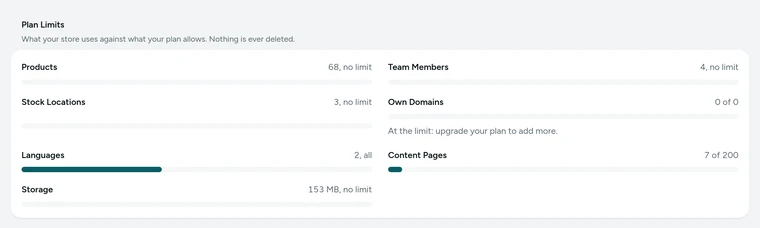
The Plan Limits card in Settings → Billing, on Kosha, a demo store on Mercayo. Renew Before Your Paid Time Ends
When your paid time runs out, the plan shows Payment due and the screen says the date to pay by. The owner is reminded by email every 3 days. After 7 days of grace, the store goes into limited mode: the storefront closes to shoppers and the admin can only be looked at, while Billing stays open. Nothing is deleted, and any payment opens everything again at once.
Change or Cancel Your Plan
With online payment, each plan has CHOOSE, UPGRADE or SWITCH. You authorise the payment on Razorpay's own page, by UPI AutoPay or card, and Razorpay charges each period, trying again if a charge fails. An upgrade starts at once, with the unused part of your current plan as credit; a move to a smaller plan starts at the end of the period you paid for. CANCEL SUBSCRIPTION keeps your plan until that day.


Settings
Settings You Control
Each one is in your admin. A new store starts with the value shown.
Nothing to set up: it works the same way in every store.
Mercayo
Mercayo's Controls
Plans, prices and limits are Mercayo's, and its team can adjust them for one store: a longer trial (14 days to start with), a different grace period (7 days), different reminder timing (every 3 days, and 3 days before the trial ends), a store's own limit on products or stock locations, credit off the next payment, free days of paid time, or an add-on for a while. Payments by bank transfer or UPI are recorded only by Mercayo's owner or finance role. Every one of these needs a written reason and is kept in Mercayo's audit log.
When you pay online, you authorise the payment on Razorpay's page: Mercayo never sees or keeps your card or bank details. Billing emails from Mercayo are never charged to your notification credits.
Limits today
Good to Know Before You Start
- Online payment by UPI AutoPay or card goes through Razorpay; where it is not switched on for your store, plans are paid by bank transfer or UPI and recorded by Mercayo.
- The Add-ons card appears only when there is an add-on to offer (such as WhatsApp Marketing on Starter) or one included in your plan.
- A store whose trial ends without a paid plan goes into limited mode at the end of the trial, with no grace period.
- Only the store owner can pay, change or cancel the plan; admins can see Billing but not act on it.
- A plan is paid for the whole store; there are no seats or plans per team member.
Questions
About Plans and Billing
How do I pay for a plan?
In Settings → Billing. Where online payment is switched on, press CHOOSE and pay on Razorpay's page by UPI AutoPay or card. Otherwise How to Pay has a button to write to Mercayo's billing address; say which plan and whether monthly or yearly, and Mercayo sends the details for a bank transfer or UPI. Once your payment is in, the invoice appears in Payments and Invoices and your store can launch.
Can I pay by card or UPI AutoPay?
Yes, where online payment is switched on for your store: you choose a plan in Settings → Billing and authorise it on Razorpay's page; Razorpay then charges each month or year and tries again if a charge fails. Mercayo never sees or keeps your card or bank details.
What happens if I pay late?
Your store stays open. The plan shows Payment due, and the owner is reminded every 3 days. After a 7-day grace period the store goes into limited mode: the storefront is closed to shoppers and the admin can only be looked at, but Billing stays open. Nothing is deleted, and paying opens everything again at once.
Will I lose data if I move to a smaller plan?
No. A store above a smaller plan's limits keeps every product, team member and stock location. It only cannot add more until it is under the limit. When you change plans online, the plan change dialog lists what is above the new limits before you confirm.
Do I get a GST invoice?
Yes, for every payment: Mercayo's GST tax invoice with 18% GST, split as CGST and SGST or as IGST for your state. Add your GST registration in Settings → Taxes and your GSTIN is printed on it, so you can claim the input tax credit. Download it any time from Payments and Invoices.
Does Mercayo take a share of my sales?
No. Every plan has no fee on your orders. Your payment gateway charges its own fee on online payments, under your agreement with it, and messages beyond your plan's monthly bundle are paid from your notification credits.
Who on my team can see billing?
The store owner and admins can see Settings → Billing, its payments and invoices. Paying, changing the plan and cancelling are for the owner alone.
Related
Related Features
- Setup Guide and LaunchSign up with a one-time code, follow a setup guide ticked from your real store data, try a test order, and launch when the essentials are done.
- Notification CreditsYour plan's messages first, then a prepaid rupee balance: what each message costs, a full statement, low-balance alerts and a GST invoice per top-up.
- Staff and RolesInvite people by email or phone, give them roles with exactly the rights they need, switch access off at once, and hand over ownership safely.
- Custom DomainsConnect a domain you own, like yourbrand.in, with a guided DNS check and an automatic secure certificate; your free Mercayo address always keeps working.
- InventorySee on hand, held for orders and available for every variant, adjust with a reason, read the full stock history, and never sell what you do not have.
More in Admin on Your Phone: Orders · Products · Inventory · Import and Export · Collections and Categories · Order Alerts · Customers · Admin on Your Phone · Search and Command Palette · Setup Guide and Launch · Sample Data · Contact Inbox · Notification Credits · Draft Orders · Catalogue Tools · Media Library · Locations, Barcodes and Stock Counts · Installable Admin
Try It on Your Own Store
Every feature is in every plan, free for 14 days.