Admin on Your Phone
Run Your Store From Your Phone, Not Just Check It
Most store owners in India run their business from a phone. Mercayo's admin is built to work fully on one: ship orders, edit products, answer failed deliveries and change settings, in light or dark.
- In every plan
- Free for 14 days

Kosha is a demo store on Mercayo. Its products, orders and customers are sample data.
In short
What It Does
The same admin, the same screens, laid out for a thumb:
- A bottom bar with the first four screens your role may open (such as Home, Orders and Products), and More: a sheet with everything else, grouped as in the computer's menu (Sell, Customers, Marketing, Online Store, Analytics, Store), then your account, the theme and sign out.
- Lists become cards. Orders, products, customers and every other list show each row as a card with what matters, and a long touch and hold selects it for the bulk bar at the bottom.
- Filters wrap into chips you tap; summaries sit two to a row.
- Big buttons where they matter: the main action of a screen is always in reach, and ADD is a round button on lists.
- The store switcher opens from the store's name in the top bar, for people with more than one store.
- The bell sits in the top bar, the search (the command palette) beside it.
- Light and dark, following your phone or your choice.
Your menu shows only what your role may open, on the phone as on the computer, and the database refuses the rest.
What Works Especially Well on a Phone
- Orders: the Unconfirmed tab and MARK CONFIRMED during a call, GENERATE LABELS from a selection, and failed deliveries answered from the queue.
- Products: edit prices, stock and photos; on a phone, product photos can come straight from the camera roll.
- Inventory: stock counts can scan barcodes with the phone's camera.
- The bell and search: both in the top bar.
The account menu shows who is signed in, the theme (light, dark or your phone's), and sign out. People with more than one store switch from the store's name at the top.
For your store
Why It Matters
Orders arrive while you are at the market, the warehouse or home. If the admin only works on a laptop, the order waits. A phone-first admin lets you confirm a cash order, make a label or answer a failed delivery in the minute you have, wherever you are.
It also means your team does not need a laptop each: a packer can work from the Orders list on a phone, with only the screens their role allows.
Step by step
How It Works
Sign In on Your Phone
Open your admin address in the phone's browser and sign in (with two-step sign-in if your store requires it).
Use the Bottom Bar
Your four main screens are one tap away; everything else is under More.
Select by Touch and Hold
In any list, touch and hold a card to select it, tap others to add them, and use the bar at the bottom.
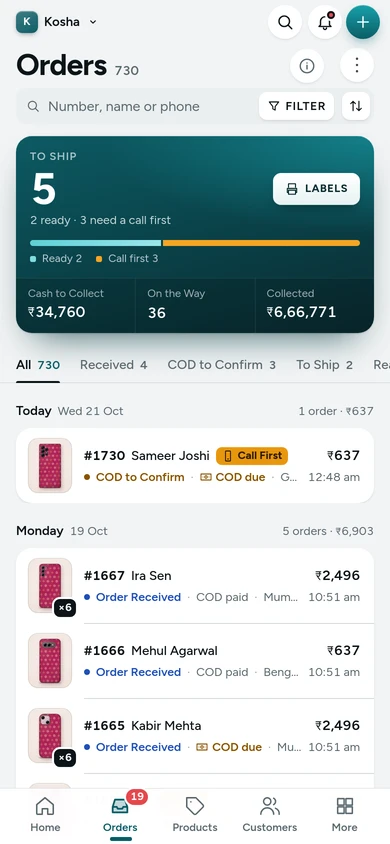
The Orders list as cards on a phone, on Kosha, a demo store on Mercayo. Search Anything
The search button opens the command palette: an order number, a phone, a product or a screen.

Settings
Settings You Control
Each one is in your admin. A new store starts with the value shown.
Nothing to set up: it works the same way in every store.
Mercayo
Mercayo's Controls
The menu, on every screen size, is built from one list where every item names the right it needs; an item without a rule is never shown. Mercayo has no phone-only settings: the phone and the computer are the same admin.
Limits today
Good to Know Before You Start
- The admin runs in the phone's browser and installs on the home screen as an app, with push alerts; on iPhone, add it to the Home Screen from Safari first.
- There is no Android or iOS app in the app stores.
- The page editor is easiest on a larger screen, though it works on a phone.
Questions
About Admin on Your Phone
Can I scan barcodes with my phone?
Yes, in stock counts and transfers: CAMERA uses your phone's camera to read Code 128 and EAN-13 barcodes.
Is there an app to download?
Not from the app stores. The admin installs from your phone's browser onto the home screen, with its own icon and push alerts for new orders, failed deliveries and returns: Settings → Admin App and Alerts.
Can I do everything on the phone?
Yes, every screen works on a phone. Long editing, like building pages, is more comfortable on a larger screen.
Does my staff see the same menu?
Each person sees only the screens their role allows, on the phone as on the computer.
Does it work in dark mode?
Yes, it follows your phone's setting or your own choice.
Related
Related Features
- Search and Command PalettePress Ctrl K or / to find orders by number, phone or name, products by title or SKU, customers, and any screen or action you are allowed to use.
- OrdersStatus tabs, saved views your team shares, search by number, phone or name, a money summary, bulk actions, and an order page with one clear next step.
- Order AlertsAn email for each new order to the owner and up to 5 more addresses, an optional SMS, and the admin's bell listing new orders, failed deliveries and exchanges.
- Installable AdminInstall the admin like an app and get push alerts on each device for new orders, failed deliveries and returns, plus a chime for new orders.
- Staff and RolesInvite people by email or phone, give them roles with exactly the rights they need, switch access off at once, and hand over ownership safely.
More in Admin on Your Phone: Orders · Products · Inventory · Import and Export · Collections and Categories · Order Alerts · Customers · Search and Command Palette · Setup Guide and Launch · Sample Data · Contact Inbox · Notification Credits · Plans and Billing · Draft Orders · Catalogue Tools · Media Library · Locations, Barcodes and Stock Counts · Installable Admin
Try It on Your Own Store
Every feature is in every plan, free for 14 days.
