Home Page Sections
Home Page Sections That Look Like One Brand
A home page is a run of sections: a hero, your best sellers, your categories, a story, what shoppers say. Mercayo's sections share one design language, so whatever you choose and however you order it, the page reads as one brand.
- In every plan
- Free for 14 days


Kosha is a demo store on Mercayo. Its products, orders and customers are sample data.
In short
What It Does
You build your home page in the page editor from a library of sections. Each one has its own settings for words, pictures, links and layout, and each takes its colours, fonts, corners and spacing from your theme. Among them:
| Section | What It Shows |
|---|---|
| Hero slider | 1 to 5 slides, each with a picture, a separate phone picture, a heading, a line and two buttons; dots, pause and swipe |
| Hero | One large picture with a heading, buttons, up to four small badges and an optional featured product |
| Product rail | A row of products from a collection or category, with up to four tabs, 2 to 24 products and an order |
| Category tiles | Up to 12 categories or collections as round bubbles, picture tiles or a bento of one large and four small |
| Banner and promo tiles | A picture with words, side by side or over it; up to four promo tiles; an optional live countdown |
| Trust strip | Up to six promises with icons, in a row, under the hero or with a line each |
| Scroll story | 2 to 6 chapters; on computers the picture beside the words changes as the shopper reads |
| Reviews and testimonials | Your store's real average rating and approved quotes, or testimonial cards |
| Journal and latest blog posts | Guides, stories or lookbooks, or the newest posts of your blog |
| Reels | Your shoppable videos in a row |
| Sign up | A box for an email address or a WhatsApp number, with Mercayo's consent line |
There are also picture galleries (a grid or a slow moving wall), picture and text, columns, quotes, videos from YouTube or Vimeo, buttons, questions and answers, text and space. Stores that sell by device can add a device picker.
For your store
Why It Matters
A home page is usually where a small store's design falls apart: one banner from a festive campaign, a carousel from somewhere else, a testimonial block in a different style. Shoppers notice, even when they cannot say why, and a page that looks put together earns trust faster, especially from someone buying from you for the first time.
Here every section is drawn from the same few theme choices, so a dark theme never shows a bright box that does not belong, and headings, buttons and pictures line up from one section to the next.
The sections are also built for how your shoppers browse: phone pictures for the hero, swipe rails on phones, a countdown that is right even on a cached page, review figures taken only from approved reviews, never typed in. You spend your time on the words and the photos, not on making boxes match.
Step by step
How It Works
Open the Home Page in the Editor
Open Online Store → Editor; it starts on the home page. Until you lay it out, your home page shows your products in a grid. Your first change starts your own layout, as a draft that shoppers do not see.
Start With the First Screen
Add a Hero slider or a Hero as the first section. Give each slide a wide picture and, for phones, a tall one, so nobody gets a cropped face. A slider moves on by itself every few seconds (6 to start with, or 0 for only when the shopper swipes), only while it is on screen and not being pointed at. Placed first, a hero can run under a see-through header that turns solid as the shopper scrolls.
Show What Sells
Add a Product rail and choose its collections or categories. With more than one, they become tabs ("Cases", "Accessories"); switching tabs keeps the last products on screen, veiled, until the next ones arrive. Choose how many products it shows (2 to 24) and their order: newest, price, or your own manual order.
Help Shoppers Find Their Way
Category tiles lead into your range: round bubbles, picture tiles with a line under each, or a bento with one large picture and four small ones. A Trust strip states what you promise (delivery, returns, cash on delivery) in your own words, with icons from a fixed set.
Tell Your Story and Show Proof
A Scroll story walks through how your products are made, chapter by chapter. Reviews and testimonials shows your store's real rating and quotes from approved reviews, each naming its product, and "Verified buyer" when the review matches an order. It appears only once your store has the number of approved reviews you set (10 to start with).
Add Urgency Without Tricks
A Banner or Promo tiles can carry a live countdown to a date and time you set. The end time is written in India time on the server, the shopper's browser counts down in the same box, and after the moment it says "Ended", so a cached page never shows a sale that is over.
Publish and Check on a Phone
Preview at phone, tablet and computer size, hide a section on screens where it does not help (Show on), then press PUBLISH. The home page is rebuilt at once for every shopper.
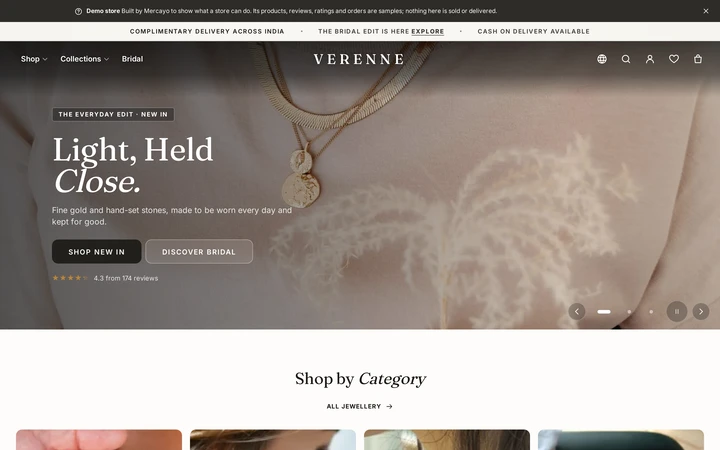
The same sections in a light editorial theme, on Verenne, a demo store on Mercayo.

Your shoppers
What Your Shoppers See
On a phone, shoppers get a hero cropped for a phone, rows they can swipe with a finger, and tiles sized for a thumb. Nothing on the first screen waits for animation: sections further down rise in as they scroll, and not at all for a shopper whose phone asks for less motion. Ratings and prices come from your store's own data when the page is built, and countdowns are checked again in the shopper's browser, so a cached page never shows a sale that has ended.

Settings
Settings You Control
Each one is in your admin. A new store starts with the value shown.
Mercayo
Mercayo's Controls
Mercayo's team can switch off single section types for a store (they stay in the layout but are not shown, and cannot be added), lower the number of sections a page may hold, or force the reviews threshold and the sign-up switch, each with a written reason that is logged. Mercayo never writes your headings, never adds review figures of its own, and the consent line under a sign-up box is Mercayo's fixed wording, so it always says what the shopper is agreeing to.
Limits today
Good to Know Before You Start
- Colours inside a section are your theme's own panels and schemes; a section cannot take a colour code of its own.
- Videos come from YouTube or Vimeo by their link's id, or from your own reels; other video sites are not supported.
- The rating and reviews section shows only approved reviews of your own store; testimonials cannot be typed in as reviews.
- A hero slider holds at most five slides, and some sections may appear only once or twice on a page.
Questions
About Home Page Sections
Can I copy the look of another website?
You can get very close to most store layouts with the sections here, in your own colours and fonts. What you cannot do is paste in another site's code or colours section by section: every section takes its look from your theme, which is what keeps the page consistent.
Why do I need a separate phone picture for the hero?
A wide picture cropped to a phone's tall screen often loses the product or a face. The phone picture is optional; without it, the wide one is cropped to fit.
Where does the star rating on my home page come from?
From your store's approved reviews only: the real average and count, and quotes from real reviews with their products named. It shows once you have at least the number of approved reviews set in Settings → Online Store → Home Page (10 to start with).
Is the countdown real?
Yes. It counts down to the date and time you set, in India time, and shows "Ended" once it passes. It never restarts for a new visitor.
Do moving sections slow down my page?
Movement uses only the browser's lightest effects, and nothing moves on the first screen while the page loads. Below-the-fold pictures load as shoppers scroll. A shopper whose phone asks for less motion sees no movement at all.
Can the same sections go on other pages?
Yes. Most of these sections can also go on collection and category pages, content pages and the blog. The page editor shows which sections each kind of page can hold.
Related
Related Features
- Page EditorArrange the sections of every page in a visual editor with a live preview, private drafts, share links and 30 published versions to go back to.
- Theme EditorColours, fonts, shapes, header, cards, product page, motion, logo and sharing picture, in one editor with a live preview, readability checks and undo.
- Loading and MotionSections rise in, cards lift and sheets spring open; loading keeps content on screen instead of flashing empty; calm at checkout, still on request.
- Shoppable VideosUpload upright videos, tag up to 10 products in each, and show them as a row that plays on its own and a full-screen player with ADD TO BAG.
- Product ReviewsShoppers write reviews with photos, every review waits for your approval, verified buyers are proven by real orders, and you can reply in public.
- Subscribers, Popups and Floating ButtonsA sign-up popup with sensible rules, a footer band, double opt-in with consent kept, a subscribers list with CSV, and floating WhatsApp buttons.
More in Design and Page Editor: Page Editor · Theme Editor · Store Looks · Menus and Mega Menu · Announcement Bar · Product Templates · Loading and Motion
Try It on Your Own Store
Every feature is in every plan, free for 14 days.