Mercayo gives you an online store and the admin to run it: your products, orders, customers, offers, store design and settings, all in one place, built for selling in India (cash on delivery with confirmation codes, GST invoices, PIN codes, Indian couriers, WhatsApp and Hindi). This article is a tour of the admin so you know where everything lives. If you have not created your store yet, start with Create Your Store.
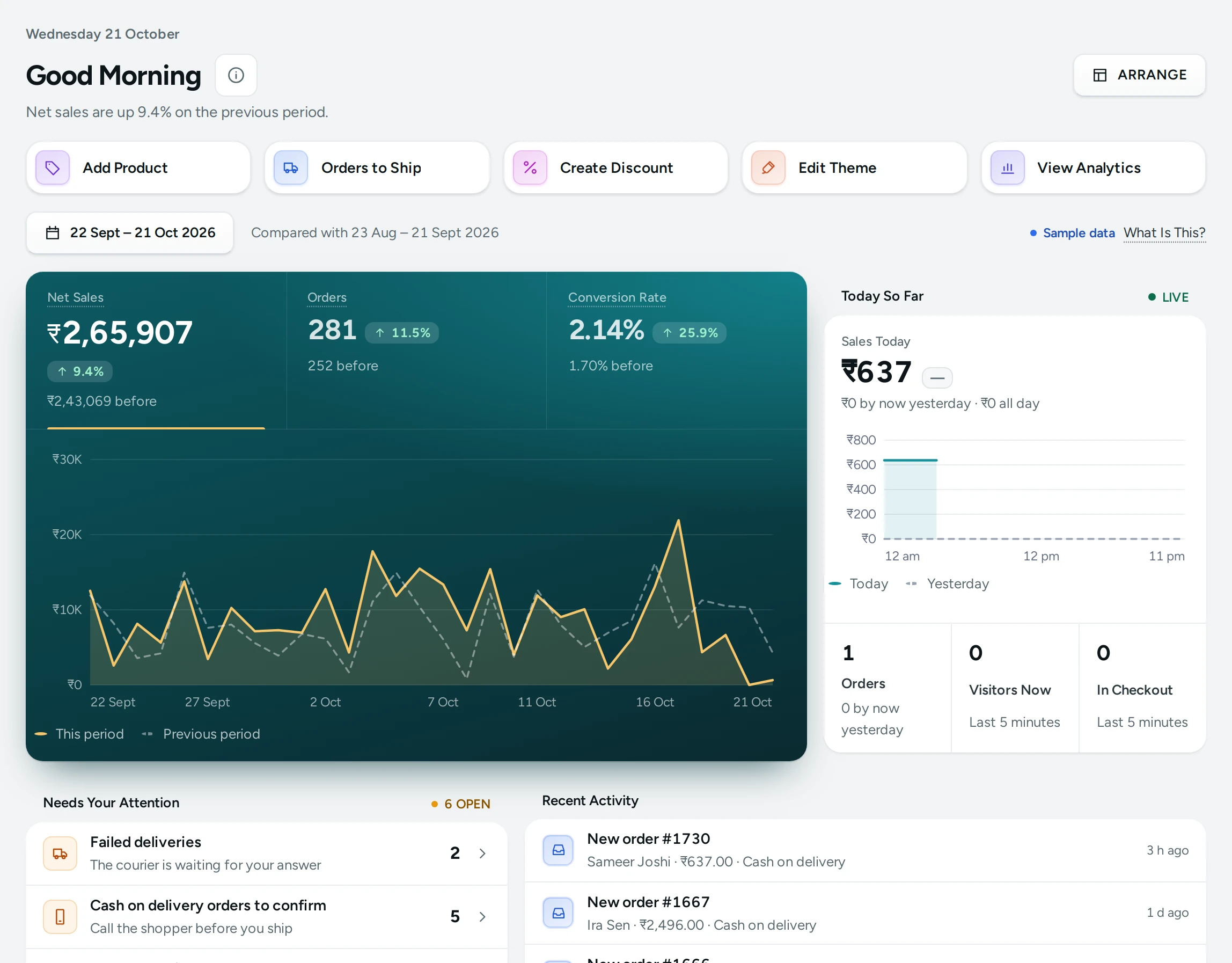
Your Store and Its Admin
Every store has two sides:
- The store your shoppers visit, at its free address (for example
yourbrand.mercayo.com, the handle you chose at sign-up) and, once you connect one, at your own domain such asyourbrand.in. See Domains. - The admin where you and your team run it. You sign in to the admin with your email or mobile number; your shoppers never see it.
Until you launch, the store is private: search engines never list it, and visitors see an opening-soon page unless they have your password. See Launch Your Store.
The Side Menu
On a computer the menu runs down the left side. It is grouped so the daily work sits at the top:
| Group | Items | What You Do There |
|---|---|---|
| (top) | Home | Today's numbers, what needs your attention, the setup guide |
| Sell | Orders (with Exchanges, Shipments, Abandoned Bags), Products (with Inventory, Collections, Categories, Fit List, Gift Cards) | Take and ship orders, manage the catalogue and stock |
| Customers | Customers, Inbox, Store Credit, Rewards, Referrals | Your shoppers, their messages and loyalty |
| Marketing | Discounts, Reviews (with Questions), Subscribers, WhatsApp (with Messages, Templates) | Offers, social proof, sign-ups and WhatsApp |
| Online Store | Theme, Editor, Pages, Blog, Reels, Menus (with URL Redirects) | How the store looks and what it says |
| Analytics | Analytics (with Reports) | Sales, visits and reports |
| Store (at the foot) | Wallet, Settings | Notification credits, and every setting |
An item with items under it (for example Orders) shows them beneath it when you are in that part of the admin. Each person only sees the items their role allows: a packer who can only see orders never sees Discounts or Settings.
The Top Bar
- Search (with Ctrl K, or ⌘ K on a Mac): search orders, products and customers, or jump to any screen or setting. See Search, the Bell and Shortcuts.
- The bell (Notifications): new orders, failed deliveries, exchanges and low notification credits.
- The light or dark switch: the admin in a light or a dark theme, remembered on this device.
- Your account menu: who you are signed in as, Search and Jump, Switch Store, Help, Two-step sign-in, Change Password and Sign out.
Every Screen's Help Button
Next to the title of each screen is a small i button, Help for This Screen. It opens that screen's article in this Help Centre in a new tab, so you can read about a field while you fill it in. The admin's Help page (account menu › Help) lists every article for the screens you can open, and how to reach Mercayo's support.
On a Phone
The admin works fully on a phone. The side menu becomes a bottom bar with Home, Orders, Products, Customers and More; everything else is in the More sheet. See The Admin on Your Phone.
Your Team and Their Roles
The person who created the store is its Owner. The owner can invite others and give each a role:
- Admin: everything except what is kept for the owner: paying for the plan, launching the store, handing the store to someone else, and closing the store.
- Staff with a role: only what the role allows. Every store starts with four preset roles: Catalog Editor (products and stock), Customer Support (orders, customers and reviews to read), Marketer (discounts, content, theme, reviews and reports) and Order Manager (orders and customers). You can make your own roles too.
Rights are checked by Mercayo's database on every request, not only hidden in the menu, so a person can never reach data their role does not allow. See Staff and Roles.
Words You Will Meet
- Bag: Mercayo's word for the shopping cart, on the store and in the admin.
- Variant: one buyable version of a product, such as a size or a colour.
- COD: cash on delivery. Unconfirmed COD orders are those waiting for the shopper's confirmation code.
- Mercayo controls: some settings can be set or limited by Mercayo for your store; they show a lock and Mercayo's note.
The Glossary explains every term.
Where to Go Next
- Follow the setup guide on Home: it lists every step to launch, in order.
- Add your first product, with its photos, price and stock.
- Set up payments and delivery.
- Write your policies, then launch.
Questions
Do I need to install anything?
No. The admin runs in your browser on a computer, tablet or phone. Sign in at Mercayo's admin address with your email or mobile number.
Can my staff use the admin without seeing my sales?
Yes. Give them a role without the reports right. Home then shows them only the cards their role allows. See Staff and Roles.
Can I run more than one store?
Yes, from the same sign-in. Use Switch Store in the account menu. See Switching Between Stores.
Is the admin available in Hindi?
The admin's words are in English today. Your store, the side shoppers see, can be shown in Hindi and other languages. See Languages and Currencies.