Home is the first screen you see when you open your store in the admin. It answers three questions in one look: how sales are going, what is waiting for you right now, and what has just happened. Until your store is launched it also carries the setup guide. Home is the first item in the side menu and the first tab of the bottom bar on a phone, and every member of your team can open it; each card only shows what that person's role allows.
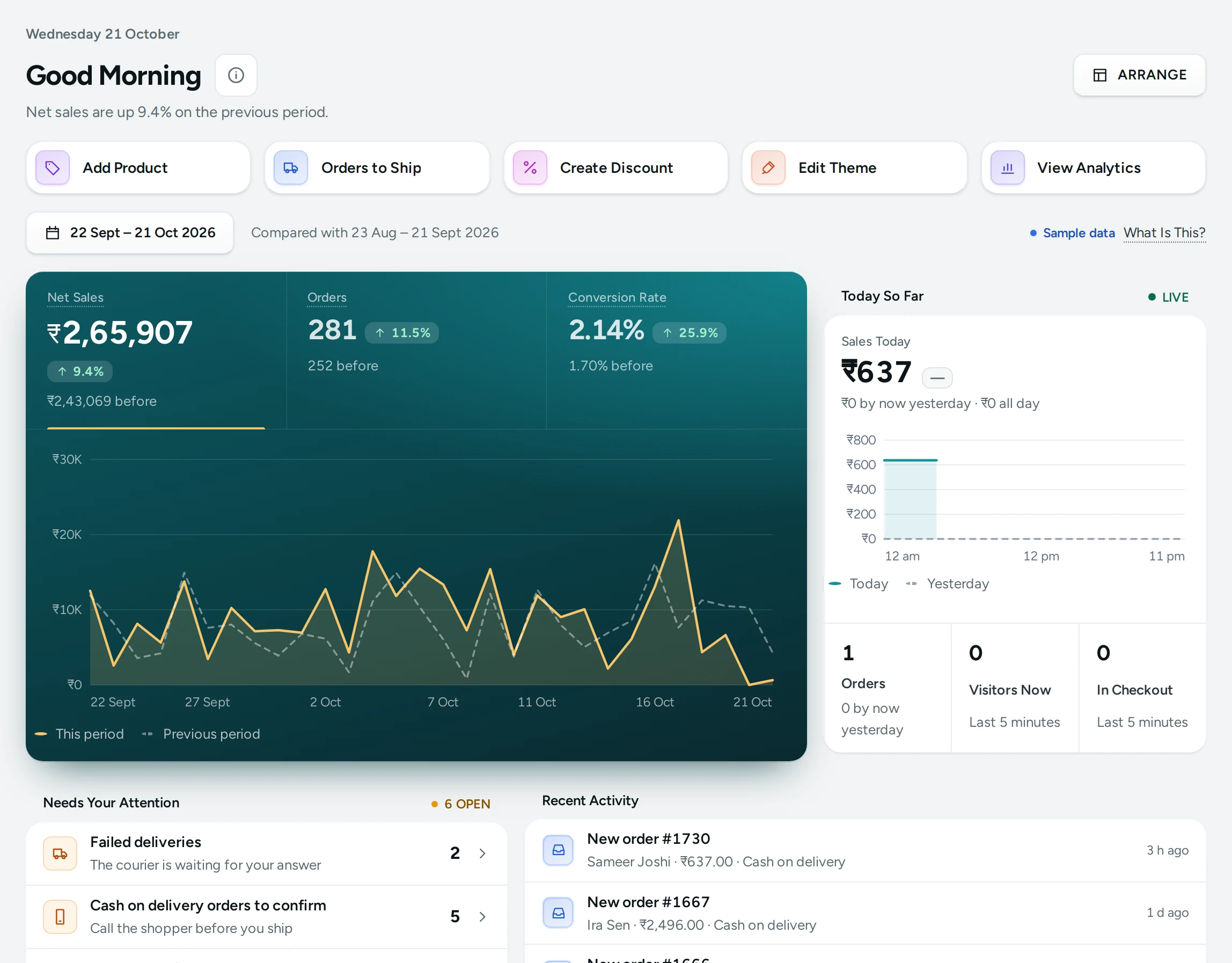
How Home Is Laid Out
The page greets you by the time of day (Good Morning, Good Afternoon or Good Evening, with your name when the admin knows it) and gives a one-line summary under the title, such as "Net sales are up 12% on the previous period" or, before the first sale, "Your numbers show here once your first order comes in."
Under the greeting, Quick Actions are one tap away: Add Product, Orders to Ship, Create Discount, Edit Theme and View Analytics. Each shows only to people whose role allows it.
The cards appear only when they have something to say. A brand-new store sees the setup guide and an empty Sales card; a busy store sees the full set. On a computer the cards sit in rows; on a tablet in two columns; on a phone in one column, in the order that matters most on the move (sales, then what needs your attention, then today).
| Card | When It Shows | What It Holds |
|---|---|---|
| Set Up Your Store | Until you launch, for people who can see settings | The setup guide's steps and your progress |
| Sales (first sale) | Before your first order | A note that numbers appear once shoppers buy, and ADD A PRODUCT when the setup guide is not shown |
| Sales Overview | Once there are sales | Net sales, orders and conversion rate for the chosen dates, with a chart |
| Today So Far | Once there are sales | Sales and orders today against the same time yesterday, visitors now |
| Needs Your Attention | When a queue has something in it | Orders to ship, COD orders to confirm, failed deliveries and more |
| Recent Activity | When something has happened | New orders, shipments, deliveries, refunds, reviews and questions |
| Key Numbers | When there are orders or refunds in the dates | Average order value, items sold, returning customers, refunds |
| Top Products | When products sold in the dates | Products by net sales |
| Top Customers | When customers bought in the dates | Customers by what they spent |
| Orders by Status | When there are orders in the dates | How many orders are at each stage now |
| Cash on Delivery vs Prepaid | When there are orders in the dates | How shoppers chose to pay |
Arrange Home
ARRANGE at the top opens Arrange Home: "Choose the order of your cards and hide the ones you do not need. Only you see it." Move a card up or down, or switch it off. "The setup guide stays at the top while your store gets ready. Wide cards take a full row on a computer." Turn this off for the whole team with Team Members Can Arrange Home (Settings › Admin and Reports); then everyone sees the standard Home.
Choosing the Dates
The Dates button at the top opens a calendar. Pick one of the Quick ranges or any two days, then press APPLY. Compare with the previous period is on to start, so each number is shown against the period just before; the line beside the button says which dates it is compared with (for example "Compared with 1 Sep 2026 to 30 Sep 2026").
Home opens on the range set in Settings › Admin and Reports › Home Dashboard › Home Opens On (default Last 30 days; the other choices are Last 7 days and Last 90 days). Anyone can pick other dates on the page; that choice is not saved for the next visit.
Sales Overview
The large card shows three numbers. Click one to draw it on the chart.
- Net Sales: what your items sold for in these dates, after discounts, cancellations, returns to origin and refunds. Delivery fees and GST added at checkout are not included, so this is the number to compare with your margins.
- Orders: orders confirmed in these dates. A cash on delivery order counts when it is placed; an online order counts when it is paid. An online order that was never paid does not count.
- Conversion Rate: of all visits to your store, the share that ended in an order.
With comparison on, each number shows the previous period's value ("₹48,200 before") and the change in per cent with an up or down arrow.
Today So Far
A live view of the day: Sales Today and Orders with what you had by this time yesterday ("₹6,400 by now yesterday") and yesterday's full day, a chart of sales through the day for today and yesterday, Visitors Now (visits in the last 5 minutes, marked LIVE) and In Checkout (visitors in the last 5 minutes who reached checkout and have not ordered).
Needs Your Attention
The queues that need someone, most urgent first. Each row shows how many are open (for example 3 OPEN) and opens the right screen with the right filter when you click it.
| Row | What It Means | Opens |
|---|---|---|
| Failed deliveries | The courier could not deliver and is waiting for your answer | Shipments › Failed Deliveries |
| Cash on delivery orders to confirm | COD orders to confirm before you ship: call the shopper before you ship | Orders, on the unconfirmed COD orders |
| Orders to ship | Confirmed and waiting for a courier | Orders, on the orders to ship |
| Exchanges asked | Shoppers asked for a different variant; accept or decline each | Exchanges |
| Message credits running low | Your notification credits are low; order messages stop at zero | Wallet |
| Products sold out | On sale with nothing left to sell | Products, on the active products |
| Products running low | A size or style is nearly sold out | Products, on the active products |
| Reviews to approve | Shown on your store once approved | Reviews |
| Questions to answer | Asked on your product pages | Questions |
| Bags left at checkout | Bags left in the last 7 days, with their value | Abandoned Bags |
"Running low" uses Settings › Admin and Reports › Home Dashboard › Running Low At (default 5): a product with a size or style at or under that many pieces left appears here. Set it to 0 to never show the row.
When every queue you can see is empty the card says All Caught Up: "Nothing is waiting for you right now", and lists the queues that are clear.
Recent Activity
The latest events in your store, newest first, each with how long ago it happened ("12 min ago"): a new order, an order shipped, delivered, cancelled or returned to origin, a refund, a failed delivery, an exchange asked, a review (with its stars) and a question about a product. Click a line to open the order, review or question.
Key Numbers
- Average Order Value: what shoppers paid per order, on average, delivery and GST included.
- Items Sold: pieces in the orders confirmed in these dates.
- Returning Customers: shoppers who ordered in these dates and had ordered from you before, matched by phone number.
- Refunds: money given back in these dates, on any order.
Hover over a number's name (or tap it on a phone) for its definition.
Top Products, Top Customers, Orders by Status, Payments
- Top Products: by net sales in these dates, with pieces sold and each product's share of net sales. A product deleted since shows as "A product since deleted".
- Top Customers: by what they spent in these dates, with their orders and share of sales. A shopper who gave no name shows as "A shopper without a name".
- Orders by Status: the orders of these dates by where they are now: Awaiting payment, To ship, Shipped, Delivered, Returned to origin, Cancelled, Closed. Click a status to open those orders.
- Cash on Delivery vs Prepaid: how shoppers chose to pay, with the number of orders, their value and the average for Cash on delivery and Prepaid (Paid online through your gateway, or Paid another way).
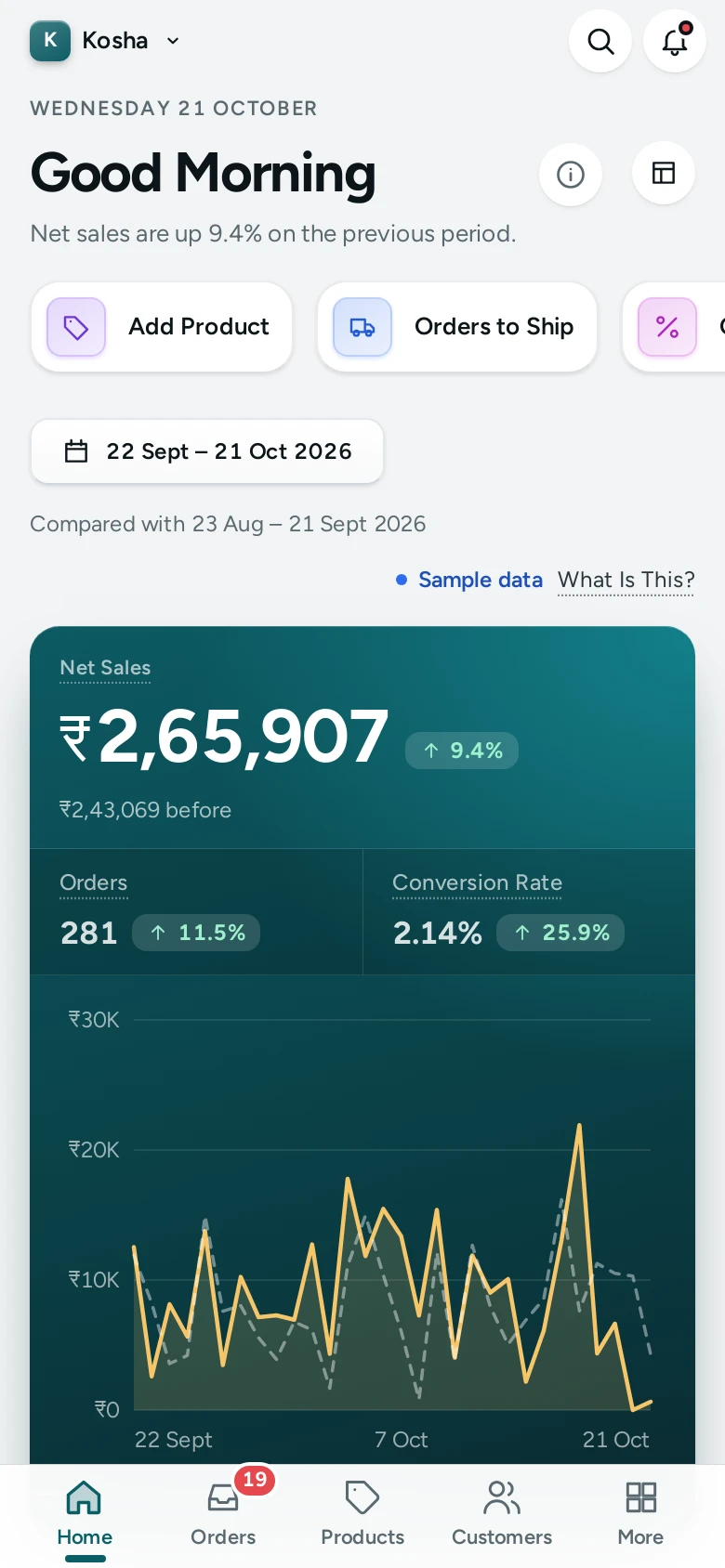
Sample Data on Home
If your store has sample orders (for example after loading sample data), the toolbar shows a Sample data badge. Its What Is This? note explains that the numbers include sample orders added to show how Home looks with a busy store, and that you can delete them from the setup guide whenever you like.
Who Sees What
Home shows each person only the cards their role allows. Someone without the rights for orders, products or reports sees a Your Access card instead: "Your role in this store does not include orders, products or reports. Ask the store owner if you need them." The setup guide is shown to people who can see settings; its buttons work for people who can change settings. See Staff and Roles.
Good to Know
- Home reads your numbers fresh each time you open it. If they cannot be read, it says "Your numbers could not be read just now. Nothing is lost; try again in a moment." with TRY AGAIN.
- Net sales and orders are counted the same way on Home and on Analytics, so the two always agree for the same dates.
- Test orders you place yourself are counted like any other order.
Questions
Why does Home show no sales even though I have orders?
Orders count when they are confirmed: a COD order when it is placed, an online order when it is paid. An online order still waiting for payment is not counted. Also check the dates at the top: the default is the last 30 days.
Can I change which dates Home opens on?
Yes. Settings › Admin and Reports › Home Dashboard › Home Opens On offers the last 7, 30 or 90 days. You can always pick other dates on the page itself.
Why is "Products running low" never shown?
Either nothing is at or under the Running Low At number (default 5), or it is set to 0, which turns the row off.
What counts as a returning customer?
A shopper who ordered in the chosen dates and had ordered from your store before, matched by their phone number.
Does Home include GST and delivery in net sales?
No. Net sales is what your items sold for after discounts, cancellations, returns to origin and refunds. Average order value, on the other hand, is what shoppers paid, delivery and GST included.