Print Queue
A Print Queue for Every Designed Order
Once a shopper pays for a designed item, its print files wait in one queue. Group them by product or by print area, download a batch as one ZIP, send them to the print shop you work with by email or webhook, and mark them printed, with UNDO. It comes with the Product Designer add-on.
- No fee on your orders, on every plan
- Free for 14 days


Kosha is a demo store on Mercayo. Its products, orders and customers are sample data.
In short
What It Does
The Print Queue (Orders → Print Queue) lists every print file of your paid designed items. A print file is one side's print area of one item: a T-shirt printed on the front and the back is two files, often on two machines.
- Batches: a tile for each product, or for each print area, with what waits in it. A tile shows only that batch.
- Tabs for Waiting, Sent to Printer, Printed and All, with counts; a search by order number, product or SKU; a filter for files ready or still being made.
- MARK PRINTED and SENT TO PRINTER for many at once, with UNDO. REPRINT sends files back to Waiting with your reason and counts each reprint. Every change is in its order's history.
- DOWNLOAD ZIP: the PDF, PNG, SVG and CMYK PDF you choose, made in the background with its progress, then a bell notice. Each file sits under its order's number, with a manifest of sizes and DPI. Big batches come in parts.
- The print partner: a print shop's email, its webhook, or both. Files go by hand from the queue, or by themselves once a paid order's files are made. Each delivery and its answer is in the log; a webhook that fails is tried again for about a day.
- Crop marks in the PDF, the SVG of the layers (one layer for each text or photo) and a PDF in CMYK are store settings. The CMYK PDF goes through Coated FOGRA39 or your print shop's own profile, which it names inside the file.
- The menu shows how many files are waiting.
For your store
Why It Matters
Printing to order means many small jobs: a name on a tee, a photo on a case, a festival mug. Without a queue, someone opens each order, downloads each file and keeps a list of what is printed. The queue does that list, and batches by product or by area match how a print room works: one blank and one machine at a time.
Many stores print with a partner shop. The files reach the shop the moment the order is paid, by email or straight into its own system, signed so it knows they came from you, and the links never show your shopper's name, phone or address.
Step by step
How It Works
Shoppers Pay for Designed Items
Once an order is paid, or its cash on delivery is taken, a PDF, a PNG and an SVG are made for each print area used, and each joins the Print Queue as Waiting.
Batch Them
Group the queue by Product or Print Area and press a batch to see only it. Search for an order, or show only files that are ready.
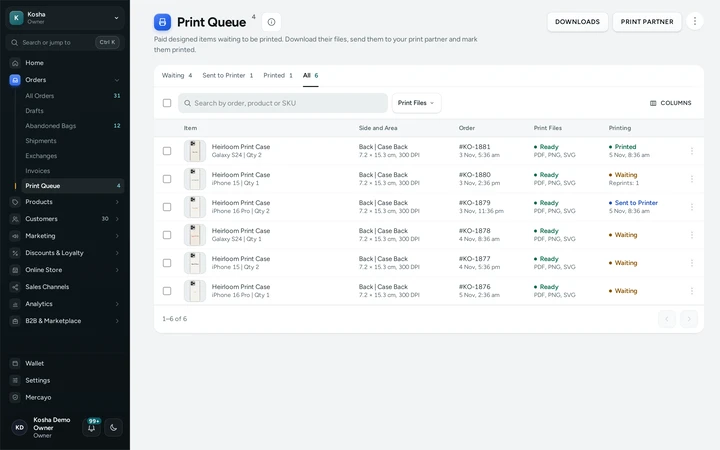
Grouped by print area, with files waiting, sent to the partner and printed. Download or Send
Tick the files. DOWNLOAD ZIP makes one ZIP in the background (the bell says when it is ready), or SEND TO your print partner sends them by email or webhook.
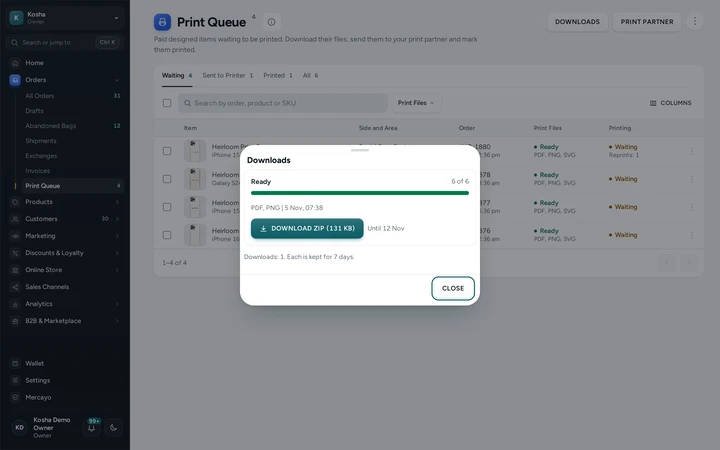
Downloads: a ZIP made in the background, ready to save. Mark Them Printed
MARK PRINTED when they are done, with UNDO for a slip. REPRINT sends a file back with your reason when a print goes wrong.
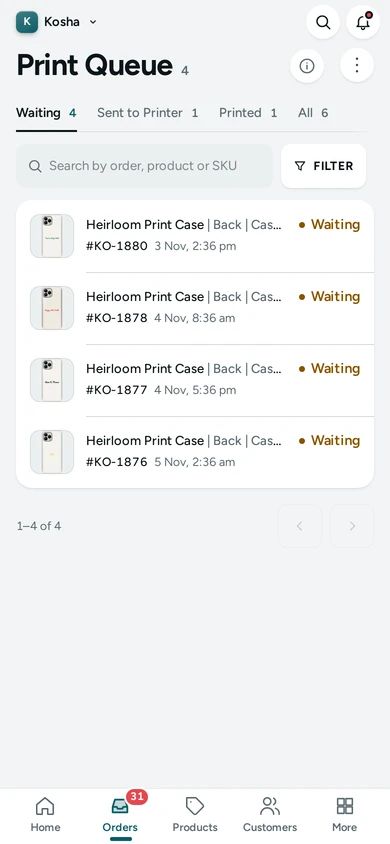
The Print Queue on a phone: batches in a sideways row, each print file as a card. Let Paid Orders Go by Themselves
In Orders → Print Queue → PRINT PARTNER, switch on Send When Paid: each paid order's files go to your partner once they are made, and show Sent to Partner.
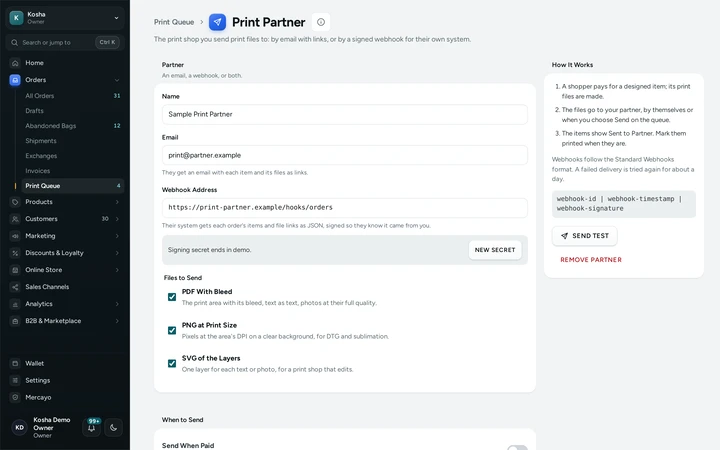
The print partner: its email and webhook, Send When Paid, and the log of every delivery.


Settings
Settings You Control
Each one is in your admin. A new store starts with the value shown.
Mercayo
Mercayo's Controls
Mercayo can turn hand-offs to a print partner off for a store, force Send When Paid on or off, and set how long the file links in a partner's email or webhook keep working (7 days). Print files are kept 180 days after delivery, as for the Product Designer; ZIP downloads are kept 7 days. Mercayo never sends a store's files anywhere but to the partner the store set up.
Limits today
Good to Know Before You Start
- One print partner a store; it gets every file you send, by email, by webhook or both.
- In the CMYK PDF, text and shapes are pixels at the print size and DPI; the sRGB PDF keeps them as vectors. A CMYK file over 50 MB is not made (the PDF and PNG still are).
- Text in the SVG is drawn as outlines, so it prints exactly but is not typed text a print shop can edit.
- A webhook that does not answer is tried 8 times over about a day, then marked failed in the log; send it again from the queue.
Questions
About Print Queue
Why is a two-sided T-shirt two rows?
Each print area is its own print file, and often its own machine and setup. The item is printed when all its files are.
Can I take back MARK PRINTED?
Yes: the message has UNDO for a few seconds, and BACK TO WAITING on the Printed tab puts files back any time.
How big can a ZIP be?
Up to 500 print files at a time. A batch over 45 MB comes in parts you download one by one. ZIPs are kept 7 days.
How does my print partner know a webhook is really from me?
Each one is signed with a secret only you and your partner have, in the Standard Webhooks format their developers can check with a ready library. The secret is shown once when you save the partner; NEW SECRET makes another.
Does my print partner see my shopper's details?
No. They get the order number, the product, its variant and quantity, the side, the area, its size and DPI, and links to the files. Never a name, phone, email or address.
Can I get CMYK files?
Yes. Switch on CMYK PDF for Printing in your Product Designer settings: each print file also comes as a PDF in CMYK through Coated FOGRA39, or through your print shop's own profile if you upload it. The profile is named and embedded in the file.
Who on my team can use it?
Anyone with View Print Queue sees it and downloads files; Manage Print Queue marks, reprints and sends. The Order Manager role has both.
Related
Related Features
- Product DesignerShoppers design your product on a live picture with photos, words, art and QR codes, or start from your template; you get print-ready files.
- PersonalisationAsk shoppers for a name to engrave, a photo, a choice, a date or a tick box, each with its own price, carried through to the order, slip and invoice.
- Packing ListsA packing list for any order at any stage: every item in full with tick boxes, notes and gifts, the money if you show it, Packed by and Checked by lines.
More in Design and Page Editor: Page Editor | Home Page Sections | Theme Editor | Store Looks | Menus and Mega Menu | Announcement Bar | Product Templates | Loading and Motion | Royal Depth | Graphite | Sideways Scrolling | Section Builder Assistant | Product Designer