Sideways Scrolling
One Way Every Row Moves, Chosen by You
On a phone, much of a store is rows you swipe: products, categories, reviews, offers. They should all move the same way, and the way should be yours. One setting decides how every sideways row in your store glides or settles, and another what shows under it.
- In every plan
- Free for 14 days


Kosha is a demo store on Mercayo. Its products, orders and customers are sample data.
In short
What It Does
Sideways Scrolling sets how every row of cards in your store moves when a shopper swipes it, on the home page, product pages, lists, the bag, search and after the order:
| Choice | How It Feels |
|---|---|
| Free scroll (smooth) | A swipe glides and slows down smoothly, like the phone's own scrolling. The starting choice. |
| Snap gently | It glides, then settles on a card's edge. |
| Card by card | Every swipe lands on a card's start. |
| Peek and centre | Every swipe lands with a card in the middle and its neighbours peeking at the sides. |
Sideways Row Indicator sets what shows under every row on phones and tablets: a Progress line (the starting choice), Dots (one for each screenful, the one in view filled) or None (and no space kept for it). Its space is drawn with the page, so nothing moves when it appears.
The Same Everywhere
The one setting reaches every row of cards: product rows, category tiles, promotions, reviews and shopper photos, offers, add-ons in the bag, suggestions after the order and more, so a store never has one row that stops on every card while the next one glides. Tabs and chips that scroll sideways (such as a row of filter chips) never snap: they always move freely, because they are controls, not cards.
Some things keep their own way of moving because they are not rows: the product page's photo gallery (one photo at a time), the hero slider and the announcement bar.
Built for a Thumb
The swipe itself is the browser's own, with no script running while the finger moves, so it never stutters on a slower phone. A vertical swipe that starts on a row scrolls the page, as a shopper expects; reaching the end of a row never swipes the browser back a page. On computers, rows keep their arrow buttons and can also be dragged with the mouse.
Previewed Live
Both settings are in Online Store → Theme → Product Cards, under Product Rows, beside the number of cards a row shows on phones and tablets. They show on the preview at once, before you save: swipe a row on the preview to feel the difference.
For your store
Why It Matters
Rows are how phone shoppers browse: a home page on a phone is mostly rows of products, categories and reviews. When they behave differently from each other, the store feels unfinished, even to a shopper who cannot say why. When they all move one way, the store feels like one app.
Which way is right depends on the brand. A store with many small products often suits free scrolling, so a shopper can fly through a row; a store with large photos often suits landing on one card at a time, so each product is seen whole. The indicator tells shoppers there is more to see, in the style that suits the look: a quiet line, or dots.
Step by step
How It Works
Open Product Cards in the Theme Editor
Go to Online Store → Theme and choose Product Cards. Scroll to Product Rows.
Choose Sideways Scrolling
Pick Free scroll (smooth), Snap gently, Card by card or Peek and centre. The preview follows at once; swipe a row in it to try each one.
Choose the Indicator
Pick Progress line, Dots or None for Sideways Row Indicator.
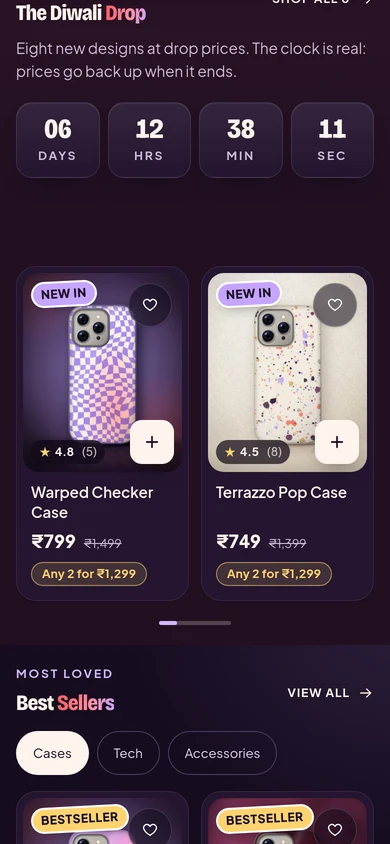
A row of products with its progress line on a phone, on Kosha, a demo store on Mercayo. Save
Press SAVE. Every row of your store moves the new way from the next page a shopper opens.

Your shoppers
What Your Shoppers See
Shoppers swipe every row the same way, with the phone's own feel, and see a small line or dots that tell them how much more there is. A shopper whose phone asks for less motion still gets the same landing behaviour, without the dots gliding.
Settings
Settings You Control
All are under Online Store → Theme → Product Cards → Product Rows.
Mercayo
Mercayo's Controls
Both are your store's settings. Mercayo's team can fix either for a store (for example while helping with a design), and the editor then shows that it was set by Mercayo, with the reason; Mercayo's value wins until it is lifted. Mercayo keeps the list of rows the setting reaches, so a new kind of row added to the product moves your way too.
Limits today
Good to Know Before You Start
- One setting for the whole store: rows cannot each have their own way of moving.
- The product photo gallery, the hero slider and the announcement bar keep their own movement.
- The indicator shows on phones and tablets; computers use the rows' arrows.
Questions
About Sideways Scrolling
Which choice should I start with?
Free scroll (smooth) is the starting choice and suits most stores: it is the phone's own momentum. Choose Snap gently if you want rows to come to rest neatly on a card without losing the glide.
Does it change my product page photos?
No. The photo gallery moves one photo at a time whatever you choose. The setting is for rows of cards.
Can shoppers still scroll the page when their finger starts on a row?
Yes. A vertical swipe that starts on a row scrolls the page; only a sideways swipe moves the row.
Will the indicator push my page around when it appears?
No. Its space is part of the page from the start; with None, no space is kept at all.
Does it work on computers?
Rows on computers keep their arrow buttons, and can also be dragged with the mouse. The scrolling style applies to touch screens.
Related
Related Features
- Theme EditorColours, fonts, shapes, header, cards, product page, motion, logo and sharing picture, in one editor with a live preview, readability checks and undo.
- Home Page SectionsHero sliders, product rows, category tiles, stories, real reviews, reels and sign-up boxes, all drawn from your theme so the page always fits together.
- Loading and MotionSections rise in, cards lift and sheets spring open; loading keeps content on screen instead of flashing empty; calm at checkout, still on request.
- Product PagesPhotos that zoom, options that never guess, delivery dates by PIN code, a buy bar that follows and rows of related products, on every product.
More in Design and Page Editor: Page Editor · Home Page Sections · Theme Editor · Store Looks · Menus and Mega Menu · Announcement Bar · Product Templates · Loading and Motion
Try It on Your Own Store
Every feature is in every plan, free for 14 days.
