Theme Editor
Your Store's Whole Look in One Place, With a Live Preview
The Theme editor holds every look setting of your store, grouped the way you think about them, beside a live preview of your own store. Change the colours or the button shape and the preview follows at once; nothing changes for shoppers until you press SAVE.
- In every plan
- Free for 14 days


Kosha is a demo store on Mercayo. Its products, orders and customers are sample data.
In short
What It Does
Open Online Store → Theme. On the left are the theme's sections:
- Presets: a finished look to start from (Neon Velvet, Maison and Classic today). Applying one changes colours, fonts, shapes and layout; your products, pages, logo, menus, the word for your bag and how it behaves stay yours.
- Colours: buttons, accent, page background, cards and panels, lines, headings, body text, quiet text, sale price, savings and rating stars, each with its colour code, plus seven readability checks.
- Typography: the font pair, heading weight, heading letter spacing and heading size (compact or editorial).
- Shape: one shape for every button, field and chip (rounded, square or pill), corner size, button height, card corners and button finish.
- Header & Announcement, Footer, Product Cards, Product Page, Bag & Checkout: how each part looks and behaves.
- Layout: widest content, density, space between sections, section headings, panels, shadows, soft glow, gradient edges and paper grain.
- Motion, Logo & Favicon, Social Sharing and Section Styles (a layout for each part of the store; see store looks).
On the right, the preview shows your own store's live pages (Home Page, Product List, Product Page or Bag) at phone, tablet or computer size, with the look you are editing. One SAVE saves every section at once; DISCARD puts everything back as saved.
For your store
Why It Matters
When a store's look is spread over many screens, nobody on the team knows where the button colour lives, and changes get made in one place and forgotten in another. One editor, one preview and one save make the look something you can own, even with a team of two.
It also protects you from the mistakes that cost sales quietly:
- Readability is checked as you choose. Words need 4.5:1 against what is behind them and a button 3:1 against the page; a weak pair says "Hard to Read" with its ratio, before any shopper struggles with it in the sun on a phone.
- One shape everywhere. Buttons, fields, chips and filters share one shape, so a page never mixes rounded and square controls.
- Undo is real. Applying a preset only changes the draft, with UNDO beside it, and every saved look keeps the one it replaced.
Step by step
How It Works
Open the Theme Editor
Open Online Store → Theme (or Edit Theme on Home). The editor uses the whole window: sections on the left, their controls in the middle, the preview on the right. On a phone or small tablet you see one pane at a time, with tabs at the foot to move between the sections, a section's controls and the preview. A section you changed shows a dot.
Start From a Preset, or Keep Yours
In Presets, each finished look shows its sample. Press APPLY to put it on the preview; a note with UNDO lets you take it back. Nothing reaches your store until you save. Earlier Looks lists the looks your saves replaced, newest first, with PUT BACK beside each and UNDO PRESET after a preset was saved.
Set Your Colours and Check Them
In Colours, type a colour code or pick one for each role, from Buttons to Rating Stars. The Readability card under them checks seven pairs, such as words on buttons, buttons on the page and sale prices, and shows "Good" or "Hard to Read" with the ratio. Buttons and the accent keep their words readable whatever you pick.
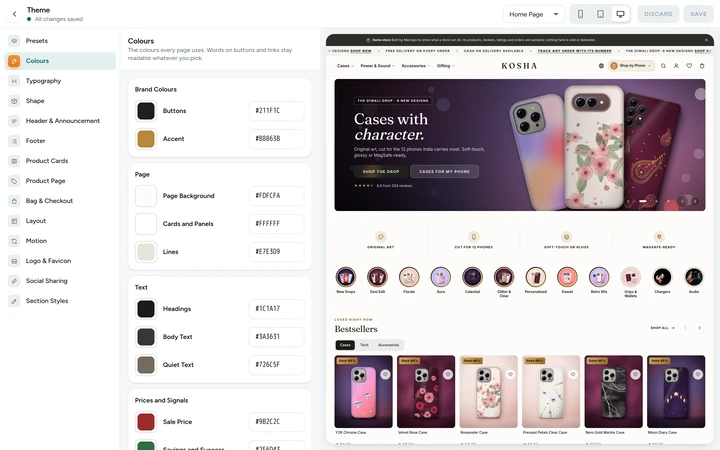
Colours with the readability checks, in the Theme editor, on Kosha, a demo store on Mercayo. Choose Fonts and Shapes
In Typography, choose a font pair (a heading font and a body font that work together), the heading weight and whether headings are compact or editorial; the type sizes of every role are shown for phones and computers. In Shape, choose rounded, square or pill for every control, the corner size, the button height, the card corners and a solid or gloss finish.
Tune the Parts of the Store
Header & Announcement holds the logo position, solid or glass header, header colours, the announcement's lettering and dot, and how the header behaves on scroll. Product Cards holds the picture shape, ADD TO BAG on cards, reduced prices, badges, what a card shows and how it reacts to the pointer. Product Page and Bag & Checkout hold BUY NOW, the word for your bag (bag, cart or basket), what happens after ADD TO BAG and the buy bar that follows.
Add Your Logo and Sharing Picture
Logo & Favicon takes your logo, a version for dark backgrounds, the browser tab icon and the logo's height; until you add a logo, the header writes your name, with the lettering and accent dot you choose. Social Sharing takes the picture people see when a link to your store is shared on WhatsApp, Instagram or Facebook (best at 1200 × 630 px), with a preview of the shared link.
Save Once
Press SAVE (or Ctrl+S). Every section is saved together and your store shows the new look at once. Colours, fonts, shapes and layout change in the preview as you go; a few choices that change what the page draws reload the preview first, and the store settings in a section show in the preview after you save (the section says so). RESET SECTION TO PRESET puts one section back as your preset has it.

Your shoppers
What Your Shoppers See
Shoppers see one consistent store: the same button shape on every page, colours that stay readable, your logo in the header and a tidy picture when someone shares your link on WhatsApp. When you save a new look, every page shows it on the shopper's next visit, because the page cache is rebuilt for your store at once.

Settings
Settings You Control
Each one is in your admin. A new store starts with the value shown.
Mercayo
Mercayo's Controls
Every look setting follows Mercayo's rule: Mercayo's override for your store if there is one, then your choice, then the default. Mercayo's team can force or limit any of the store settings in the editor, and can mark whole sections as set by Mercayo (for example colours and typography, for a store whose look Mercayo designed). Such a section shows a lock with Mercayo's reason, its controls are off, and a save that would change it is refused. Every override is logged with who made it and why.
Limits today
Good to Know Before You Start
- Fonts are the free fonts in Mercayo's list or your own WOFF2 files (up to 1 MB each, 12 a store); other font formats are refused.
- Type sizes follow a fixed scale for each role; you choose compact or editorial headings, not single sizes.
- Section Styles and the store settings in a section show in the preview only after you save.
- The Theme editor sets the look; what each page holds is set in the page editor, and business settings such as payments and delivery stay in Settings.
- There is no field for your own CSS.
Questions
About Theme Editor
Will applying a preset remove my products or pages?
No. A preset changes colours, fonts, shapes and layout only. Your products, pages, logo, menus, the word for your bag and how it behaves stay as they are, and the preset is only on the preview until you save. UNDO takes it back.
Can I go back to the look I had last week?
Yes. Each time the look is saved, the one it replaced is kept. Earlier Looks lists them, newest first, with who replaced each and why (a save, a preset, a restore); PUT BACK loads one into the editor for you to save.
What do the readability checks do?
They compare the colours you chose the way accessibility guidelines do: words need 4.5:1 against what is behind them, and a button needs 3:1 against the page. A pair below that is marked "Hard to Read" with its ratio, so you can fix it before shoppers squint at it.
Who on my team can change the theme?
Anyone with the right to edit the theme, which owners, admins and the Marketer role have. The Marketer can change the look settings here without being able to change business settings. Section Styles also needs the Settings right.
What if two people change the theme at once?
The save checks that nobody saved after you opened the editor. If someone did, it is refused and asks you to reload, so one person's work never silently replaces another's.
Does a dark theme work with any section?
Yes. Panels, cards and boxes are made from your theme's own palette, so a dark theme does not show a light box that does not belong, and a light theme does not show a dark one.
Related
Related Features
- Store LooksPick a layout for the header, menus, search, product cards, lists, footer, product page, bag, checkout and order page, and mix them freely.
- Page EditorArrange the sections of every page in a visual editor with a live preview, private drafts, share links and 30 published versions to go back to.
- Menus and Mega MenuBuild header, phone and footer menus up to three levels deep, with pictures, tags and icons, and a mega menu panel on computers.
- Loading and MotionSections rise in, cards lift and sheets spring open; loading keeps content on screen instead of flashing empty; calm at checkout, still on request.
- Staff and RolesInvite people by email or phone, give them roles with exactly the rights they need, switch access off at once, and hand over ownership safely.
More in Design and Page Editor: Page Editor · Home Page Sections · Store Looks · Menus and Mega Menu · Announcement Bar · Product Templates · Loading and Motion
Try It on Your Own Store
Every feature is in every plan, free for 14 days.