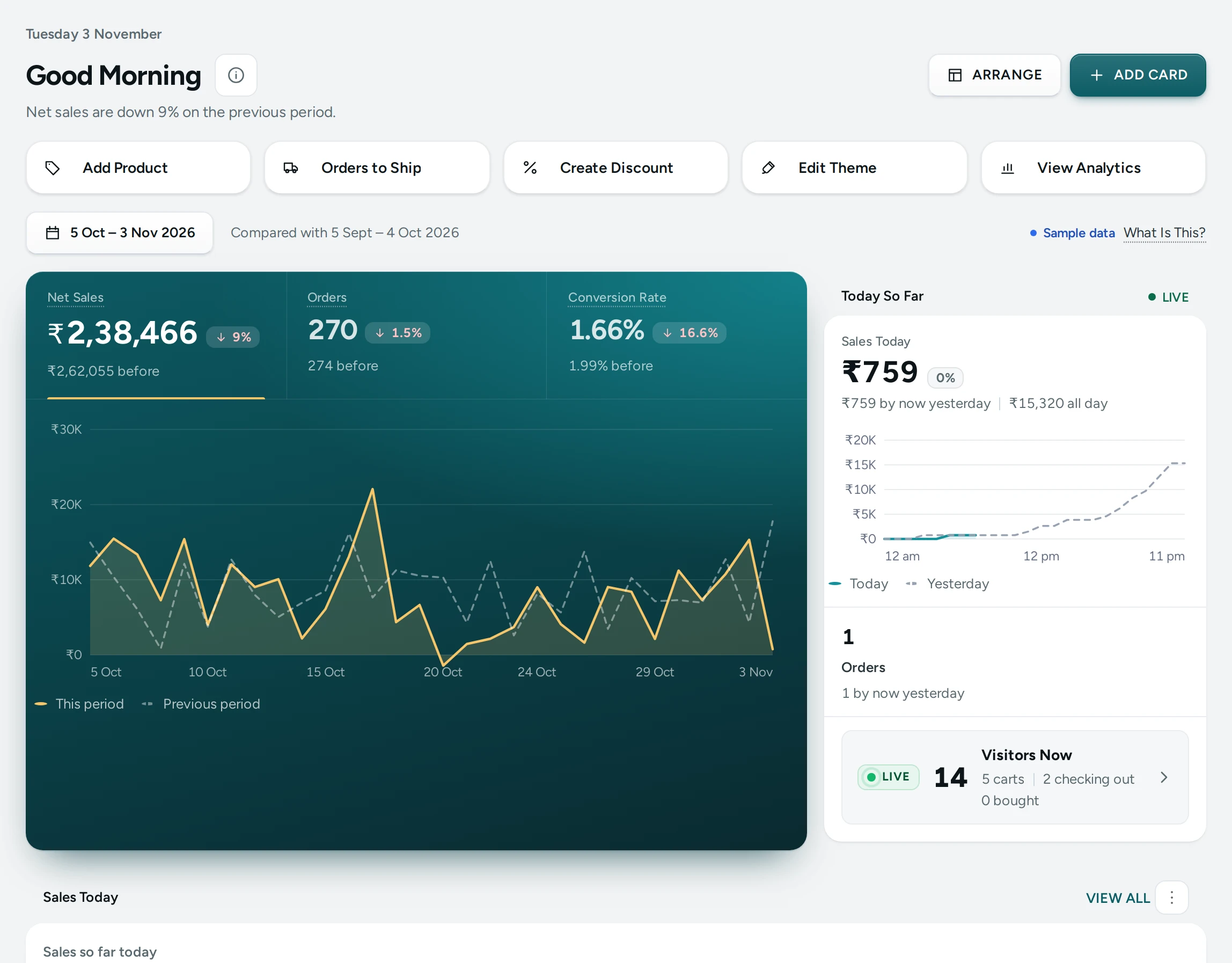
Home already shows your sales, today so far and what needs your attention. ADD CARD lets each person add the cards they look at most: the COD orders waiting for a call, payouts on their way, items running low, visitors on the store right now, the last campaign, a few links and a note. Your cards are yours alone: nobody else on your team sees them, and each person picks their own.
Add a Card
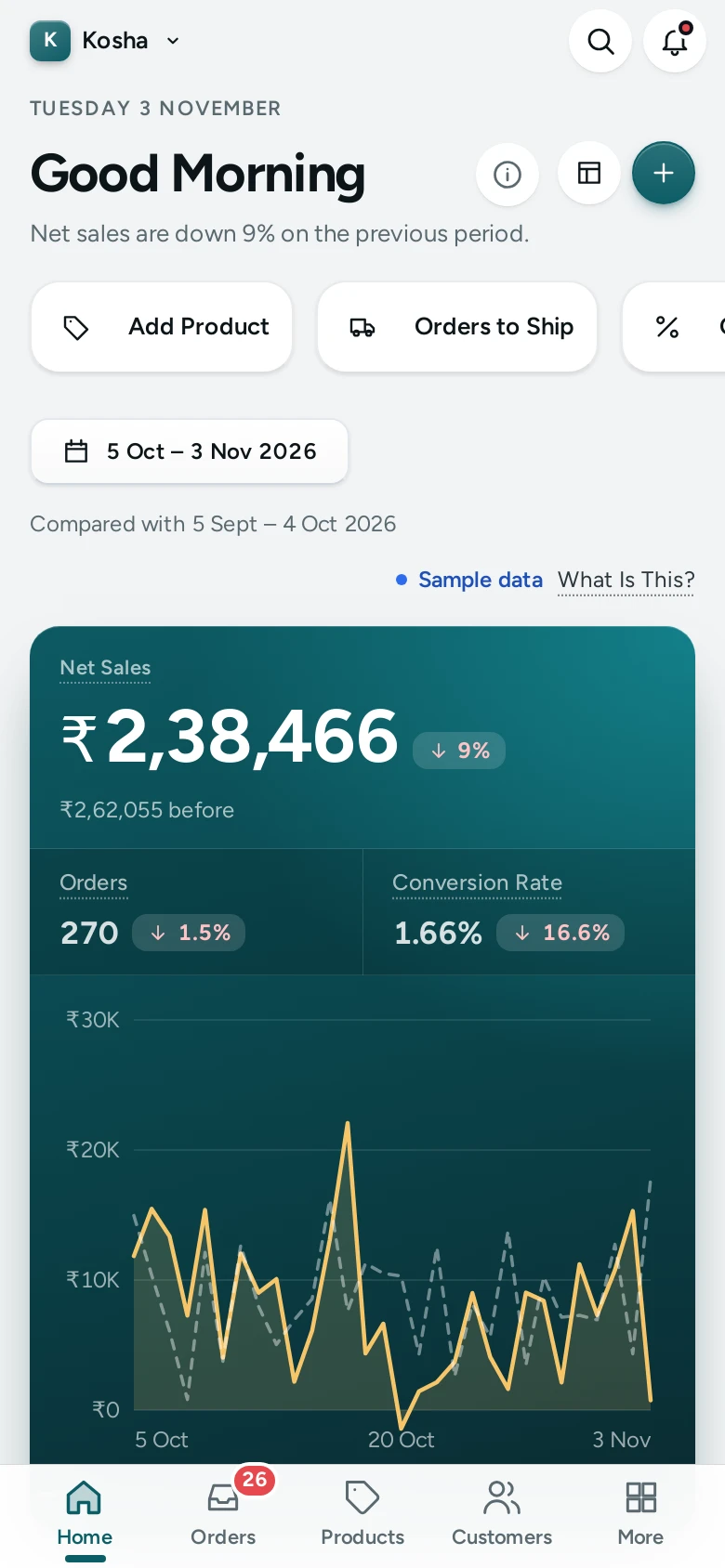
- Open Home and press ADD CARD at the top, beside ARRANGE (on a phone it is the + button).
- The Add a Card gallery opens: "Pick the cards you want on your Home. Each shows live figures, and only you see your choice." Cards are grouped as Orders, Money, Products, Customers, Marketing and Your Own, each with a small picture and one sentence on what it shows.
- Press ADD on a card. It appears at the top of your Home straight away with its figures, and a note says "Sales Today is on your Home." A card already on your Home shows On Your Home.
- Add as many as you like (up to 20), then press DONE.
The Cards
| Group | Card | What It Shows | Opens |
|---|---|---|---|
| Orders | COD to Confirm | Cash on delivery orders waiting for your call, their value and the oldest, with the five oldest orders | Orders, COD to Confirm |
| Orders | Ready to Ship | Orders to pack and label, parcels already labelled, the oldest to ship | Orders, To Ship |
| Orders | Returns Waiting | Returns and exchanges to decide, and returns back with you to refund | Returns |
| Orders | Late or Failed Deliveries | Failed delivery attempts to answer (with the date to answer by) and parcels past their expected date | Failed Deliveries |
| Money | Sales Today | Sales so far today against the same day last week by this time, hour by hour, and last week's whole day | Analytics |
| Money | COD to Collect | Cash your couriers collected and still owe you, what is overdue, what is still with them, received in 30 days | Analytics, Finance |
| Money | Payouts on the Way | Razorpay payouts on their way to your bank and paid in the last 30 days, with fees | Analytics, Finance |
| Money | Profit This Month | Profit since the 1st after costs, revenue, costs and margin, day by day (from Profit & Loss) | Profit & Loss |
| Products | Low Stock | Items running low or sold out, the fewest left first | Inventory, Low |
| Products | Best Sellers | Your top five products by pieces sold in the last 30 days, with sales and stock | Analytics, Products |
| Products | Back in Stock Requests | Shoppers waiting to hear an item is back, the most wanted first | Back in Stock Requests |
| Customers | Visitors Right Now | People on your store in the last five minutes, by city | Analytics, Live |
| Customers | Bags Left Today | Bags left at checkout today and in the last 7 days, with their value | Abandoned Bags |
| Customers | Reviews Waiting | Reviews to approve and reviews with no reply yet | Reviews |
| Marketing | Last Campaign | Your newest campaign: how many it went to, opened it and clicked | The campaign |
| Marketing | Offers Running Now | Discounts live on your store right now, the soonest ending first, with their uses | Discounts |
| Your Own | Quick Links | Up to 8 pages you open most, as tiles | The pages you chose |
| Your Own | Note | A few lines only you see: a reminder, a supplier's number | — |
Each card's VIEW ALL opens its full page; a row in a list opens that order, product or offer.
Quick Links and Notes
- Quick Links: pressing ADD first asks you to Choose Your Pages: tick up to 8 pages you open most and press ADD QUICK LINKS. To change them later, press EDIT on the card, then SAVE PAGES. Only pages your role may open are offered.
- Note: press WRITE A NOTE (or EDIT) on the card, give it a title if you like and write up to 1,000 characters, then SAVE. The title becomes the card's name. You can add more than one note.
Size, Move and Remove
- Width: each card's menu (the button with three dots in its corner) offers Full width and Half width. On a computer a full card takes a whole row and half cards sit two to a row; on a phone every card is full width.
- Move: ARRANGE lists your added cards among Home's own cards. Use the up and down arrows, choose Half or Full, or press the bin to remove one, then SAVE.
- Remove: Remove from Home in the card's menu takes it off at once ("Low Stock was removed from your Home."). Add it again from the gallery whenever you like.
Who Sees What
The gallery offers only the cards your role covers. A packer who can see orders but not reports gets the order cards, Quick Links and notes, never money, stock or marketing figures. If your role changes, a card you can no longer see stops showing; it comes back if the right does. Profit This Month needs the right to see Profit & Loss (and Profit & Loss switched on); Visitors Right Now needs Live View on. See Staff and Roles.
Switching Cards Off for the Team
Settings › Admin Look and Dashboard › Home Dashboard › Team Members Can Add Cards to Home is on to start. Off: there is no ADD CARD, and the cards people added are hidden until it is on again (nothing is deleted). Mercayo's team can also switch it for a store, with a written reason.
Good to Know
- Cards add no waiting: their figures come in the same single read as the rest of Home.
- Figures are as of when you opened Home; open it again for the latest (Today So Far still refreshes every minute).
- The admin app for Android keeps its own Home for now; the admin in your phone's browser shows your cards.
Questions
Can my team see my cards?
No. Each person's cards and notes are their own, on that store only.
Why can I not add a card I see in the list?
It is already on your Home (it shows On Your Home), or you have 20 added cards: remove one first. Each card can be added once; notes can be added several times.
Why is a card missing from the gallery?
Your role does not cover it (for example money cards need the right to see reports), or its feature is switched off for your store (Profit & Loss, Live View).
Can I pin a saved report as a card?
Not yet. Reports has no saved views to pin; open Analytics for the full reports.