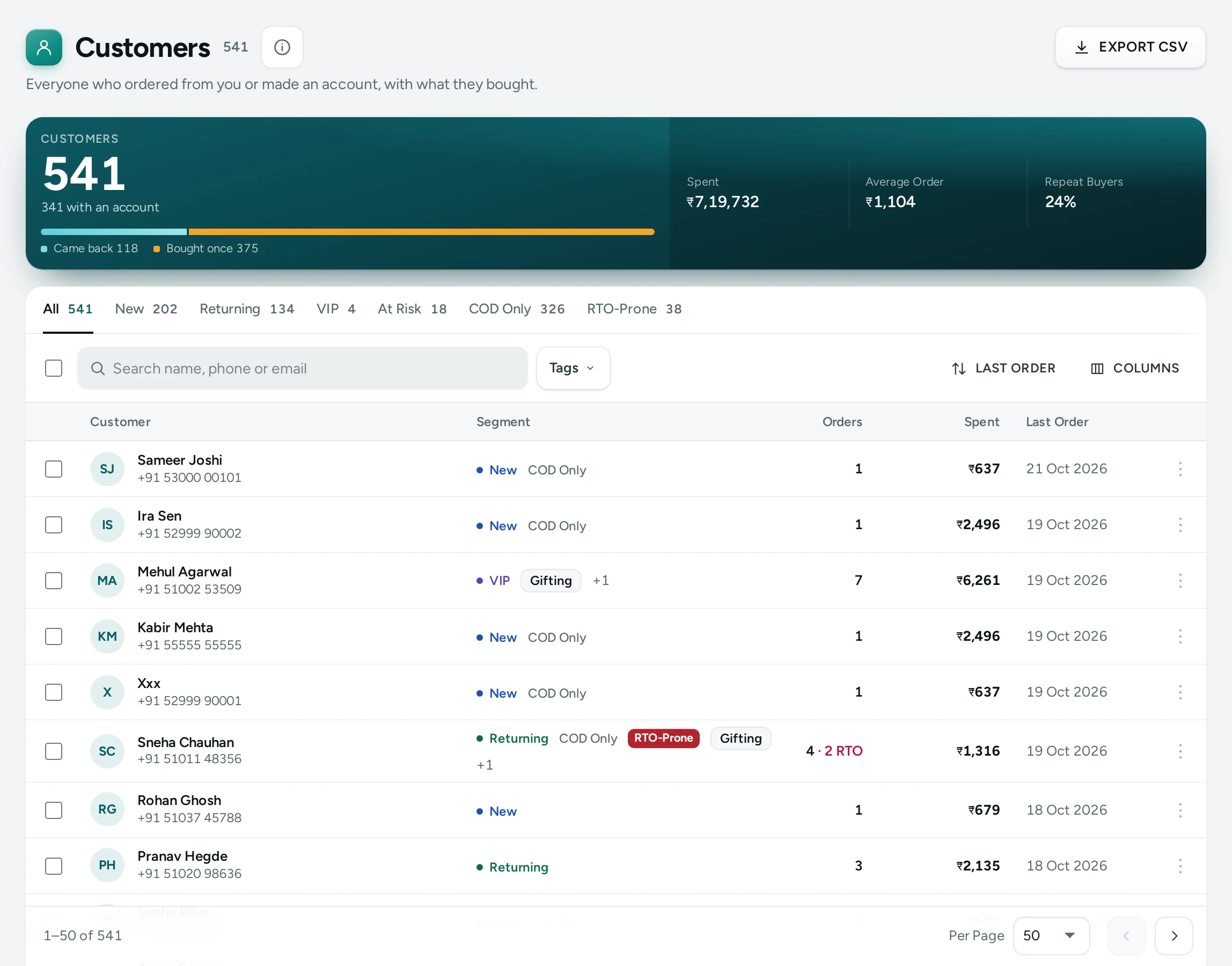
Customers lists everyone who has bought from your store or made an account on it, with what they have spent and how they buy. It is where you find your best customers to thank, the ones drifting away, and the ones whose COD parcels keep coming back. Open it from Customers in the side menu (a tab of the bottom bar on a phone). People whose role can see customers can open it: the owner, admins, and the Order Manager and Customer Support preset roles.
Who Counts as a Customer
"Everyone who ordered from you or made an account, with what they bought."
- A shopper with an account on your store is one customer.
- A guest who ordered without an account is counted by phone number: one phone number is one guest, however many orders they placed.
- Visitors who never ordered and never made an account are not listed.
- A shopper who deleted their account shows as Deleted account; their orders stay for your records.
The Summary Strip
Four numbers above the list, for the customers it shows (they follow the tab, search and tag you choose):
| Number | What It Counts |
|---|---|
| Customers | Accounts, and guests who ordered (one phone number is one guest). The note says how many have an account. |
| Spent | What these customers' orders add up to, confirmed to delivered. Cash on delivery counts from the order, not only once paid. The note gives the amount per buyer. |
| Average Order | Spent, divided by the orders that count. |
| Repeat Buyers | The share of buyers with two or more orders that count (confirmed to delivered; never cancelled or returned), with "… of … buyers". |
Segments
The tabs across the top sort customers into segments, each with its count. A customer can be in several (a VIP who only pays cash is both VIP and COD Only).
| Segment | Who Is in It | Set By |
|---|---|---|
| New | Their first order was placed in the last 30 days | New Customers: First Order Within (days), default 30 |
| Returning | They ordered twice or more | Fixed |
| VIP | Their orders add up to ₹5,000 or more, never counting cancelled or returned ones | VIP: Spent at Least, default ₹5,000 |
| At Risk | They ordered twice or more, but not in the last 60 days | At Risk: No Order for (days), default 60 |
| COD Only | Every order they placed was cash on delivery | Fixed |
| RTO-Prone | 30% or more of their orders came back undelivered | RTO-prone: Parcels Returned, default 30% |
Change the numbers in Settings › Shopper Accounts › Customer Segments; the list follows at once. Hover over a segment's name for its rule. See Shopper Accounts Settings.
The Columns
| Column | What It Shows |
|---|---|
| Customer | Name (or "No name yet"), phone and email; Guest when they have no account |
| City | From their latest delivery address |
| Orders | Orders that count, with "… RTO" when parcels came back undelivered |
| Spent | Their orders confirmed to delivered |
| Average Order | Spent divided by their orders |
| Last Order | When they last ordered |
| Customer Since | Their first order, or when they made an account |
| Segment and Tags | Up to two segments and a tag, with "+…" for more |
Click a row (Open customer) for the Customer Page. See their orders opens the Orders list searched by their phone, for people who can see orders.
Search, Filter, Sort
- Search name, phone or email: type any part.
- Tag filter: customers with a tag you gave them on their page.
- Sort: Last order (the default), Newest customers, Most spent, Most orders, Name A–Z.
- 25, 50 or 100 customers a page.
The address bar keeps your tab, search, filter and sort, so you can bookmark a view (for example VIPs by most spent) or share it with your team.
Export
EXPORT CSV downloads the customers the list shows (with the tab, search and tag applied) as a spreadsheet file: "Downloaded. Customers in the file: …". Exporting needs the right to export customer data, which only the owner and admins have unless you give it to a role. If nothing matches: "No customers match, so there is nothing to export."
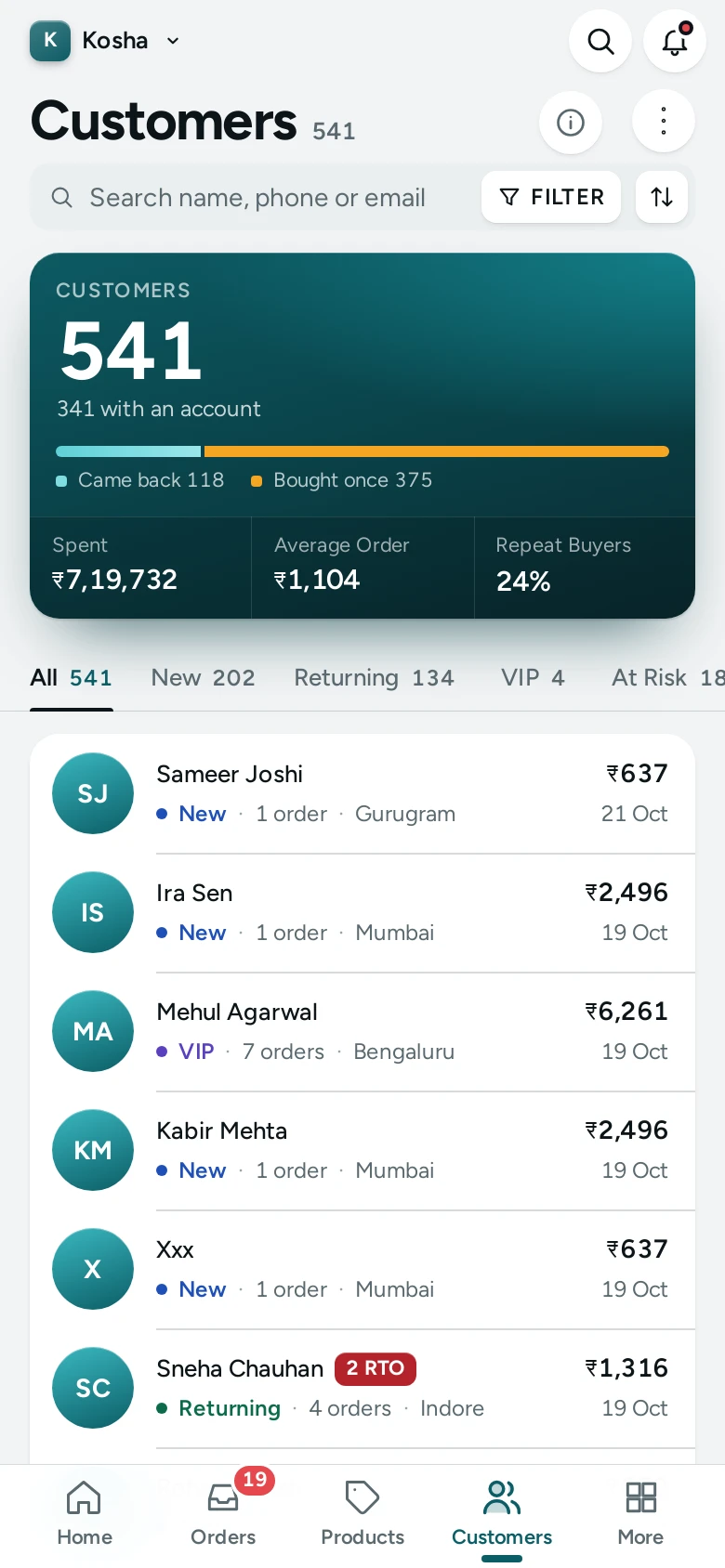
On a Phone
Each customer is a card with their name, phone, orders and spend, and the segment tabs scroll sideways.
Questions
Why is one person listed twice?
A guest is counted by phone number, and an account by the account. If they ordered as a guest with one number and made an account with another, they appear twice.
Do cancelled orders count toward VIP?
No. Spent and VIP count orders from confirmed to delivered, never cancelled or returned ones.
Can I import customers from my old platform?
Yes, from Shopify, WooCommerce or Dukaan files. See Import and Export.
Can I message a segment?
Export the segment as CSV for your own tools. To reach shoppers from Mercayo, see WhatsApp and Subscribers.