The full admin works on any phone, but most of a day on the phone is the same few jobs: see today's sales, call the cash orders, ship, check stock, answer a message. The Mercayo Admin phone app is built for those. It is your admin, with your sign-in, your store and your role's rights; settings, themes, discounts and reports stay one tap away in the full admin.
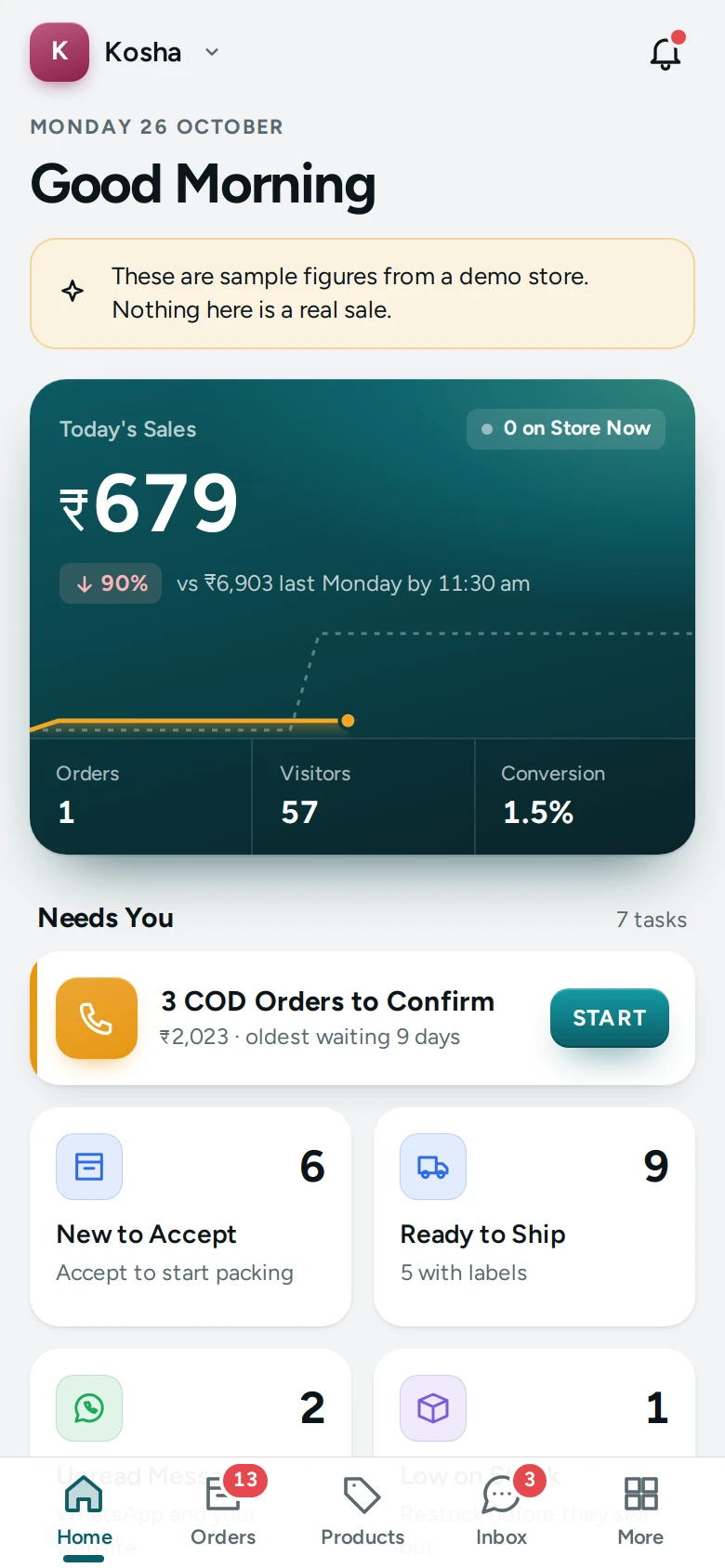
Open the App
- On your phone, open admin.mercayo.com/app in the browser.
- Sign in with your admin email and password, then your two-step code. Leave Trust This Phone on to stay signed in on this phone for 30 days; the code is still asked whenever you sign in again.
- From the browser's menu, choose Add to Home Screen (or Install app) so the app opens with its own icon.
The app opens the store you used last on this phone. Tap the store's name at the top for Your Stores.
Android: the app is also packaged for Android as Mercayo Admin. It is in testing on Google Play and not yet listed for everyone; until it is, use the address above. In the Android app, every alert plays its own sound even on a locked phone.
The Tabs
| Tab | What It Holds |
|---|---|
| Home | Today's sales against the same weekday last week by this hour, visitors on the store now, orders and conversion; Needs You (COD to confirm, to accept, to ship, failed deliveries, returns, messages, low stock); Money |
| Orders | Orders by stage with counts, grouped by day, with search |
| Products | A picture grid with stock in words, Low Stock, Sold Out and Drafts, the stock's value, search by name, SKU or a scanned barcode |
| Inbox | WhatsApp conversations, contact form messages and your Mercayo support requests, newest first, with the order beside each |
| More | Customers, Analytics, Payouts, Discounts, Reviews, Returns, Alerts and Sounds, Appearance, and Open the Full Admin |
A tab your role cannot use is not shown.
Confirm COD Orders
Tap START on COD Orders to Confirm (on Home or Orders). The queue puts due call-backs first, then the riskiest orders, then the oldest. Each order shows the shopper, the amount, the risk reasons when the RTO shield scored it, and CALL and WHATSAPP.
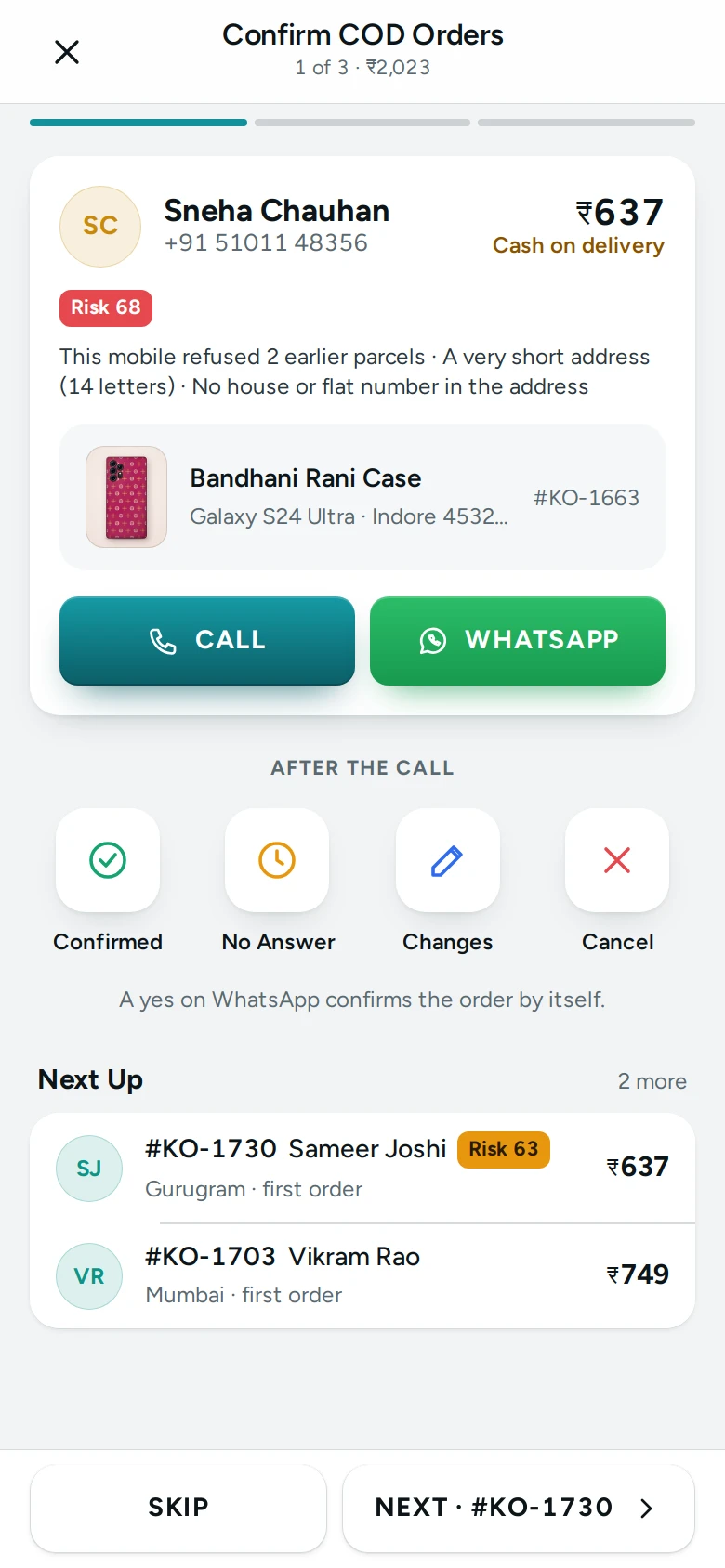
After the call, tap how it went:
- Confirmed: the order is confirmed and moves on to be packed.
- No Answer: the order comes back to the queue after Call Back After (Minutes), and with WhatsApp Reminder on, the shopper gets a reminder to confirm. "A yes on WhatsApp confirms the order by itself."
- Changes: the shopper wants something changed.
- Cancel: the shopper does not want the order.
SKIP moves on without recording a call; NEXT opens the next order.
Orders and Shipping
- Swipe a row to reveal CALL and SHIP. Nothing happens until you tap one, so a scroll can never act.
- Touch and hold to choose several, then act on them together from the bar at the bottom.
- The order shows where it is, the next step in the bar at the bottom (CONFIRM ORDER, ACCEPT, SHIP ORDER, PRINT LABEL or MARK SHIPPED), the customer with CALL and WhatsApp, items, payment, parcel and calls.
- SHIP ORDER opens the ship sheet: three couriers (your courier rule's pick first, then the cheapest and the fastest) with price, date and your own delivered rate for the PIN area. The label opens as a PDF; share it to your printer's app.
On a tablet, the order opens beside the list.
Products and Stock
- Tap a product's pencil for Quick Edit: price, MRP, stock and Show on Store, saved together.
- The + button adds a product from the camera (at its full resolution) or the gallery.
- Scan Stock counts stock by barcode with the camera, on your store's stock counts.
Offline, with Edits While Offline on, stock and price edits wait on the phone and are sent when the network is back. If someone changed the same product meanwhile, the app shows both and asks KEEP MINE or DISCARD. Home shows today's totals as they last loaded. Orders, shipping, calls and messages need the network.
Inbox
Open a WhatsApp conversation to see the order, the shopper's words and your store's messages. You can reply within 24 hours of the shopper's last message, as WhatsApp allows, and never after they asked to stop.
Alerts and Sounds
More › Alerts and Sounds:
- Turn on Alerts on This Phone and allow notifications.
- Under Sounds, choose a sound for New Orders, COD to Confirm, Failed Deliveries, Low Stock and Messages. PLAY each first. USE THE STORE'S SOUND goes back to the store's choice. Your choice follows you on every phone you sign in on.
- SEND TEST, then lock the phone: the test arrives with its sound.
Mercayo's sounds are Cash Register, Coin Chime, Bell, Soft Ping, Doorbell, Marimba and Drum Roll, plus Vibrate Only and Silent. Your Sounds lists your store's own, and ADD A SOUND adds one (an MP3, OGG or WAV file of up to 10 seconds and 1 MB) if you can change settings. The store's sounds for each alert are set on the computer in Admin App and Alerts.
On a phone where alerts were turned on in the app, a COD alert has CALL and CONFIRM, and a failed delivery REATTEMPT, right on the alert.
The App's Settings
On the computer, Settings › Admin App and Alerts › Mercayo Admin App:
| Setting | What It Does | Default |
|---|---|---|
| Admin App | Your team may use the phone app. | On |
| Confirm COD Queue | The queue of COD orders to call, with each call's outcome. | On |
| Call Back After (Minutes) | When a No Answer comes back to the queue (15 to 1,440). | 120 |
| WhatsApp Reminder | A No Answer sends the shopper a WhatsApp reminder. | On |
| Alert for COD Waiting (Minutes) | A COD order unconfirmed this long alerts the team (5 to 720). | 30 |
| Edits While Offline | Stock and price edits wait on the phone while offline. | On |
Questions
Is it a different admin?
No. It is the same store and the same rights; whatever you do in the app shows in the full admin at once.
What does the app keep on my phone?
Only today's totals for Home and stock or price edits waiting for the network. Nothing about a shopper is kept, and SIGN OUT clears the kept figures.
Can I print labels to a Bluetooth printer?
Share the label PDF to your printer's own app. The app does not print to a Bluetooth printer directly.
Is there an iPhone app?
Not in the App Store. On an iPhone, open admin.mercayo.com/app in Safari and add it to the Home Screen; alerts then work from the installed app.