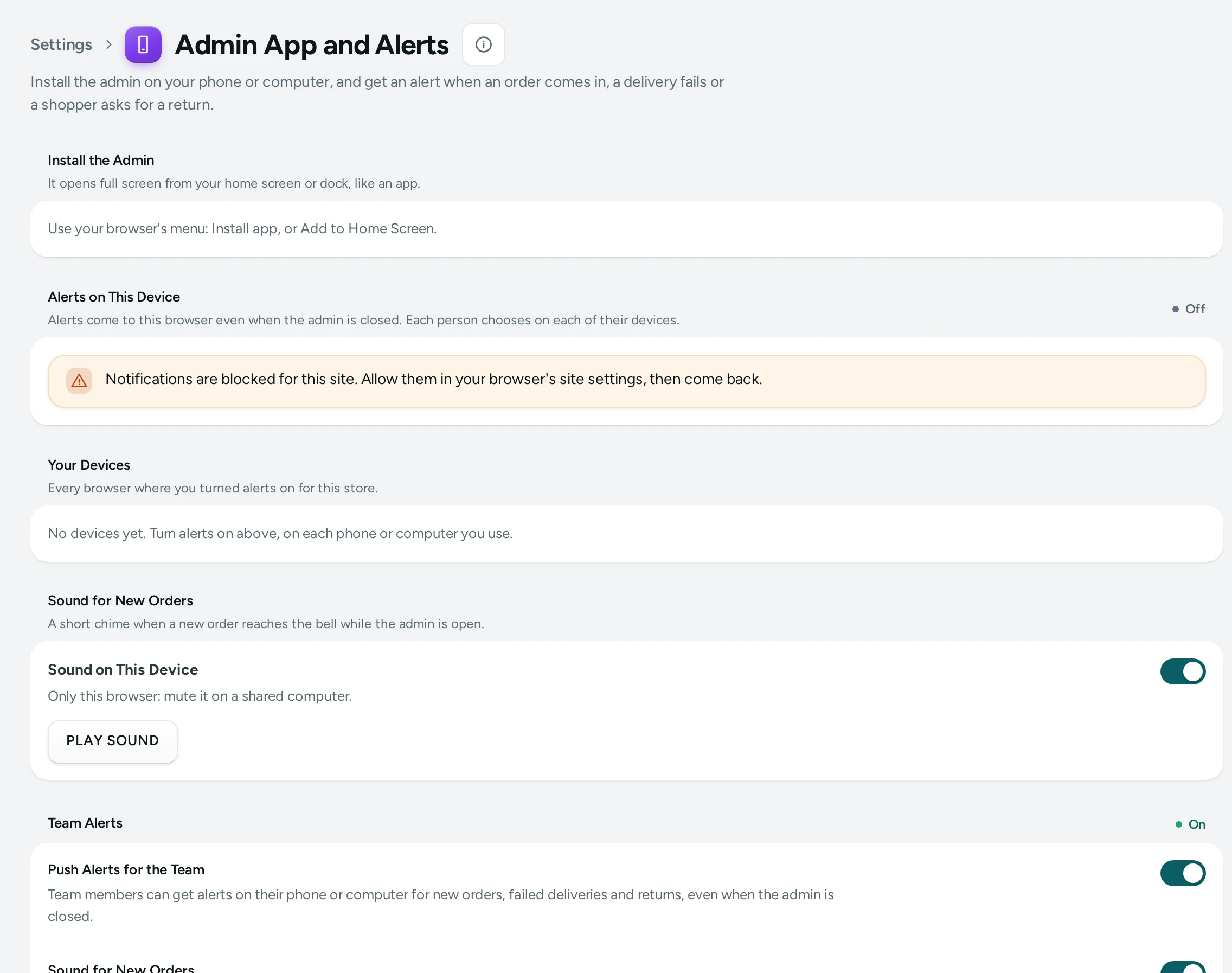
The Mercayo admin can be installed on your phone or computer like an app, with its own icon, and can alert you the moment an order arrives, even when the admin is closed. Open Settings › Admin App and Alerts ("Install the admin, alerts on your devices, the new-order sound.").
Install the Admin
Install the Admin: when your browser can install it ("Your browser can install the admin now."), press INSTALL. "Installed. Open it from your home screen or apps." When the browser offers no button, the card says "Use your browser's menu: Install app, or Add to Home Screen." Once you use the installed admin, the card says "You are using the installed admin." The app opens on your store, with shortcuts to Orders and Products.
Alerts on This Device
- Press TURN ON ALERTS and allow notifications when your browser asks. If you blocked them before, the card says so: allow them in your browser's site settings, then come back.
- Under Alert Me About, choose New Orders, Failed Deliveries ("The courier could not deliver and needs your answer.") and Returns and Exchanges ("A shopper asks to send something back.").
- SEND TEST: "A test alert is on its way to this device."
A new order arrives as "New Order #1042" with the total and Cash on delivery or Paid online; a failed delivery as "Delivery Failed: Order #…"; a return or exchange as "Return Asked: Order #…" or "Exchange Asked: Order #…". Alerts are about orders, so they need a role that can see orders ("Alerts are about orders, which your role cannot see."). One test a minute. TURN OFF stops them on this device.
Your Devices
"Every browser where you turned alerts on for this store", with when each was added and its last alert. REMOVE a device you no longer use. Up to 10 devices per person ("You have alerts on 10 devices already. Remove one first.").
Sound for New Orders
Sound on This Device plays a sound when a new order arrives while the admin is open ("Only this browser: mute it on a shared computer."). PLAY SOUND to hear it.
Team Alerts
The Team Alerts card holds the store's switches: Push Alerts for the Team ("Team members can get alerts on their phone or computer for new orders, failed deliveries and returns, even when the admin is closed.", on by default) and Sound for New Orders (on by default; each person can still mute it on their own device). With push alerts off: "Push alerts are switched off for this store."
Questions
Does this work on iPhone?
On iPhone, add the admin to your Home Screen from Safari's Share menu first; alerts then work from the installed app.
Do alerts reach my staff?
Each person turns alerts on for their own devices.