Email Looks
Three Email Looks, Drawn in Your Brand's Colours
An order email is the one message a shopper reads closely, often twice. Pick one of three looks and every email your store sends takes it at once, in your colours, with your logo, the order's photos and the parcel's journey, without designing a single template.
- In every plan
- Free for 14 days


Kosha is a demo store on Mercayo. Its products, orders and customers are sample data.
In short
What It Does
Every email your store sends (the order confirmation, shipped, out for delivery, delivered, a failed delivery attempt, cancelled, refunded, review requests, bag reminders, back in stock, gift cards, downloads, codes and the rest) is built from the same parts: a top part with a picture, a headline with a few words lit in your colour, the expected date and the order's journey, then blocks such as the items with their photos, the bill, the address, the parcel with its courier and tracking number, buttons and your help details. A look is a set of styles over those parts. Choose it once and every message follows:
| Look | What It Feels Like |
|---|---|
| Colour Band | A bold band in your brand colour, an illustration for each step of the order, big type. The look a new store starts with. |
| Card Stack | Soft cards like an app: status icons, chips and rounded buttons. |
| Minimal Luxe | Quiet and spacious: fine lines, tracked capitals and your product photos, large. |
Your Colours, Checked for Reading
The colours come from your theme. The band takes your brand colour when light words read on it clearly, and a darker shade of it when they would not; body text, links and muted lines are checked against their background so they stay readable. Buttons are always dark with light words, because a light button with dark words becomes hard to read when a shopper's mail app turns on its dark mode.
Pictures Made for Your Store
The illustrations, status icons, line icons and social icons are drawn in your store's colours and kept as ordinary images, since many mail apps show no drawn graphics. Your logo sits on the band as it is; a logo that needs a light background gets a small white panel, and a store without a logo gets its name written in its own heading font. Pictures are made once for each look and made again only when your colours, fonts, logo or name change. Product photos can be cut to squares so every row lines up (Square Product Photos, on to start with).
What the Order Emails Carry
An order email shows each line's photo and price (with the price before the offer where there was one), the totals and the discount code, how it was paid, the delivery address, and the parcel's courier, tracking number and expected date once it ships. With reviews on, the delivered email lets the shopper rate each item with one tap, which opens that product's review form at the stars they chose. A failed delivery email has REATTEMPT DELIVERY and UPDATE ADDRESS, which open the shopper's order page on that answer.
The Foot of Every Email
The Email Footer card, under the looks, decides what the foot shows: your legal name, address and GSTIN, your support email, phone, WhatsApp and hours, your social links and your shop and policy links, with a short note of your own in each of your store's languages. The small "Powered by Mercayo" line at the very end can be turned off on the Growth and Scale plans.
See It Before Your Shoppers Do
PREVIEW under each look opens any message in that look, with your logo, your words and sample values; inside the preview you switch between the three looks and pick another message from the list. SEND TEST TO ME sends the message, in the look you have chosen, to your own email only.
For your store
Why It Matters
Most order emails look like a receipt printed by a machine. Yours are read on a phone, right after the shopper paid or right before the courier calls, and they are the brand's voice at the moments that matter: did my order go through, when does it come, how much cash do I keep ready.
A designed email answers those at a glance: the date in large type, the journey drawn as a line, the photo of what they bought, the cash to keep ready for a cash on delivery order. Shoppers who can see their order in the email ask "where is my order?" less often.
Designing email that works across Gmail, Apple Mail and Outlook, in light and dark mode, on a phone, is a specialist job: tables, inline styles, buttons that survive Outlook, pictures that do not vanish. The three looks do that work once for every store, so you only choose.
Step by step
How It Works
Open the Email Look Card
In Settings → Notifications, under the lists of messages, the Email Look card shows the three looks with a small drawing of each and In use on the one your emails use now.
Preview Each Look
Press PREVIEW under a look. The preview draws a real message with your logo, colours and sample values. Switch between Colour Band, Card Stack and Minimal Luxe at the top, and pick another message from the list: the order confirmation, a shipped email, a bag reminder.
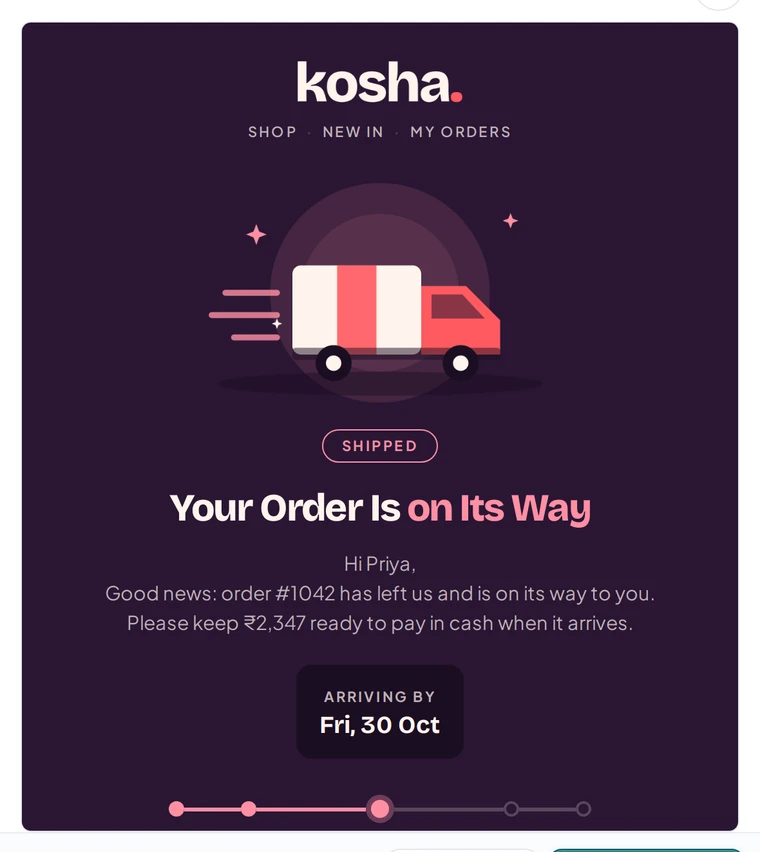
An Order Shipped email in the Colour Band look, in the admin's preview, on Kosha, a demo store on Mercayo. Compare Them With Your Products
Card Stack puts each part in its own soft card, with the courier and tracking number in a card of their own. Minimal Luxe gives the product photos the most room. The first preview of a look can take a few seconds while its pictures are made in your colours.
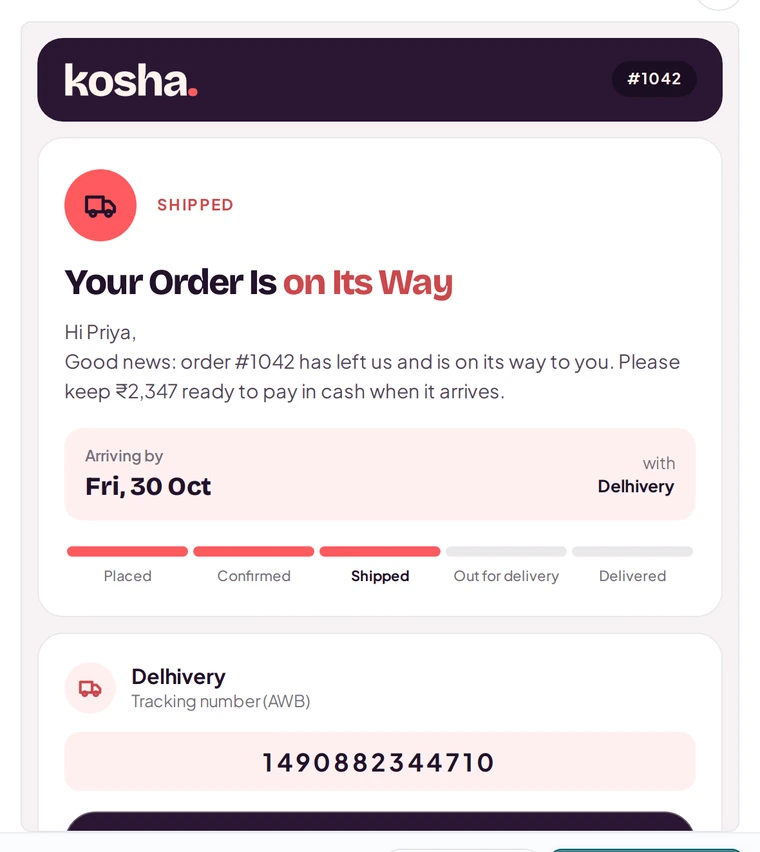
The same email in the Card Stack look, on Kosha, a demo store on Mercayo. Choose One and Save
Pick the look and press SAVE. Every email after that, to every shopper, uses it; emails already sent stay as they were. USE DEFAULT takes you back to Colour Band.
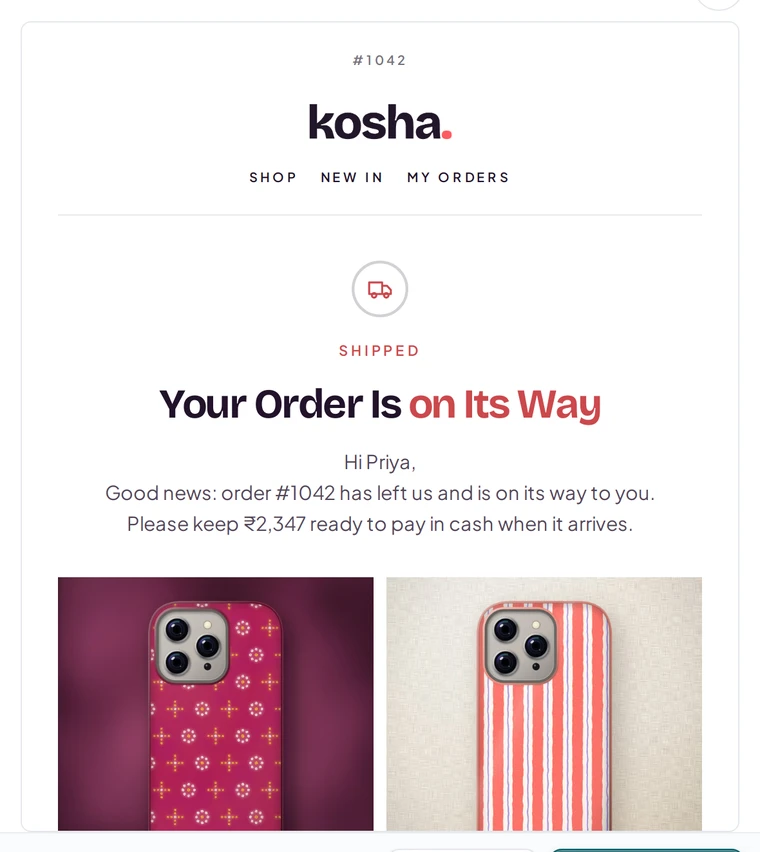
The same email in the Minimal Luxe look, with the order's photos, on Kosha, a demo store on Mercayo. Fill In the Foot
In the Email Footer card, choose which of your details the foot of every email shows and add a note of your own, in each of your store's languages. Details come from your store's settings, so a change there reaches every email.
Send Yourself a Test
In any preview, SEND TEST TO ME sends that message in your chosen look to your own email, never to a shopper and never charged. Open it on your phone, in light and dark mode, as your shoppers will.


Your shoppers
What Your Shoppers See
An email that looks like your store, not like a system: your logo at the top, the step of their order drawn in your colours, the date it arrives in large type, the photos of what they bought, the bill with every charge named, and your contact details at the foot. On a dark-mode phone the band, buttons and pictures stay as designed and the text stays readable.
Settings
Settings You Control
Each one is in your admin. A new store starts with the value shown.
Mercayo
Mercayo's Controls
The look follows Mercayo's one rule for settings: Mercayo's override for your store if there is one, then your choice, then Colour Band. Mercayo's team can set or lock the look for a store, with a reason your admin shows. Every word in every look is in Localization, so you can change it for your store; "Powered by Mercayo" and Mercayo's own help link are Mercayo's words. Mercayo's own emails to you (billing, credits, support) are drawn in Mercayo's brand, not yours. Every message in every look is built to stay under the size at which Gmail cuts an email short.
Limits today
Good to Know Before You Start
- One look applies to all your shopper emails; a different look for a single message is not offered.
- The looks are three fixed designs: you choose one and change its words, not its layout.
- A heading font you uploaded yourself is not drawn into the name at the top; upload a logo to show your own lettering.
- Campaign emails to many customers use the same look, but are written on their own screen; see campaigns.
Questions
About Email Looks
Do I need to design anything?
No. The three looks are complete designs. They take your colours, logo, fonts and product photos from your store, and your words from Localization.
Which look does a new store use?
Colour Band. You can switch to Card Stack or Minimal Luxe at any time in Settings → Notifications; the next email uses the new look.
Will the emails look right in Gmail's dark mode?
Yes. Buttons are always dark with light words, the band and pictures carry their own background, and text colours are checked for reading. Apple Mail gets its own dark colours.
Can I see a look before I switch?
Yes. PREVIEW under any look shows any message in it, with your logo and colours, and lets you switch looks inside the preview. Nothing changes until you press SAVE.
Do the emails show my products?
Yes. Order emails show each item's photo, name and price; bag reminders show the items left in the bag with their prices and links. With Square Product Photos on, the photos line up as squares.
Can I change the words?
Yes. PREVIEW → EDIT WORDS opens Localization on that message. A heading's lit words are marked with stars, as in on Its Way; a heading you write without stars shows plain.
Does a test email cost anything?
No. SEND TEST TO ME goes only to your own email and is never charged.
Related
Related Features
- Order EmailsShoppers get order emails in your store's name and colours, from placed to delivered; you switch each on or off, preview it and change its words.
- WhatsAppOrder updates, COD confirmation buttons, bag reminders, back-in-stock alerts and offers on WhatsApp, in your store's name, from Mercayo's number or your own.
- Theme EditorColours, fonts, shapes, header, cards, product page, motion, logo and sharing picture, in one editor with a live preview, readability checks and undo.
- Abandoned Bag RemindersUp to three reminders to shoppers who left at checkout, with a link that restores their bag, an optional code, quiet hours and recovered sales counted.
- Order TrackingShoppers follow their order on your store's own page: order steps, the courier's timeline, the AWB, documents, and messages from your team.
More in Integrations: Razorpay · Shiprocket · Order Emails · SMS · WhatsApp · Google Sign-In · Ads Pixels and Analytics Tags
Try It on Your Own Store
Every feature is in every plan, free for 14 days.
