Home Dashboard
A Home Screen That Tells You What to Do Next
Home is the first screen of your admin. It greets you, tells you how the store is doing against the last period, and lists what is waiting: orders to ship, cash on delivery orders to confirm, failed deliveries, reviews to approve, products running low.
- In every plan
- Free for 14 days


Kosha is a demo store on Mercayo. Its products, orders and customers are sample data.
In short
What It Does
Home is one page, loaded in one go, with these cards:
- The greeting and one line on how net sales compare with the previous period ("Net sales are up 18.6% on the previous period"), with the Dates and the comparison.
- Quick actions your role allows: Add Product, Orders to Ship, Create Discount, Edit Theme, View Analytics.
- Sales Overview: Net Sales, Orders and Conversion Rate as tabs, each with its change and its value before, on a chart with the previous period dashed.
- Today So Far: sales today against the same time yesterday and yesterday's whole day, sales through the day, orders, and visitors now and in checkout.
- Needs Your Attention: orders to ship, cash on delivery orders to confirm, failed deliveries, exchanges asked, bags left at checkout, reviews to approve, questions to answer, products running low or sold out, message credits running low. Urgent rows come first; an empty queue moves to "Also clear"; with nothing waiting, "All Caught Up".
- Recent Activity: the newest order steps, exchanges, failed deliveries, reviews and questions.
- Key Numbers: average order value, items sold, returning customers and refunds, each with a small trend line.
- Top Products and Top Customers, with their share.
- Orders by Status and Cash on Delivery vs Prepaid.
Each card shows only what the person's role allows. Someone without the right to see reports, such as an Order manager or Support, sees the queues and the activity, with no money figures.
Arrange it your way: ARRANGE on Home opens a sheet where each person orders the cards and hides the ones they do not need; it is saved for that person only, and RESET goes back. The setup guide stays first while the store gets ready. A store can switch arranging off for everyone.
For your store
Why It Matters
A small team's morning starts with one question: what needs doing today? In a COD-heavy store the answer is concrete: orders to call and confirm before they ship, parcels the courier could not deliver and is waiting on you for, exchanges to accept, stock about to run out before the weekend.
Home puts those first, as rows with a count and a link straight to the filtered list, so nobody has to remember which screen to check. The money numbers sit beside them, the same figures as Analytics, so the owner gets the picture and the packer gets the to-do list from the same screen.
It never fills itself with placeholders. A card with nothing to show is left out, and a new store sees its setup guide and "Your first sale will show here" instead of empty charts.
On a phone, Home is ordered for a quick look between orders: the sales overview, then what needs your attention, then today so far, then the lists, with recent activity last.
Step by step
How It Works
Open Home
Home opens when you sign in to your admin. A store still on its trial sees the setup guide on Home too: first, until its first sale, then after the queues. While the store has sample orders, a Sample data pill says so.
Clear What Needs Your Attention
Each row of Needs Your Attention has an icon, a line, a count and a link: "Cash on delivery orders to confirm: call the shopper before you ship" opens exactly those orders. Work down the list; cleared queues move into "Also clear".
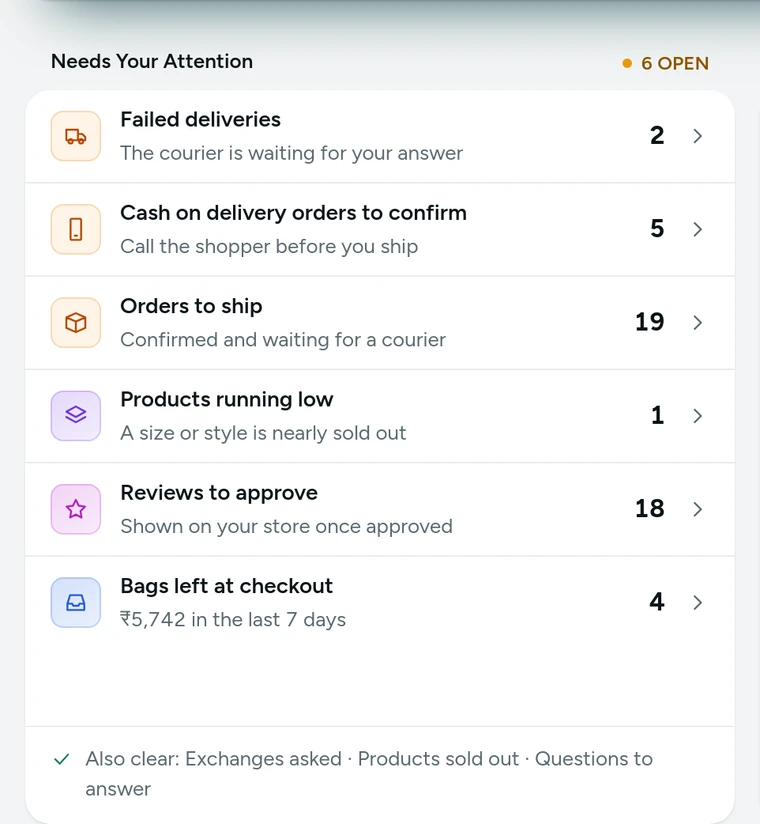
Needs Your Attention on Home, with counts and links to each queue, on Kosha, a demo store on Mercayo with sample orders. Check Today Against Yesterday
Today So Far compares sales with yesterday at the same time and with yesterday's whole day, draws sales through the day against yesterday's, and shows visitors on the store now. It refreshes every minute while Home is open.
Change the Dates
Use Dates for another range. The cards follow; the page stays on screen, dimmed, while the new numbers load. The range is part of the page's address, so Back and a shared link keep it.
Go Deeper When You Need To
Orders by Status opens the orders list for each status, and a card's View all opens its full list. For the full picture, View Analytics opens Analytics with the same numbers in ten tabs.

Settings
Settings You Control
All are under Settings → Admin and Reports → Home Dashboard.
Mercayo
Mercayo's Controls
Both Home settings follow Mercayo's rule: Mercayo's override for your store if there is one, then your choice, then the default; Mercayo's team can force or limit them for a store with a written reason that is logged. What each person sees on Home is decided by your store's roles, part by part, and checked by the database itself, so a role without the right to see reports never receives the money figures at all.
Limits today
Good to Know Before You Start
- Arranging is per person and per store; a store can switch arranging off for everyone.
- Visitor numbers show only while the store records visits.
- Home shows the store's own numbers; there is no view across several stores at once.
Questions
About Home Dashboard
Do Home and Analytics show the same numbers?
Yes. Home's summary and Today So Far are the same figures Analytics uses, for the same dates, and the sales chart adds up to the summary to the paisa.
What does my packing team see on Home?
What their role allows: a role that can see orders but not reports gets the queues (orders to ship, COD to confirm, failed deliveries, exchanges) and the recent activity, with no money figures.
When does a product count as running low?
When any of its sizes or styles has 5 or fewer left, to start with. Change the number in Settings → Admin and Reports → Home Dashboard, or set 0 to turn the row off.
Why is a card missing from my Home?
A card with nothing to show is left out rather than shown empty, and a card your role does not cover is not drawn. A new store sees "Your first sale will show here" until its first order.
What is the Sample data pill on my Home?
While your store has sample orders (added so you can see Home and Analytics with a busy store), the pill says the numbers include them. Delete the sample data from the setup guide whenever you like, and the numbers go back to your own orders only.
How fresh is Home?
Every change that moves a number marks its day, and that day is worked out again when Home loads; a change made in your admin shows at once. Today So Far refreshes every minute while Home is open.
Related
Related Features
- Store AnalyticsTen tabs of sales, orders, products, customers, traffic, discounts, GST, stock and live numbers, each with one clear definition and compared over time.
- Live ViewVisitors now, bags and checkouts in the last 5 minutes, today's sales against the same time yesterday, the latest orders and where visitors landed.
- OrdersStatus tabs, saved views your team shares, search by number, phone or name, a money summary, bulk actions, and an order page with one clear next step.
- Setup Guide and LaunchSign up with a one-time code, follow a setup guide ticked from your real store data, try a test order, and launch when the essentials are done.
- COD Confirmation CallMark new cash on delivery orders Unconfirmed until your team has phoned the shopper, with a warning when the shopper has refused parcels before.
More in Analytics: Store Analytics · Live View · Reports · Order Attribution · Product Insights
Try It on Your Own Store
Every feature is in every plan, free for 14 days.