Reports
Thirteen Reports, Ready for Your Spreadsheet
Your accountant wants a file, your marketing partner wants another, and you want to look before you send. The reports library has thirteen reports for any dates you choose: view one in the admin, or download it as a CSV that opens cleanly in Excel or Google Sheets.
- In every plan
- Free for 14 days


Kosha is a demo store on Mercayo. Its products, orders and customers are sample data.
In short
What It Does
Analytics → Reports lists every report your role may open, in four groups:
| Group | Reports |
|---|---|
| Sales | Sales by Day, Sales by Month, Sales by Product, Sales by Category, Sales by State |
| Marketing and Traffic | Sales by Channel, Discounts, Landing Pages |
| Tax and Refunds | GST by Rate, HSN Summary, Refunds |
| Customers and Stock | Customers, Stock |
Each report covers the dates you choose at the top. Press a report's name to see it as a table in the admin (the first 100 rows), or DOWNLOAD CSV for all of it, up to 10,000 rows. Every Analytics tab has EXPORT for its own report, too.
The numbers are the same as in Analytics, from the same definitions: a sale on the day it is confirmed, take-backs on their own day, net sales after discounts, cancellations, returns to origin and returns.
The files are made to be opened safely:
- Money in rupees with two decimals, rates as percent numbers, dates as your store's days.
- ₹ and Indian scripts show correctly in Excel.
- A cell that a spreadsheet would read as a formula is written as plain text, so a shopper's name can never run as a formula on your accountant's computer.
- Column names and values (payment methods, channels, devices, new or returning) are in your store's own words.
What Each Report Holds
- Sales by Day and Sales by Month: orders, gross, discounts, take-backs, net sales, delivery, GST and total sales for each day or month.
- Sales by Product and Sales by Category: orders, items and net sales of each (a product in two categories counts in both).
- Sales by State: orders and total sales by the state delivered to.
- Sales by Channel: visits, orders and sales by where visitors came from and their device.
- Discounts: uses, amount given and sales of each discount and code.
- Landing Pages: visits, bags, checkouts and orders by the first page of the visit (last 30 days).
- GST by Rate: taxable value, CGST, SGST and IGST by rate and supply. HSN Summary: items, taxable value and GST by HSN code and rate.
- Refunds: every refund with its order, method and reason.
- Customers: each shopper's orders and spend in these dates.
- Stock: every size and style with stock on hand, held, price, cost and items sold.
Newer reports include Profit by Product (net sales, the cost of units sold and the margin, from each variant's cost kept with every order line), Top Searches and Searches with No Results (what shoppers type in your store's search, so you can add the products or redirects they look for), and Credit Notes (every credit note issued, the invoice it reverses and why). Each follows the same rights as the rest of the library.
For your store
Why It Matters
Most small Indian stores work with a CA, a part-time accountant or a marketing agency. They need clean files, not screenshots: GST by rate and the HSN summary for the return, refunds with their reasons, sales by state for planning stock, sales by channel to judge an ad budget.
Downloading those from a single place, for any dates, with numbers that match the screen, saves hours every month and settles arguments before they start. Rights are respected too: a Customers report downloaded by someone without the right to export contacts comes without phone numbers and emails, and the library says so before they press the button.
Step by step
How It Works
Open the Reports Library
Open Analytics → Reports (Reports sits under Analytics in the menu). Choose the Dates at the top; "Each report covers these dates." It opens on your store's default range, the last 30 days to start with.
Look Before You Download
Press a report's name, such as Sales by Day, to see it as a table: "The first 100 of 2,345 rows. Download the file for all of them." Each report says what it holds, for example "Taxable value, CGST, SGST and IGST by rate and supply" for GST by Rate.
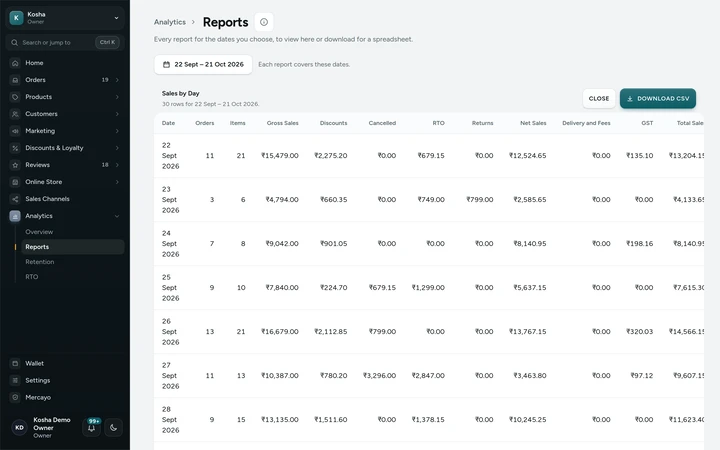
Sales by Day viewed in the reports library, on Kosha, a demo store on Mercayo with sample orders. Download the CSV
Press DOWNLOAD CSV beside the report. The file is named after your store, the report and the dates, for example kosha-sales-by-day-2026-09-19-to-2026-10-18.csv. A report longer than 10,000 rows stops there and says so; choose fewer dates for the rest.
Send the Tax Files to Your Accountant
GST by Rate and HSN Summary are worked out from each order line's own GST split, frozen when the order was placed. They are a check for your return; the return itself is filed from your GST invoices and their export.
Export Every Order When You Need It
For every order with its full details, use the orders list's own export: the library links to it under "Need every order with its details?".

Settings
Settings You Control
All are under Settings → Admin and Reports → Analytics.
Mercayo
Mercayo's Controls
Reports read the same figures as Analytics, and Mercayo's team can force or limit the opening dates for a store like any setting, with a reason that is logged. Who sees which report is decided by your store's own roles, checked by the database for every report: all reports need the right to see reports; Refunds also needs orders, Customers also needs customers (and its phone and email columns only with the right to export contacts), and Stock also needs products.
Limits today
Good to Know Before You Start
- A report holds at most 10,000 rows; choose fewer dates for longer ones.
- The admin shows the first 100 rows of a report; the CSV has all of them.
- Landing Pages covers the visits of the last 30 days only.
- Profit by Product uses the cost of each variant kept with every order line; lines sold before a cost was given use the cost given later, and the report says how many.
- Reports cannot be scheduled or emailed automatically; you download them when you need them.
Questions
About Reports
Can I file my GST return from these reports?
Use them to check. GST by Rate and HSN Summary come from each line's own frozen GST split, but the return is filed from your issued invoices and credit notes; their export has the GSTR-1 files. See GST invoices.
Will the CSV open properly in Excel?
Yes. The file carries a marker that tells Excel it is UTF-8, so ₹ and Indian scripts show correctly, and money is in rupees with two decimals.
Why does my Customers report have no phone numbers?
Phone and email columns are included only for people whose role may export contacts. Without that right, the library marks the report WITHOUT CONTACTS before you download it.
Do the reports match the Analytics screen?
Yes. They are worked out from the same daily figures with the same definitions, so a report for the same dates adds up to the same totals.
Can my accountant download reports themselves?
Yes, if you invite them as a team member with a role that includes reports. You can leave out orders, customers or products so they see only the reports they need. See staff and roles.
Which days does a report count?
Your store's calendar days in India time. A sale is counted on the day its order was confirmed (a COD order when placed, a prepaid order when paid), and cancellations, returns to origin and refunds on the day they happened, so a report for last month never changes when a refund comes in this month.
Is there a report for each discount?
The Discounts report lists each discount and code with its uses, the amount given and its sales. Each offer also has its own report in its editor; see offer reports.
Related
Related Features
- Store AnalyticsTen tabs of sales, orders, products, customers, traffic, discounts, GST, stock and live numbers, each with one clear definition and compared over time.
- GST InvoicesEvery order gets the right GST document, a tax invoice or a bill of supply, numbered without gaps per financial year, as a PDF for you and your shopper.
- Tax SettingsSet your registration type, state, GSTIN and legal name, choose whether prices include GST, and keep a rates table by HSN code that every bag and order uses.
- Import and ExportImport products and customers from Shopify, WooCommerce or Dukaan with a preview first, copy their pictures, and export your store's data as one ZIP.
- Staff and RolesInvite people by email or phone, give them roles with exactly the rights they need, switch access off at once, and hand over ownership safely.
More in Analytics: Store Analytics · Live View · Order Attribution · Home Dashboard · Product Insights
Try It on Your Own Store
Every feature is in every plan, free for 14 days.